Appendix A. "Setting Up" ChatGPT
In this chapter, we will get "set up" with ChatGPT. ChatGPT is interacted with on a website, so there isn't any software to install and configure. However, you do need to have an account to get started. So, we will walk through setting up an account and entering an initial prompt.
A.1 Creating a ChatGPT account
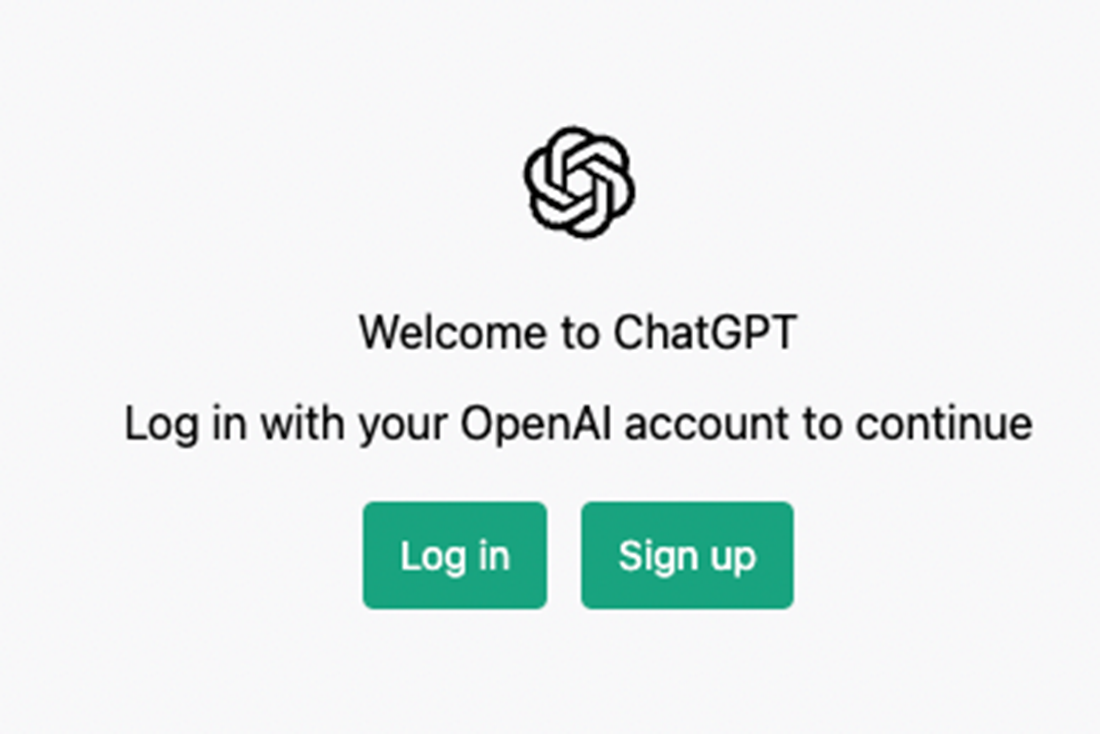
First, let's open a web browser and navigate to https://chat.openai.com/auth/login. You will be prompted to either login or create an account. We will choose to create an account.
Figure A.1 On the ChatGPT homepage, you will be asked whether to Log in or create a new account.
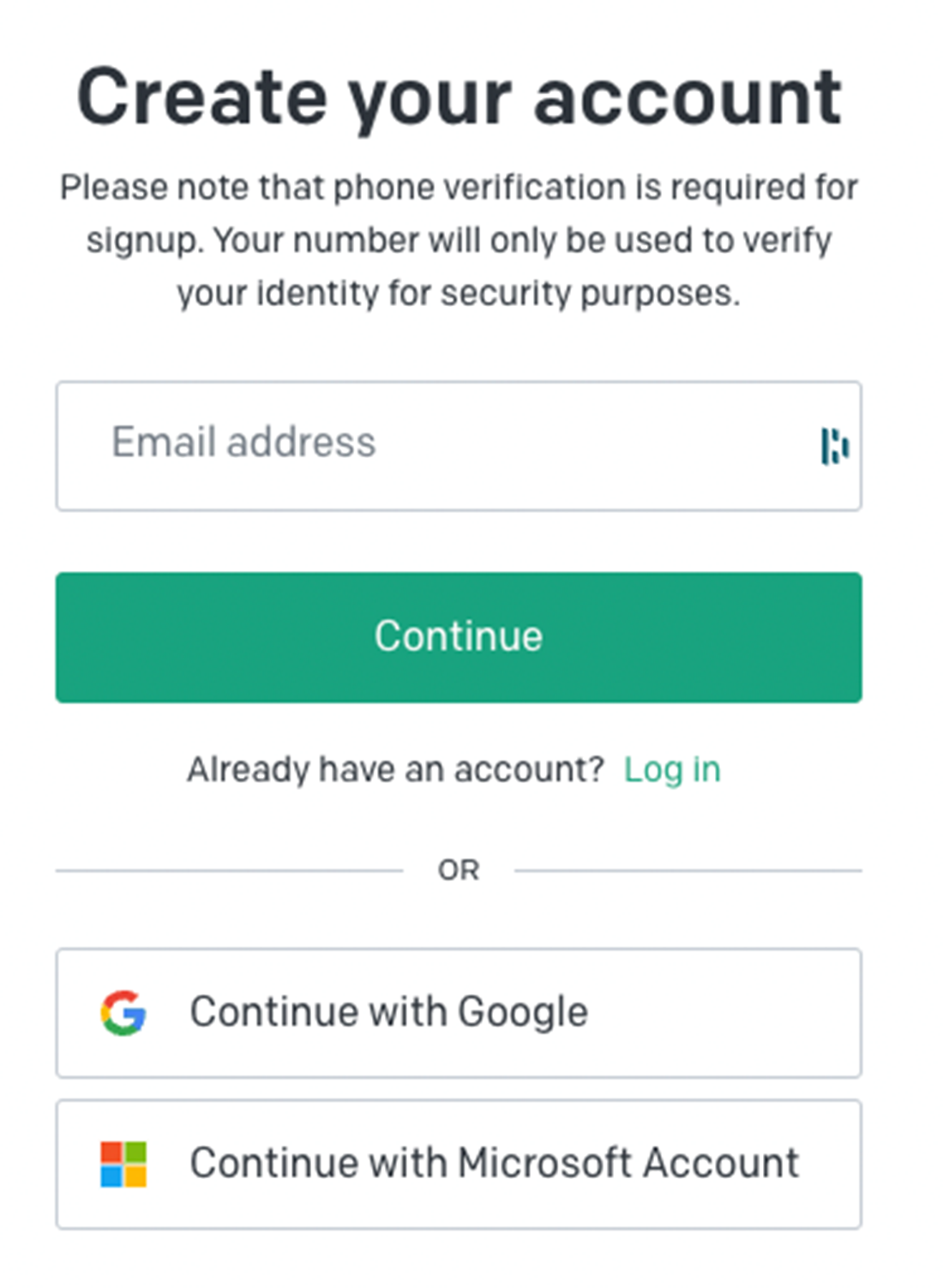
You will be asked to create an account using either your email, your Google account – should you have one – or your Microsoft account – again if you have one. Select each method that you prefer.
Figure A.2 You have several options as to how to create an account. Select the method that is most appropriate for you.
A.2 Creating a ChatGPT account with your email address
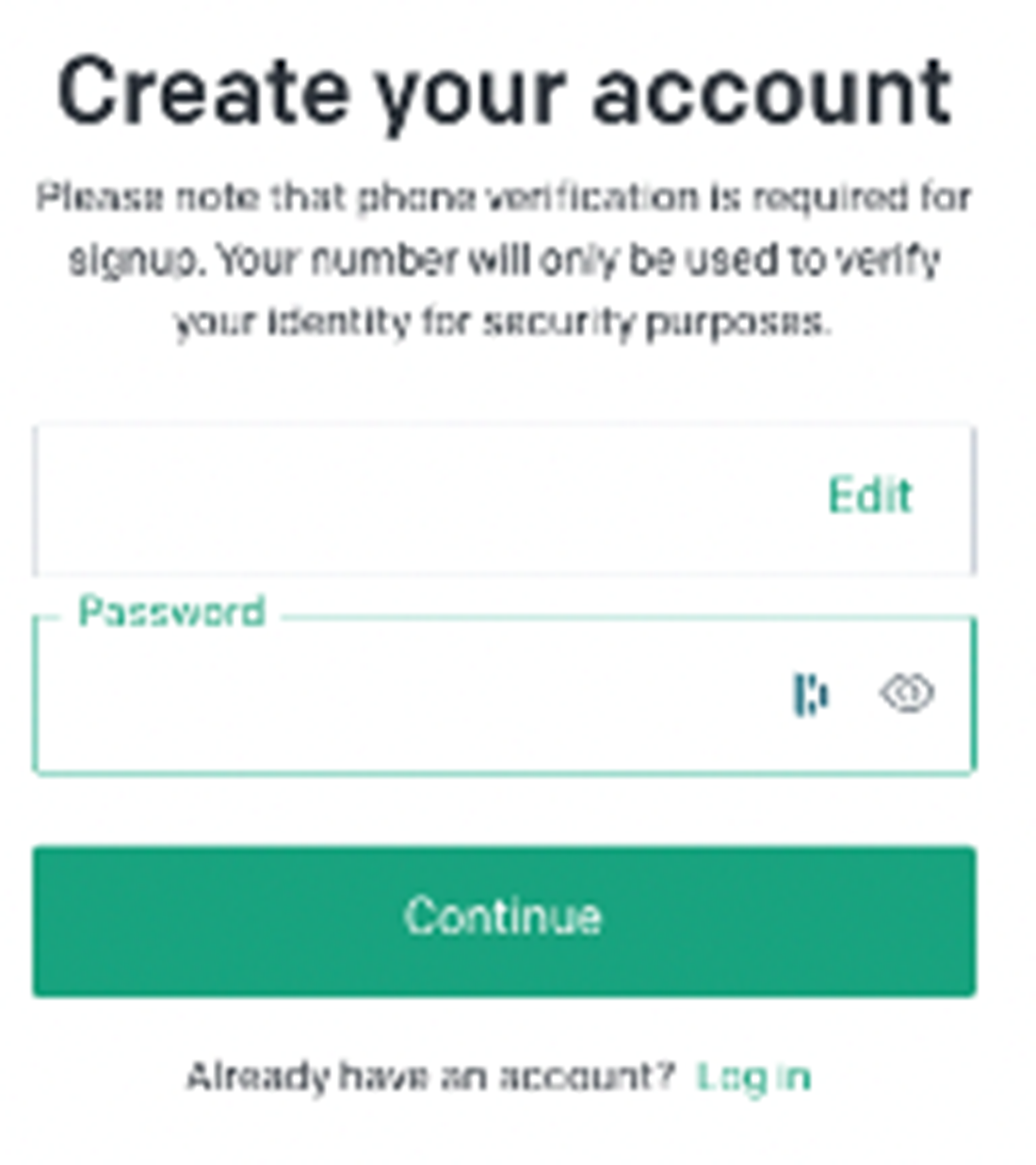
If you choose to create an account with your email address, rather than use an existing account, then you will enter your email address. You will then be prompted for a password.
Note
You will need a phone capable of receiving text message in order to use this method.
Figure A.3 Enter a complex, difficult to guess password.
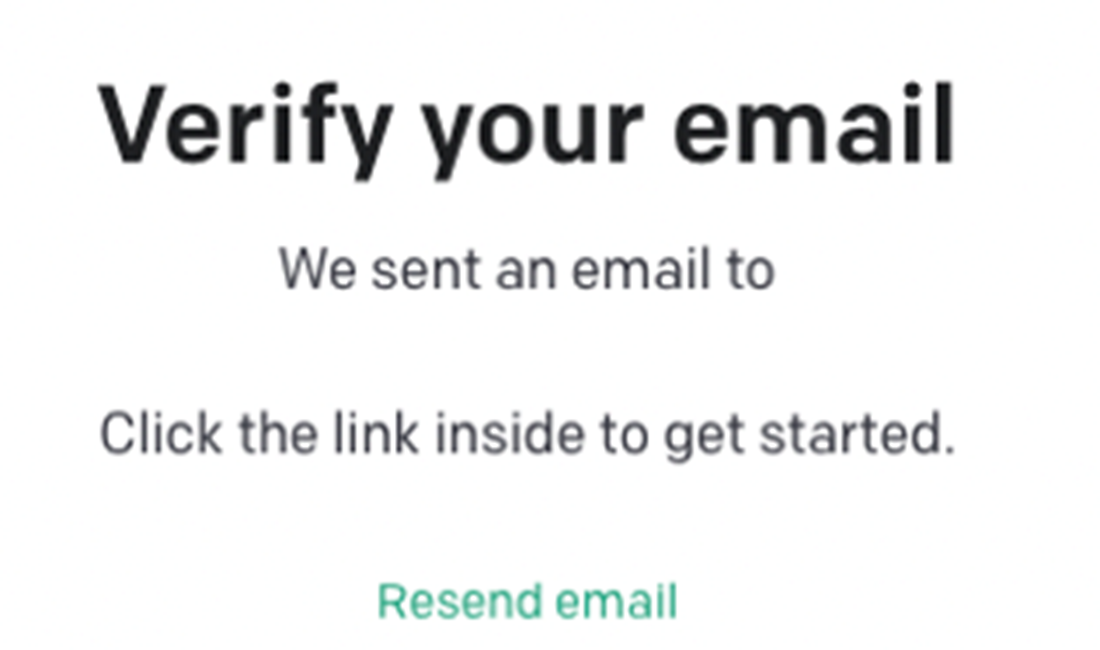
Next, you will receive a prompt that you must verify your email address.
Figure A.4 OpenAI will require that you verify your email address.
You should open your email and click on the link.