A Adding an AWS IAM Profile
As AWS keeps permissions fairly separate, to enable the CLI to have access to other services, adding IAM roles is necessary. This will give the CLI the correct permissions to create the skill fulfillment.

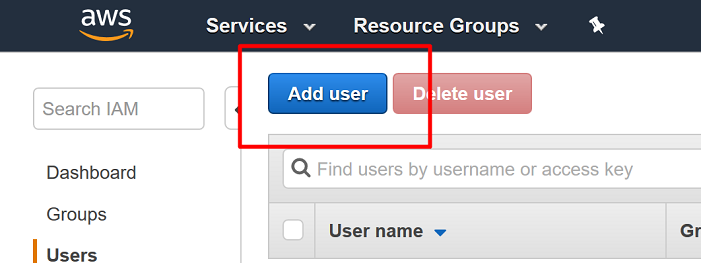
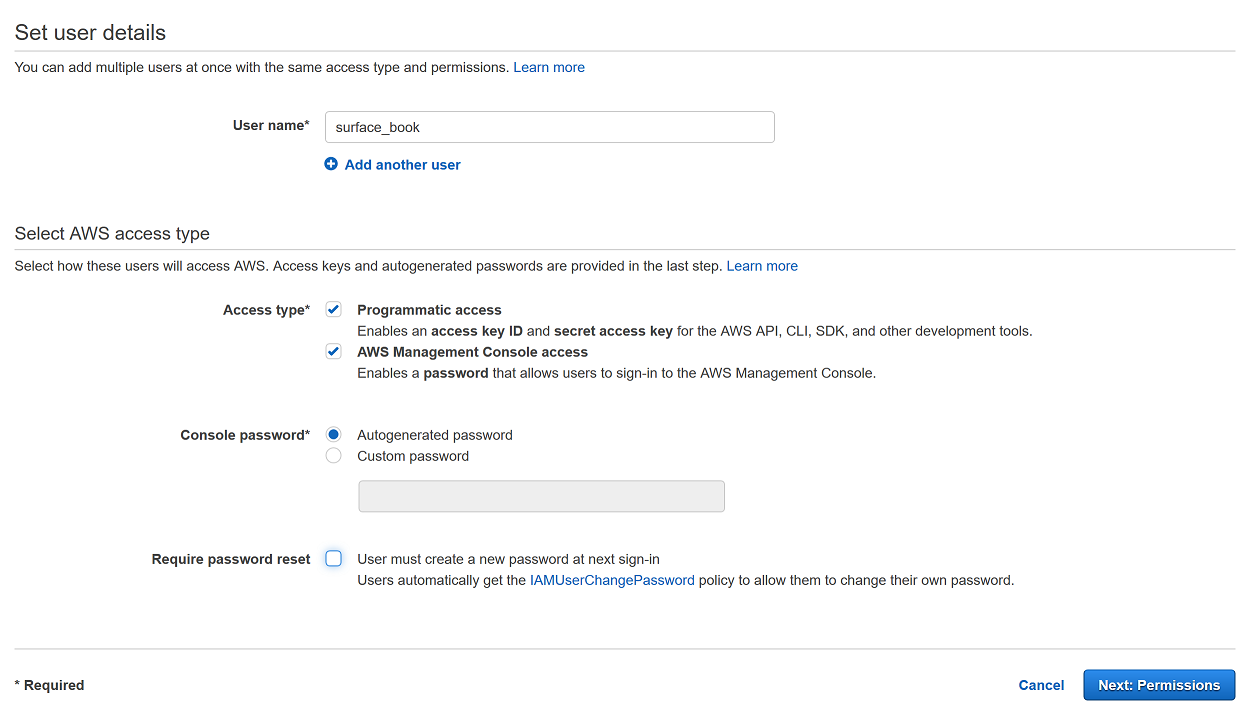
Head to AWS and use the search bar on the console welcome page to find Identity and Access Management (IAM). On the left-hand navigation, you will see and select "Users." On the next page, click on "Add User." Choose any user name you like (such as the name of your local machine) and select both "Programmatic access" as well as "AWS Management Console access`." You can leave the password as autogenerated and uncheck the box that requires a reset of the password on next login. Finish up on this page by clicking on the "`next" button.
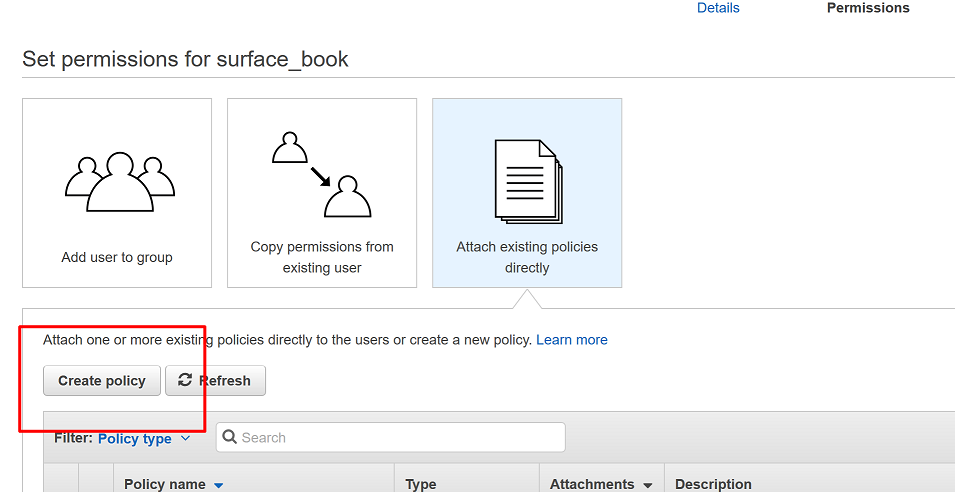
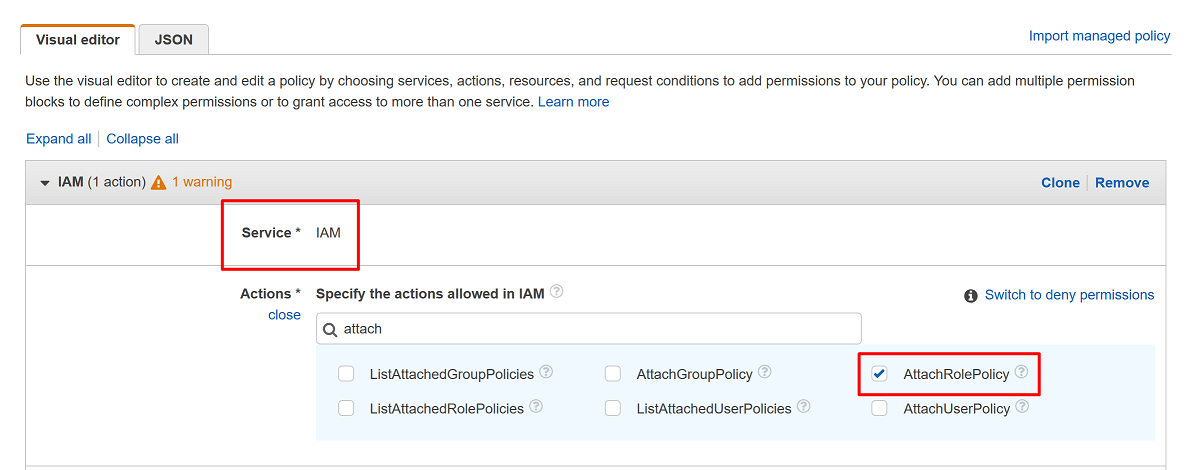
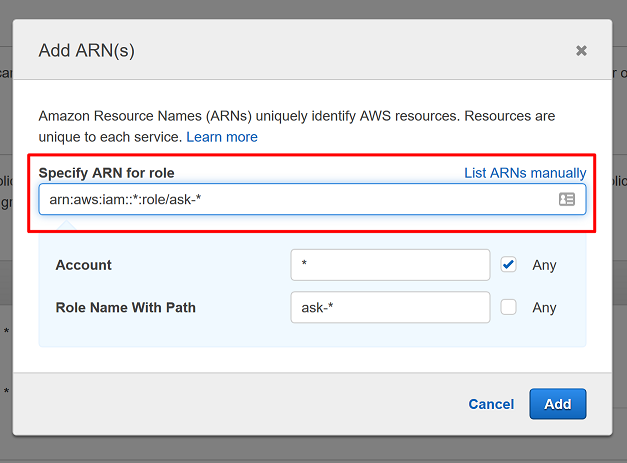
As you saw when setting up a lambda function, permissions are granted on a granular basis. You are unlikely to have already set up a group with the exact permissions needed, so choose "Attach existing policies directly" before clicking on "Create policy." In the next screen, you can either use the visual editor to select permissions one-by-one or you can create a policy by providing a JSON object. Do not close the previous tab.
If you choose to use the visual editor, you need to apply each of the following permissions, all with the "Allow" effect.