concept device in category android
This is an excerpt from Manning's book Android in Action, Third Edition.
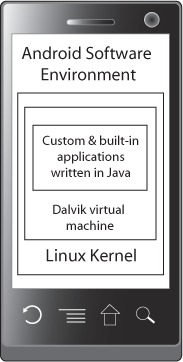
One feature of the Android platform is that there’s no difference between the built-in applications and applications that you create with the SDK. This means that you can write powerful applications to tap into the resources available on the device. Figure 1.1 shows the relationship between Android and the hardware it runs on. The most notable feature of Android might be that it’s open source; missing elements can and will be provided by the global developer community. Android’s Linux kernel-based OS doesn’t come with a sophisticated shell environment, but because the platform is open, you can write and install shells on a device. Likewise, multimedia codecs can be supplied by third-party developers and don’t need to rely on Google or anyone else to provide new functionality. That’s the power of an open source platform brought to the mobile market.
Figure 1.1. Android is software only. By leveraging its Linux kernel to interface with the hardware, Android runs on many different devices from multiple cell phone manufacturers. Developers write applications in Java.
Platform vs. Device Throughout this book, wherever code must be tested or exercised on a device, a software-based emulator is typically employed. An exception is in chapter 14 where Bluetooth and Sensors are exercised. See chapter 2 for information on how to set up and use the Android emulator.
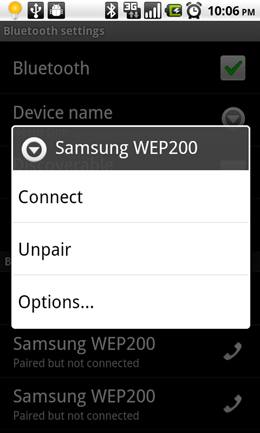
A long click on one of the entries in the Bluetooth devices list presents options for further operations, with the specific choices depending on the device. For example, selecting one of the Samsung entries presents the options shown in figure 14.2.
In order to pair with a device, you need to first scan for it. Once it’s been added to the list, you can select it to initiate the pairing. Figure 14.3 shows the LEGO robot controller prompting for a PIN after a pairing request.
#$ adb devices
List of devices attached
emulator-5554    device
HT845GZ49611     device
This is an excerpt from Manning's book Android in Practice.
Table 1.4. Some of the key Android command-line tools
Tool
Location
Description
aapt <sdk>/platform-tools Android Asset Packaging Tool—Used to compile resources into binary assets, and to package archives (APK files). aidl <sdk>/platform-tools Android Interface Definition Language—Compiles .aidl files that are used to define interfaces for Android Inter-Process Communication (IPC). dx <sdk>/platform-tools Used to read .class bytecode and transform it into Android bytecode (which is stored in .dex files). adb <sdk>/platform-tools Android Debug Bridge—A client/server application used to interact with and manage devices and emulators. Provides many subcommands. android <sdk>/tools Used to create and delete Android Virtual Devices (emulator instances). Also used to create and update projects from the command line. Also used to manage SDK platform components. ddms <sdk>/tools Dalvik Debug Monitor Service—Used for debugging and inspecting running Android applications. Provides an interface to logging, memory statistics, thread statistics, state information, and more. Also used to send mock call, SMS, and location data to a device or emulator instance. draw9patch <sdk>/tools Used to draw Nine Patch images. emulator <sdk>/tools QEMU-based mobile device emulator. hierarchyviewer <sdk>/tools Used to view and optimize UI layout hierarchies. layoutopt <sdk>/tools Used to quickly analyze and recommend layout optimizations. mksdcard <sdk>/tools Used to create images to be used as external storage (SD card) by emulator instances. sqlite3 <sdk>/tools Used to explore and interact with SQLite databases. traceview <sdk>/tools Used to analyze trace files, which are profiling snapshots of Android applications.
Listing 14.2. Listing available targets and other project information
matthias:[HelloAnt]$ ant -p Buildfile: /Users/matthias/Projects/eclipse/HelloAnt/build.xml [setup] Android SDK Tools Revision 9 [setup] Project Target: Google APIs [setup] Vendor: Google Inc. [setup] Platform Version: 2.2 [setup] API level: 8 [setup] [setup] ------------------ [setup] Resolving library dependencies: [setup] No library dependencies. [setup] [setup] ------------------ [setup] [setup] WARNING: No minSdkVersion value set. Application will install on all Android versions. [setup] [setup] Importing rules file: tools/ant/main_rules.xml Main targets: clean Removes output files created by other targets. compile Compiles project's .java files into .class files debug Builds the application and signs it with a debug key. install Installs/reinstalls the debug package onto a running emulator or device. If the application was previously installed, the signatures must match. release Builds the application. The generated apk file must be signed before it is published. uninstall Uninstalls the application from a running emulator or device. Default target: help
Not to be confused with the monkey tool (see chapter 13), the monkeyrunner is a scripted and extensible application that allows you to control an emulator or device in a programmatic fashion. Similar to Android’s instrumentation framework, it allows you to steer flow of an application by launching activities and sending input events, but it does so from outside the Android framework, much like a real-world user would. Using monkeyrunner, you can install or uninstall application packages, interact with a device’s command shell, and even capture screenshots of the current screen. Think of monkeyrunner as a remote control for Android.