concept event in category android

This is an excerpt from Manning's book RxJava for Android Developers.
The code in the event handler executes immediately, or in other words, synchronously. But the second condition of waiting for 150 ms before executing the search is dependent on time passed after it was called. How do you deal with passing time? Threads?
Whether using event observables is functional reactive programming (FRP), or even reactive programming, it’s a debate that has a point, because events tend to cause issues that are hard to debug.
Reactive programming, as well as RxJava, has been criticized for not being true FRP. One of the reasons is that event processing isn’t generally considered to be FRP and sometimes makes handling simultaneous changes complicated. Events are important in UIs, though, which is why we use the term reactive and keep it practical.
To communicate the difference, though, you’ll from now on use the new dashed arrows in cases where you’re still in the process of handling events and interpreting them into a state change. As a rule of thumb, it’s best to get out of the event processing part as soon as possible.
This is an excerpt from Manning's book Android in Action, Third Edition.
Speaking to the rapid rate of phone turnover and accessories hitting the market, another advantage of using Linux as the foundation of the Android platform stack is that it provides a hardware abstraction layer; the upper levels remain unchanged despite changes in the underlying hardware. Of course, good coding practices demand that user applications fail gracefully in the event a resource isn’t available, such as a camera not being present in a particular handset model. As new accessories appear on the market, drivers can be written at the Linux level to provide support, just as on other Linux platforms. This architecture is already demonstrating its value; Android devices are already available on distinct hardware platforms. HTC, Motorola, and others have released Android-based devices built on their respective hardware platforms. User applications, as well as core Android applications, are written in Java and are compiled into byte codes. Byte codes are interpreted at runtime by an interpreter known as a virtual machine (VM).
The last thing this initial Activity demonstrates is our first explicit use of event handling. UI elements support many types of events, many of which you’ll learn about in section 3.2.7. In this instance, we’re using an OnClickListener with our Button in order to respond to button clicks.
Events are used to change the focus and for many other actions. We’ve already implemented several onClickListener() methods for buttons in listing 3.2. Those OnClickListener instances were connected to button presses. They indicated events that said, “Hey, somebody pressed me.” Focus events go through this same process when announcing or responding to OnFocusChange events.
Events have two halves: the component raising the event and the component (or components) that respond to the event. These two halves are variously known as Observable and Observer in design-pattern terms, or sometimes subject and observer. Figure 3.7 is a class diagram of the relationships in this pattern.
Figure 3.7. A class diagram depicting the Observer design pattern. Each Observable component has zero to many Observers, which can be notified of changes when necessary.
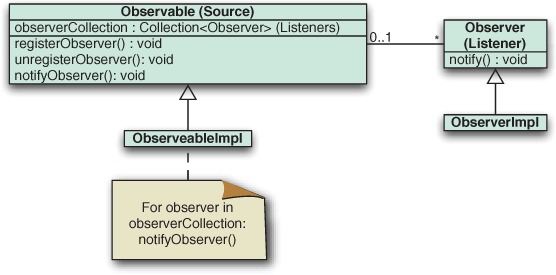
An Observable component provides a way for Observer instances to register. When an event occurs, the Observable notifies all the Observers that something has taken place. The Observers can then respond to that notification however they see fit. Interfaces are typically used for the various types of events in a particular API. An Android Button represents this as follows:
This is an excerpt from Manning's book Android in Practice.
Activity— The foreground; they dictate the UI, and handle events and interaction
The adb shell command routes whatever you pass to it to the device’s command shell (see appendix A). In this case, we’re invoking the Monkey tool on the device. The Monkey tool expects two argument sets: a list of options, and the number of events it should generate (in this case 500). One option you always want to pass is the name of the application package you’re targeting, which is achieved with the –p option. Before getting into more detail, let’s run this command and see what happens (see figure 13.13).
Figure 13.13. Three snapshots taken randomly while the Monkey was exercising the DealDroid application. The Monkey tool will make its way through the application in a pseudorandom manner, pressing keys and pushing buttons with no particular goal or plan in mind.
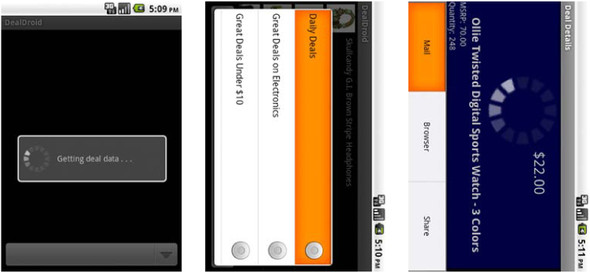
It’s best if you run the example yourself to get a feel for how the Monkey works, but here’s what we saw: the three screen dumps in figure 13.13 were taken at random points in time while the Monkey was exercising the application, and they’re in chronological order from left to right. The stress test always starts with invoking the launcher Activity—in our case, the DealList. The DealList displays a modal dialog, so any interactions with the application will have no effect until the deals have loaded, but technically the Monkey is still busy sending events. After the list of deals had been loaded, the Monkey decided to first change the screen orientation and then press the spinner box and select the first entry. After the list had changed, it selected a deal item, so the DealDetails were started. On that screen, the Monkey spent a few seconds in the options menu, selecting different entries.
matthias:[~]$ adb shell monkey -p com.manning.aip.dealdroid 500
Events injected: 500
## Network stats: elapsed time=22791ms (22791ms mobile, 0ms wifi, 0ms not
     connected)
This diagnostic output tells us that the application failed with a crash, but we don’t know which event triggered it. “Event 12” is hardly useful information; it could’ve been anything. In order to get more detailed information about the events fired, you can invoke the Monkey with the –v (verbose logging) option. This will log every event that’s fired, and also include a summary detailing the distribution of event kinds that were used:
matthias:[~]$ adb shell monkey -p com.manning.aip.dealdroid -v 500
:Monkey: seed=0 count=500
:AllowPackage: com.manning.aip.dealdroid
:IncludeCategory: android.intent.category.LAUNCHER
:IncludeCategory: android.intent.category.MONKEY
// Event percentages:
//   0: 15.0%
//   1: 10.0%
//   2: 15.0%
//   3: 25.0%
//   4: 15.0%
//   5: 2.0%
//   6: 2.0%
//   7: 1.0%
//   8: 15.0%
...
Apparently the events fired by the Monkey aren’t as random as we initially suggested. That’s true: they’re pseudorandom, and they can be steered to happen more often or not, depending on the type of event. Pseudorandom in this case means that the Monkey will use a seed in order to randomize the sequence of the events fired. You can provide this seed manually via the –s option. An equal seed means the Monkey will fire the exact same sequence of events. This means that when a test fails, you can reproduce it by rerunning the Monkey with the same seed.