concept instance in category android

This is an excerpt from Manning's book RxJava for Android Developers.
An application consists of distinct tasks the user performs. These could, for instance, be choosing a contact to whom to send a message or searching for a location on a map.
For the purposes of Android UIs, Flowable is definitely overkill, and in general we don’t use it in this book. If you’re building an application to do things like processing thousands of messages from an IoT sensor, for instance, you might need flowables to manage the flow, but in most cases we’re just fine with the default observable that uses a simplified mechanism that queues all items in a buffer.
This is an excerpt from Manning's book Android in Action, Third Edition.
In this example application, the setContentView method creates the primary UI, which is a layout defined in main.xml in the /res/layout directory. The EditText view collects information, which in this case is an address. The EditText view is a text box or edit box in generic programming parlance. The findViewById method connects the resource identified by R.id.address to an instance of the EditText class.
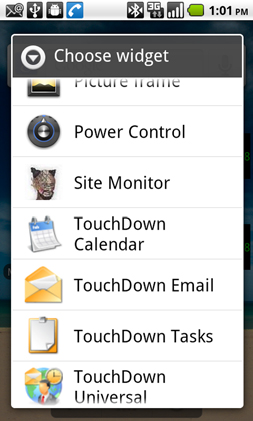
From this menu, select Widgets, and available AppWidgets are displayed in a scrollable list, as shown in figure 17.3. Tap on the desired widget to add an instance to your home screen.
An AppWidget runs under another application, namely an AppWidgetHost, which is typically the device’s home screen. The AppWidget code is implemented in an instance of an AppWidgetProvider, which is an extension of the BroadcastReceiver class. Recall from prior chapters that a BroadcastReceiver is defined as a receiver in the AndroidManifest.xml file. The AppWidgetProvider is a BroadcastReceiver with a special IntentFilter and a metadata tag that further defines the AppWidgetProvider’s characteristics. An AppWidget may be implemented in code as a BroadcastReceiver alone, yet the AppWidgetProvider provides some convenience wrapper functionality and is the recommended means of coding an AppWidget.
This is an excerpt from Manning's book Android in Practice.
One thing Linux is popular for, especially in multiuser environments, is its user account management and—closely related—its permission and privacy model. Permissions in Linux are handled on a per-file basis. This may sound restrictive, but it isn’t, because we didn’t yet mention a rather curious aspect about Linux (in fact, any UNIX-based OS): everything in Linux is a file. Disks and processes are represented and controlled through files, applications and their settings are files, even directories are files. Hence, you can control access to almost anything by looking at one or more files. This is reflected in Linux’s security model; permissions are stored directly in the file-system. Every file permission mask controls three security realms: user, group, and others (corresponding to the file’s owner, the file’s user group, and everyone else, respectively). For each of these realms, you can set read, write, and execute permissions separately. A file could for instance be writable by its owner, but not by anyone else. Running the ls -l command on a file or directory, as seen in figure 1.10, shows the permissions, and a few other notable things.
Before using our helper class, we must import it into the script as seen before
. We can also access the hello variable set by the Plugin class; it’s set for us before entering script execution, which is convenient
. The code block that was executing the screen flow now uses our new helper functions and has become less clunky. For instance, you can now specify the back key as back instead of KEYCODE_BACK
.