concept mapactivity in category android
This is an excerpt from Manning's book Android in Action, Third Edition.
Specifically, you’ll connect to the National Data Buoy Center (NDBC) to retrieve data from buoys and ships located around the coastline in North America. Thanks to the NOAA-NDBC system, which polls sensors on buoys and makes that data available in RSS feeds, you can retrieve data for the vicinity, based on the current location, and display condition information such as wind speed, wave height, and temperature. Although we won’t cover non-location-related details in this chapter, such as using HTTP to pull the RSS feed data, the full source code for the application is available with the code download for this chapter. Our Wind and Waves application has several main screens, including an Android MapActivity with a MapView. These components are used for displaying and manipulating map information, as shown in figure 11.1.
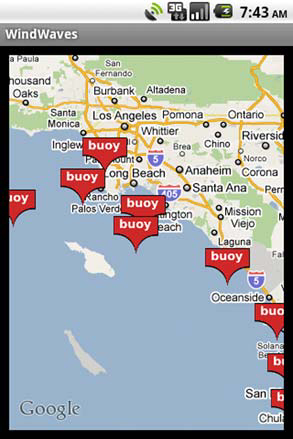
The MapViewActivity screen will look like figure 11.6, where several map Overlay classes display on top of a MapView within a MapActivity.
Figure 11.6. The MapViewActivity from the Wind and Waves application shows a MapActivity with a MapView.
To use the com.google.android.maps package on the Android platform and support all the features related to a MapView, you must use a MapActivity.
A MapActivity defines a gateway to the Android Google Maps–like API package and other useful map-related utilities. It handles several details behind creating and using a MapView so you don’t to have to worry about them.
The MapView, covered in the next section, offers the most important features. But a MapActivity provides essential support for the MapView. It manages all the network- and filesystem-intensive setup and teardown tasks needed for supporting the map. For example, the MapActivity onResume() method automatically sets up network threads for various map-related tasks and caches map section tile data on the filesystem, and the onPause() method cleans up these resources. Without this class, all these details would require extra housekeeping that any Activity wishing to include a MapView would have to repeat each time.
Your code won’t do much with MapActivity. Extend this class (as in listing 11.3), making sure to use only one instance per process, and include a special manifest element to enable the com.google.android.maps package. You may have noticed the uses-library element in the Wind and Waves manifest in listing 11.4:
<uses-library android:name="com.google.android.maps" />The com.google.android.maps package, where MapActivity, MapView, MapController, and other related classes such as GeoPoint and Overlay reside, isn’t a standard package in the Android library. This manifest element pulls in support for the Google maps package.
Once you include the uses-library element and write a basic Activity that extends MapActivity, you can start writing the main app features with a MapView and related Overlay classes.
This is an excerpt from Manning's book Android in Practice.
Once we have the basic capabilities in hand, we’ll build an application that uses Google APIs to determine our current location at any given time and then place markers on an interactive map. This will involve using a MapView and managing it from a MapActivity.
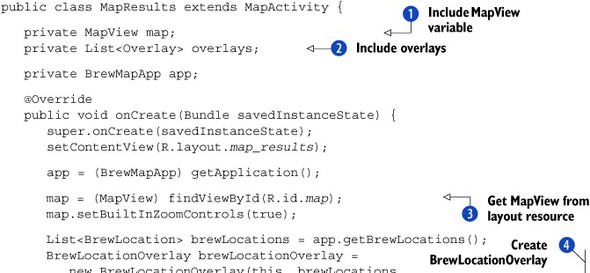
The process of including a MapView to display map data starts by extending MapActivity. For BrewMap we’ve named our implementation of MapActivity MapResults.