concept name in category android
This is an excerpt from Manning's book Android in Action, Third Edition.
Certain tasks within the Android platform require the application to have a designated privilege. To give an application the required permissions, use the <usespermission> tag
. (We’ll discuss this tag in detail in section 1.6.) The <receiver> tag contains the class name of the class implementing the BroadcastReceiver. In this example, the class name is MySMSMailBox, from the package com.msi.manning.unlockingandroid. Be sure to note the dot that precedes the name
. This dot is required. If your application isn’t behaving as expected, one of the first places to check is your Android.xml file, and look for the dot before the class name! The IntentFilter is defined in the <intent-filter> tag. The desired action in this example is android.provider.Telephony.SMS_RECEIVED. The Android SDK contains the available actions for the standard Intents. Also, remember that user applications can define their own Intents, as well as listen for them.
If you’ve owned mobile phones for a long time, you’ve probably noticed a gradual increase in the functionality of mobile contact applications. In the early days, people could only enter a name and a single phone number, similar to a speed-dial on a landline phone. Modern phones allow you to enter multiple numbers for each contact, as well as email addresses, photos, birthdays, and more. Not only does this provide greater convenience to consumers, who now can turn to a single source for all related information about a person; it also opens up many new opportunities for application developers, who can take advantage of the wealth of information on a phone to make their apps more useful and relevant.
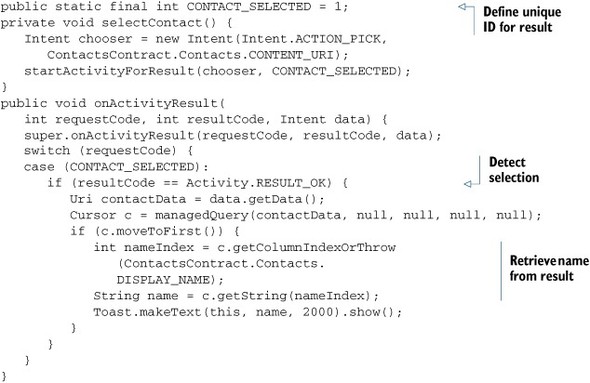
After the user selects a contact, the response returns to your activity’s onActivityResult() method. You can query this result to pull out information such as the contact’s name and ID, as shown in the following listing from a class called ContactPicker.
If you inspect the data returned by this cursor, you’ll notice that it doesn’t contain everything that you might expect from a contact. For example, though it includes fields for the name and photo, it won’t include any email addresses or phone numbers. As you saw in section 15.1.1, the open-ended style of contact record storage in Android requires contact data to be stored in a separate table from the actual contacts. Table 15.2 illustrates one hypothetical contacts table.
This is an excerpt from Manning's book Android in Practice.
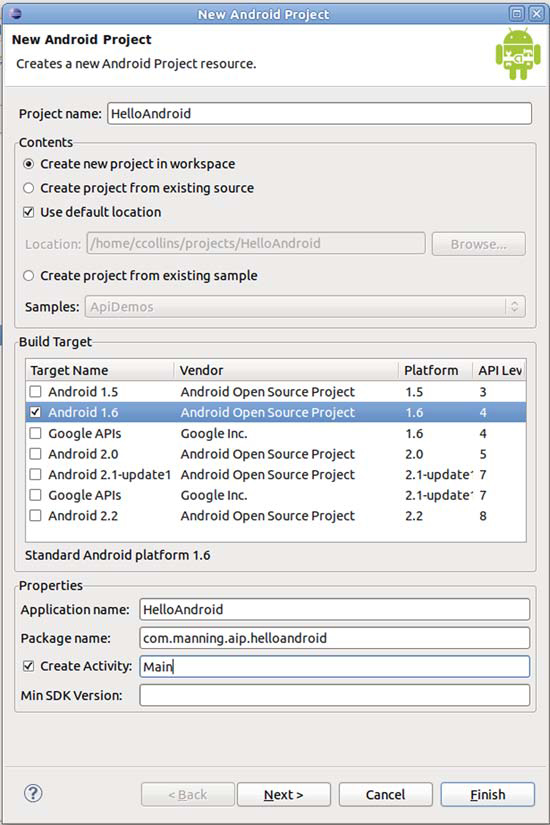
The next dialog that pops up in the IDE is the initial project properties screen. We’ll enter some basic information for our project, as seen in figure 1.5. The project properties you’ll need to create a new project include a Project Name (the name used to identify the project within Eclipse), and then a series of Android related inputs: Build Target, Application Name, Package Name, and Activity Name (labeled Create Activity in figure 1.5).
The names are straightforward, as is the Java package. The Build Target is more interesting. This is the Android SDK Platform that you had to install when you installed the SDK. The platform contains the particular dependencies and tools for a specific version of the Android API. You can install multiple platforms, and therefore build and test for different versions of the API, but you’re only required to have one. (We’ve picked Android 1.6, but for this simple project it doesn’t matter; any Target/platform will do.) The Create Activity setting is also worth touching on. If you check this, the ADT will create a template “Hello World” class and screen for you.
Every Ant build script starts with the project tag
. It takes a few optional parameters, such as the project name and a default target that will be used whenever you invoke Ant without passing it any target explicitly. A third argument not being used here, basedir, lets you specify the path that’s assumed as being the root for everything.
In Ant, parameters, constants, and variables for a build script are declared as properties. You can do that using the property tag
. Properties can be set in seven ways. The most common ways are to use the name and value attributes or read them from a Java properties file, as seen here. Of the two properties files here, local.properties and default.properties, at least the latter should look familiar to you: it’s the properties file the ADT (or the android tool) generates for every Android project. It contains settings such as the Android version your application targets. New is local. properties, which contains machine-specific settings, such as the absolute path to the Android SDK, that are required to build the application. Therefore, this file shouldn’t be checked into version control.