concept preference in category android

This is an excerpt from Manning's book Android in Action, Third Edition.
After you have a SharedPreferences variable
, you can acquire a reference through the Context
. Note that for each SharedPreferences object we get, we use a different constant value for the access mode, and in some cases we also add modes
. We repeat this coding for each mode we retrieve. Modes specify whether the preferences should be private, world-readable, or world-writable.
To modify preferences, you must get an Editor handle
. With the Editor, you can set String, boolean, float, int, and long types as key/value pairs
. This limited set of types can be restrictive, but often preferences are adequate, and they’re simple to use.
After storing with an Editor, which creates an in-memory Map, you have to call commit() to persist it to the preferences backing file
. After data is committed, you can easily get it from a SharedPreferences object. The following listing gets and displays the data that was stored in listing 5.1.
Each Linux file or directory has a type and three sets of permissions, represented by a drwxrwxrwx notation. The first character indicates the type (d means directory, - means regular file type, and other types such as symbolic links have unique types as well). After the type, the three sets of rwx represent the combination of read, write, and execute permissions for user, group, and world, in that order. Looking at this notation, you can tell which files are accessible by the user they’re owned by, by the group they belong to, or by everyone else on the device. Note that the user and group always have full permission to read and write, whereas the final set of permissions fluctuates based on the preference’s mode.
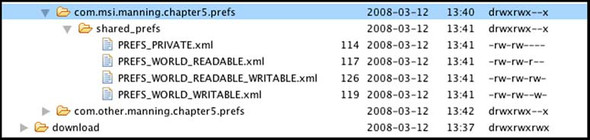
If you want to share simple application data from one Activity to another, use a SharedPreferences object. You can save and retrieve data, and also choose whether to make preferences private to your application or accessible to other applications on the same device.
This is an excerpt from Manning's book Android in Practice.
Multitasking offers the huge benefit of not having to exit an application when launching another, improving the overall user experience. This is important on platforms where interaction between applications is part of the system’s overall design, which is the case for Android. Android balances the potentially significant cost of multiple applications running simultaneously in a limited environment with some design choices. Specifically Android gives preference to applications the user is currently interacting with, or has used most recently, and all applications are run in a stack. We’ll learn more about the lifecycle of Android applications, and processes and tasks, in chapter 3, but the platform manages the system resources by balancing the most relevant applications.