concept screen in category android
This is an excerpt from Manning's book Android in Action, Third Edition.
Eclipse supports the concept of perspectives, where the layout of the screen has a set of related windows and tools. The windows and tools included in an Eclipse perspective are known as views. When developing Android applications, there are two Eclipse perspectives of primary interest: the Java perspective and the DDMS perspective. Beyond those two, the Debug perspective is also available and useful when you’re debugging an Android application; we’ll talk about the Debug perspective in section 2.5. To switch between the available perspectives in Eclipse, use the Open Perspective menu, under the Window menu in the Eclipse IDE.
Recall from chapter 1 that a screen is roughly analogous to an Activity, which means you’ll need three Activity classes, one for each screen. When complete, the three screens for the RestaurantFinder application will look like what’s shown in figure 3.2.
On every screen, all the views are placed in a hierarchical tree; every element can have one or more children, with a ViewGroup at the root. All the views on the screen support a host of attributes that we addressed in section 3.2.1. Dimensions—width and height—and other properties such as the margins and whether to use relative or absolute placement are based on the LayoutParams a view requests and what the parent can accommodate. The final layout reflects the cumulative dimensions of the parent and its child views.

This is an excerpt from Manning's book Android in Practice.
A layout resource is a special configuration file for the design and arrangement of visual elements on the screen. One handy aspect of Android development is that a lot of the time the UI can be declared in XML with a layout resource. This separates the presentation from the code (somewhat), and makes many UI elements reusable. The first layout resource we’re using for our Main Activity screen is shown next.
Because we’ve been using the Canvas class, redrawing our View is simple. All we need to do is to invalidate the screen. As an example of this, we can add the following line to the onDraw method in our CanvasView, after all the drawing is done, at the end:
protected void onDraw(Canvas canvas) {
   // ... all drawing
   invalidate();
}
This tells the screen to redraw itself. Because we also do our random shape generation in the onDraw method, each time the screen is redrawn, the shapes will be different. If you add the invalidate line and run the updated application, you’ll get a flashy screen with ever-changing shapes.
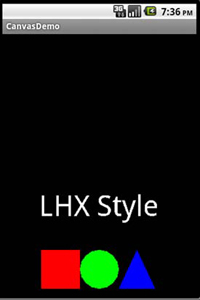
Almost every application that uses the screen will, at some point, need to display text. Luckily, the Canvas class comes with a set of drawText methods that make displaying text easy. To see this in action, we’ll create another example that includes three colored shapes with some text, as seen in figure 12.5.