concept Toast in category android
This is an excerpt from Manning's book Android in Action, Third Edition.
Our interception class starts by extending BroadcastReceiver. The new subclass implements the onReceive() method
. Within this method, we filter on the Intent action we want
, and then we get the Intent data using the phone number key. If the phone number matches, we send a Toast alert to the UI and abort the outgoing call by calling the abortBroadcast() method.
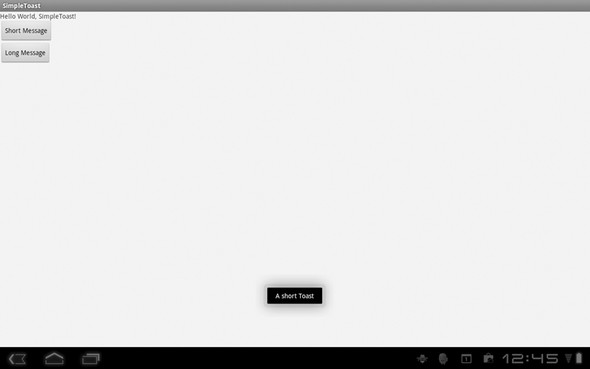
For this example, you’ll create a simple interface that has two buttons that pop up a message, called a Toast, on the screen. A Toast is a simple, nonpersistent message designed to alert the user of an event. Toasts are a great way to let a user know that a call is coming in, an SMS or email has arrived, or some other event has just happened. Toasts are designed to take up minimal space, allowing the user to continue to interact with the system without having to stop what they’re doing. Toasts, after popping up, fade away without user intervention. A Toast is different from a message, such as a status bar notification, which persists even when a phone is turned off or until the user selects the notification or the Clear Notification button.
As you can see, Toasts are simple to create. Generally all you need to do is instantiate a Toast object with either of the makeText() methods. The makeText() methods take three parameters: the application context, the text to display, and the length of time to display the message. Normally, the syntax looks like this:
Toast toast = Toast.makeText(context, text, duration);The duration is always either LENGTH_SHORT or LENGTH_LONG, and text can be a resource id or a string. You can display the Toast by calling the show() method. In this example, we have chained the methods
Although Toasts are simple, they can be useful for providing information to users. With Android 3.0, they’re more flexible, allowing custom positioning and styling that was lacking in earlier versions of Android. To show off some of these newer features, let’s make a few changes to the application. First, let’s look at how to reposition the Toast message so that instead of appearing in the default position, it shows in either the upper-right corner or the lower-left corner.