concept View in category android
This is an excerpt from Manning's book Android in Action, Third Edition.
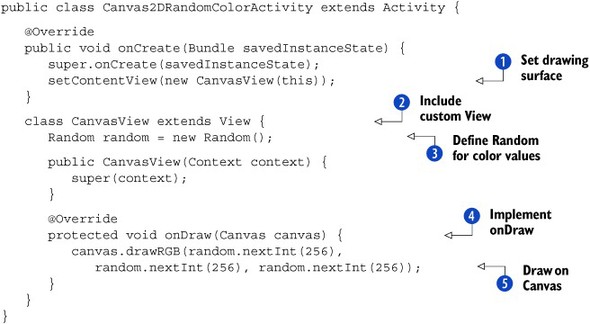
Android applications often contain more than one Activity. Each Activity displays a UI and responds to system- and user-initiated events. The Activity employs one or more Views to present the actual UI elements to the user. The Activity class is extended by user classes, as shown in the following listing.
Listing 1.1. A basic Activity in an Android application
package com.msi.manning.chapter1; import android.app.Activity; import android.os.Bundle; public class Activity1 extends Activity { @Override public void onCreate(Bundle savedInstanceState){ super.onCreate(savedInstanceState); setContentView(R.layout.main); } }The Activity class is part of the android.app Java package, found in the Android runtime. The Android runtime is deployed in the android.jar file. The class Activity1 extends the class Activity, which we’ll examine in detail in chapter 3. One of the primary tasks an Activity performs is displaying UI elements, which are implemented as Views and are typically defined in XML layout files. Chapter 3 goes into more detail on Views and Resources.
In code, you can reference and use this animation with any View object (TextView, for example) as follows:
view.startAnimation(AnimationUtils.loadAnimation(this, R.anim.scaler));This will scale the View element up in size on both the x and y axes. Although we don’t have any animations in the RestaurantFinder sample application by default, to see this animation work, you can add the startAnimation() method to any View element in the code and reload the application.
Android provides a generous set of View classes in the android.view package. These classes range from familiar constructs such as the EditText, Spinner, and TextView that you’ve already seen in action, to more specialized widgets such as AnalogClock, Gallery, DatePicker, TimePicker, and VideoView. For a glance at some of the more eye-catching views, check out the sample page in the Android documentation: http://mng.bz/b83c.
The class diagram in figure 3.4 provides a high-level snapshot of what the overall View API looks like. This diagram shows how the specializations fan out and includes many, but not all, of the View-derived classes.
Figure 3.4. Class diagram of the Android View API, showing the root View class and specializations from there. Note that ViewGroup classes such as layouts are also a type of View.

As is evident from the diagram in figure 3.4, View is the base class for many classes. ViewGroup is a special subclass of View related to layout, as are other elements such as the commonly used TextView. All UI classes are derived from the View class, including the layout classes (which extend ViewGroup).
Of course, everything that extends View has access to the base class methods. These methods allow you to perform important UI-related operations such as setting the background, minimum height and width, padding, layout parameters, and event-related attributes. Table 3.2 lists some of the methods available in the root View class. Beyond the base class, each View subclass typically adds a host of refined methods to further manipulate its respective state, such as what’s shown for TextView in table 3.3.
Table 3.2. A subset of methods in the base Android View API
Method
Purpose
setBackgroundColor(int color) Set the background color setBackgroundDrawable(Drawable d) Set the background drawable (such as an image or gradient) setClickable(boolean c) Set whether element is clickable setFocusable(boolean f) Set whether element is focusable setLayoutParams(ViewGroup.LayoutParams l) Set parameters for layout (position, size, and more) setMinimumHeight(int minHeight) Set the minimum height (parent can override) setMinimumWidth(int minWidth) Set the minimum width (parent can override) setOnClickListener(OnClickListener l) Set listener to fire when click event occurs setOnFocusChangeListener(OnFocusChangeListener l) Set listener to fire when focus event occurs setPadding(int left, int right, int top, int bottom) Set the padding Table 3.3. More View methods for the TextView subclass
Method
Purpose
setGravity(int gravity) Set alignment gravity: top, bottom, left, right, and more setHeight(int height) Set height dimension setText(CharSequence text) Set text to display in TextView setTypeFace(TypeFace face) Set typeface setWidth(int width) Set width dimension The View base class and the methods specific to TextView combine to give you extensive control over how an application can manipulate an instance of TextView. For example, you can set layout, padding, focus, events, gravity, height, width, colors, and so on. These methods can be invoked in code or set at design time when defining a UI layout in XML, as we’ll introduce in section 3.3.
Each View element you use has its own unique API; for details on all the methods, see the Android Javadocs at http://mng.bz/82Qy.
When you couple the wide array of classes with the rich set of methods available from the base View class on down, the Android View API can seem intimidating. Thankfully, despite this initial impression, many of the concepts involved quickly become evident; and their use becomes more intuitive as you move from view to view, because they’re ultimately just specializations of the same base class. When you get familiar with working with View classes, learning to use a new view becomes intuitive and natural.

This is an excerpt from Manning's book Android in Practice.
The layout we’re using for Hello Android is basic, but we’ve modified it from the default generated layout the ADT plugin creates. The first thing to note here is the xmlns:android namespace. This is an XML shortcut. We define it this way so we can refer to the Android schema elements throughout the rest of the file using only the android: prefix. Next we see that we’re using a LinearLayout
. LinearLayout refers to an Android layout class, in this case, one that puts the child elements it contains in a line (either horizontal or vertical; see the orientation attribute). A layout in Android is a specialized type of View (specifically, a ViewGroup, but we’re getting ahead of ourselves). Several different layouts are available in Android, all of which we’ll meet in chapter 4. View is the base class of elements that are capable of dealing with screen layout and are intended to be seen or interacted with by the user. Android is loaded with many different types of views, such as the TextView
we see next in our layout.
One question remains: what happens if you want to include views that don’t have a common parent View or you want to include a layout in different kinds of parent views? You’d think that you could get rid of the parent LinearLayout and redefine button_bar.xml from listing 4.6 as follows:
<?xml version="1.0" encoding="utf-8"?>
<Button android:text="@android:string/ok"
    android:layout_width="wrap_content"
    android:layout_height="wrap_content"
    />
<Button android:text="@android:string/cancel"
    android:layout_width="wrap_content"
    android:layout_height="wrap_content"
    />
Unfortunately, that’s impossible, because that’s not a valid XML document. Remember that XML documents are trees, and a tree always has a root. This one doesn’t, so it’ll fail. Android has a solution: the <merge> element is a placeholder for whatever parent View the views in the (partial) layout will be included into. This means we can rewrite the previous snippet as follows to make it work:
<?xml version="1.0" encoding="utf-8"?>
<merge xmlns:android="http://schemas.android.com/apk/res/android">
  <Button android:text="@android:string/ok"
      android:layout_width="wrap_content"
      android:layout_height="wrap_content"
      />
  <Button android:text="@android:string/cancel"
      android:layout_width="wrap_content"
      android:layout_height="wrap_content"
      />
</merge>
Think of <merge> as a wildcard: it’s a glue point, and whatever the layout it wraps will be inserted into (a LinearLayout, RelativeLayout, and so on) will replace the <merge> node at runtime. You can use this technique anytime you’d otherwise have to include a View under another View of the same kind (which is duplication, and hence discouraged).
We know that views in Android are typically defined in a declarative fashion using XML. XML structures information into trees; all nodes extend and branch from a single root node. It’s no coincidence that Android employs this kind of representation, apart from XML’s general popularity. Internally, the user interface of any Android application is represented as a tree of View objects. This is known as the view hierarchy or view tree. At the root of every view tree—and every application UI—sits a single DecorView. This is an internal framework class that you can’t use directly; it represents the phone window you’re currently looking at. The DecorView itself consists of a single LinearLayout, which branches into two FrameLayouts: one to hold the title section of the currently visible Activity, and one to holds its content (FrameLayouts block out an area on the screen to display a single item). Content here means anything that’s defined in the current activity’s layout XML. To illustrate, let’s examine the XML layout for the MyMovies main screen (res/layout/main.xml):