concept area in category asp.net

This is an excerpt from Manning's book ASP.NET MVC 2 in Action.
The template resolution rules first look in the controller-specific view folder, so it’s perfectly reasonable to first override one of the built-in templates in the Shared folder and then override that template in the controller-specific view folder. For example, we might have an application-wide template for displaying email addresses but then provide a specific template in an area or controller template folder.
To help tame large applications, ASP.NET MVC 2 introduces the concept of areas. Areas allow us to segregate controllers, models, and views into different physical locations, with the area-specific pieces in a single area folder. In this chapter, we’ll examine using areas to separate our application’s different concerns. We’ll also use T4MVC templates to help us generate our URLs and links between areas.
This is an excerpt from Manning's book ASP.NET MVC in Action with MvcContrib, NHibernate, and More.
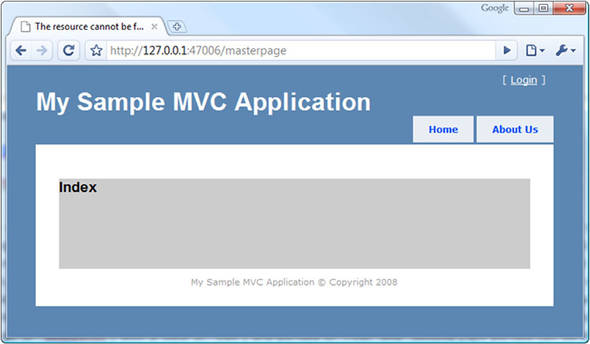
We can borrow a feature from Castle MonoRail to solve this. In MonoRail there is a concept of areas. An area is like a namespace for your controllers. Within an area, everything must be unique. Additionally areas provide a directory for your controllers and views. This allows you to segment your controllers and views into logical pieces that make sense to your application. If you were building Dell.com, you’d probably want an area for shopping and an area for customer support. You might even want a separate area for forums. Each of these might have its own HomeController, and areas will allow this to happen.
The first step is to add a required “area” route parameter to our route definitions. We won’t give it a default value. This will force your URLs to contain an area. Listing 7.12 shows the definition.

This is an excerpt from Manning's book ASP.Net 2.0 Web Parts in Action: Building Dynamic Web Portals.
We could set this up so that when the user clicks on the “Display custom editor” link, a dialog is displayed that provides the user with a simple way to make region selections—such as a control that allows the user to view a map of the world and gives him a way to make selections by clicking on areas of the map.
In most common portal applications, tool zones are not embedded within the main structure of the page but are instead contained within areas that are dynamically displayed when the user chooses to use them. This is because when web pages are designed, the main layout areas of the page are meant to house only the primary content of the page—the section that is visible all the time. Designing pages in this manner ensures that the page can contain the maximum amount of content without appearing cramped.
Figure 8.9. Moving the area for displaying Task Zones to outside the main content area means that the zones no longer interfere with the main layout area of the page.
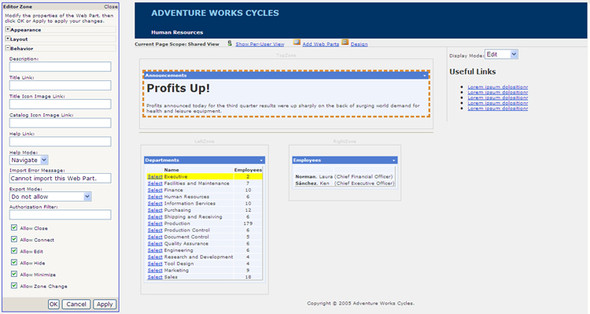
Notice how the area that contains the editor zone extends for the full length of the page, and is no longer restricted by the structure of the area with the content section. By having the editor zone displayed at full length, we ensure that the maximum amount of page area is available to display a tool zone—which ultimately leads to less scrolling by our users. The tool panel we create for our portal will contain the Editor, Catalog, and ConnectionsZone; and when visible will appear on the left side of the page.