concept model in category asp.net

This is an excerpt from Manning's book ASP.NET Core in Action, Second Edition.
If the model wasn’t valid, then you don’t have any results to display! In this example, the action returns a
RedirectToPageResultusing theRedirectToPagehelper method. When executed, this result will send a 302 redirect response to the user, which will cause their browser to navigate to theIndexRazor Page.
Controller—Calls methods on the model and selects a view. View—Displays a representation of data that makes up the model.

This is an excerpt from Manning's book ASP.NET Core in Action.
By the end of this chapter, you should have a good idea of the model you intend to follow, and the tools you’ll need to get started—so without further ado, let’s dive in!
Controller— Calls methods on the model and selects a view. View— Displays a representation of data that makes up the model.
Listing 6.6. Checking model state to view the validation result
public class CheckoutController : Controller #1 { public IActionResult SaveUser(UserBindingModel model) #2 { if(!ModelState.IsValid) #3 { return View(model); #4 } /* Save to the database, update user, return success * #5 return RedirectToAction("Success"); } } #1 Deriving from Controller makes the ModelState property available. #2 The model parameter contains the model-bound data. #3 If there were validation errors, IsValid will be false. #4 Validation failed, so redisplay the form with errors, and finish the method early. #5 Validation passed, so it’s safe to use the data provided in model. !@%STYLE%@! {"css":"{\"css\": \"font-weight: bold;\"}","target":"[[{\"line\":0,\"ch\":67},{\"line\":0,\"ch\":69}],[{\"line\":14,\"ch\":0},{\"line\":14,\"ch\":2}],[{\"line\":2,\"ch\":67},{\"line\":2,\"ch\":69}],[{\"line\":15,\"ch\":0},{\"line\":15,\"ch\":2}],[{\"line\":4,\"ch\":67},{\"line\":4,\"ch\":69}],[{\"line\":16,\"ch\":0},{\"line\":16,\"ch\":2}],[{\"line\":6,\"ch\":67},{\"line\":6,\"ch\":69}],[{\"line\":17,\"ch\":0},{\"line\":17,\"ch\":2}],[{\"line\":9,\"ch\":67},{\"line\":9,\"ch\":69}],[{\"line\":18,\"ch\":0},{\"line\":18,\"ch\":2}]]"} !@%STYLE%@!If the ModelState indicates an error occurred, the method immediately calls the View helper method, passing in the model. This will return a ViewResult that will ultimately generate HTML to return to the user, as you saw in chapter 4. By passing in the model, the view can repopulate the values the user provided in the form when it’s displayed, as shown in figure 6.7. Also, helpful messages to the user can be added using the validation errors in the ModelState.
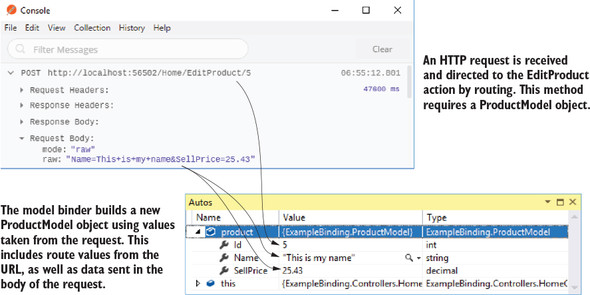
The model binding process is shown in figure 6.3. The model binder checks each binding source to see if it contains a value that could be set on the model. Alternatively, the model can also choose the specific source the value should come from, as you’ll see later in this section. Once each property is bound, the model is validated and is passed to the action method to execute it. You’ll learn about the validation process in the second half of this chapter.

This is an excerpt from Manning's book ASP.NET 4.0 in Practice.
In many, possibly most, applications, a model can be a simple set of classes that contain data coming from a database and that have only a little behavior. This kind of model is known as an object model. Let’s look at a few of the characteristics of the object model classes.
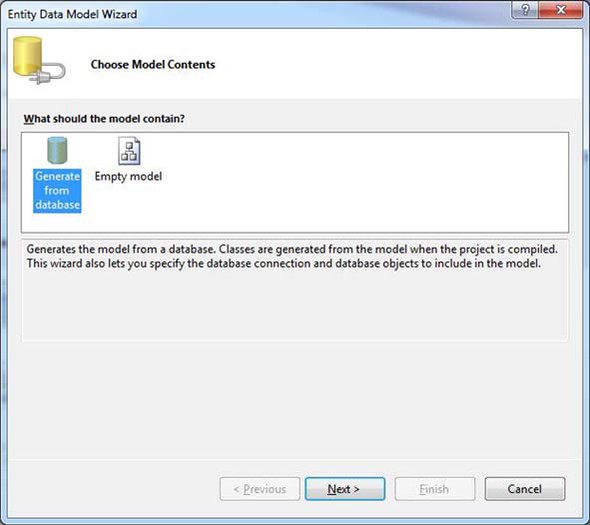
After you’ve added the item, Visual Studio starts a wizard. The first step lets you choose whether you want to create a model starting from a database or from scratch and then create a database from it. Because we already have a database, we’re opting for the first choice. Figure 2.6 shows the form where you make this choice.

This is an excerpt from Manning's book ASP.NET MVC 2 in Action.
The model— The “thing” that your software is built around. If you were building a blog, your models might be post and comment. In some contexts, this might refer to a view-specific model, which you’ll learn about in the next chapter. The view— A visual representation of a model, given some context. It’s usually the resulting HTML that the framework renders to the browser, such as the HTML representing the blog post. The controller— A mediator. The controller processes input, acts upon the model, and decides what to do—render a view, redirect somewhere else, and so on. The controller might pull the most recent comments for a blog post and send them to a view.
A model is a representation of something meaningful. It’s not necessarily something physical but something real: a business concept or an API that’s difficult to work with.
The markup in listing 2.4 renders our table. Instead of relying on “magic string” keys and complex logic, we’re free to work directly with a strong, clear model. By constructing the model elsewhere and designing it to represent the screen, we’ve made the developer’s job easy.
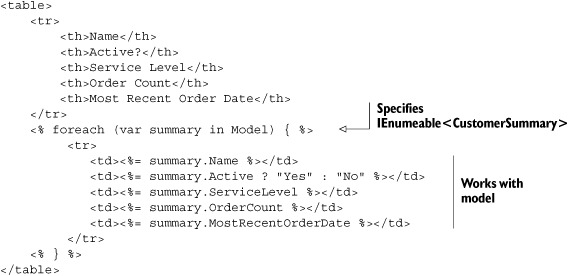
This is familiar now, but it’s important enough to reiterate: the presentation model we design represents the screen, and the input model represents user input. Both are as simple as possible, with C# properties reflecting the reality of the UI. Listing 2.8 shows the code for a model that represents the table in figure 2.3.
This is an excerpt from Manning's book ASP.NET MVC in Action with MvcContrib, NHibernate, and More.
In this section, we’ll explain what the MVC pattern is and create our first ASP.NET MVC Web Application. We’ll focus first on the controller because in the Model-View-Controller triad, the controller is in charge and decides what model objects to use and what views to render. The controller is in charge of coordination and executes first when the web request comes in to the application. The controller is responsible for deciding what response is appropriate for the request.
The Model-View-Controller pattern is not new. A core tenet of the MVC pattern is to separate control logic from the view, or a screen. A view is only responsible for rendering the user interface. By separating domain logic and decoupling data access and other calls from the view, the UI can stay the same even while logic and data access changes within the application. Figure 1.1 shows a simple diagram of the MVC triad. Note that the controller has a direct relationship with the view and the model, but the model does not need to know about the controller or the view. The web request will be handled by the controller, and the controller will decide which model objects to use and which view objects to render.
Without a model, software is not interesting. A model in the English language is just like a model in software: a representation of the real thing. In software, we represent the real world by using objects that are named after concepts we deal with every day. These objects have attributes and behaviors similar to those found in the real world. In this chapter, we’ll explore a model for a system that helps to manage a small conference, like a Code Camp. The model enables the application to provide an interesting service. Without the model, the application provides no value. We place great importance on creating a rich model with which our controllers can work.
Now that we understand the model we’ll be working with, let’s put it together and use our Code Camp domain model. We’ll start with a user story: “As a community member, I want to navigate to http://codecampserver.org/austincodecamp2008/schedule so that I can see a schedule of the conference by day, time slots, and track.”
Listing 4.7. Accessing ViewData from the view
<%@ Page Language="C#" AutoEventWireup="true" Inherits="System.Web.Mvc.ViewPage<object>" %> <%@ Import Namespace="System.Web.Mvc.Html"%> <!DOCTYPE html PUBLIC "-//W3C//DTD XHTML 1.0 Transitional//EN" "http://www.w3.org/TR/xhtml1/DTD/xhtml1-transitional.dtd"> <html xmlns="http://www.w3.org/1999/xhtml" > <head runat="server"> <title></title> </head> <body> <div> This view: <%=GetType().Name %> Model: <%=ViewData.Model %><br /> Model Type: <%=ViewData.Model.GetType().Name %> ViewDataDictionary hashcode: <%=ViewData.GetHashCode()%> <br /> <%foreach (KeyValuePair<string, object> pair in ViewData){%> View data <%=pair.Key%> : <%=pair.Value %><br /> <% } %> <hr /> PARTIAL <%Html.RenderPartial("partial"); %> <hr /> NESTED PARTIAL PASSING IN MODEL <%Html.RenderPartial("nestedpartial", 89); %> <hr /> NESTED PARTIAL PASSING IN MODEL AND VIEWDATA <%Html.RenderPartial("nestedpartial", 89, new ViewDataDictionary {{"first", "1"} , {"second", "2"}}); %> <hr /> NESTED PARTIAL PASSING IN VIEWDATA <% var dictionary = new ViewDataDictionary {{"first", "value"}}; dictionary.Model = 100; Html.RenderPartial("nestedpartial", dictionary); %> </div> </body> </html>