concept tool zone in category asp.net

This is an excerpt from Manning's book ASP.Net 2.0 Web Parts in Action: Building Dynamic Web Portals.
Tool zones provide the controls that allow users to manage web parts within the portal. For example, we saw how the ConnectionsZone provides a place for configuring and maintaining connections between web parts. Likewise, we���ve seen that the EditorZone provides controls for managing the properties of web parts within a web page. Three types of tool zones come as a standard part of the ASP.NET 2.0 control set: EditorZone, ConnectionsZone, and CatalogZone.
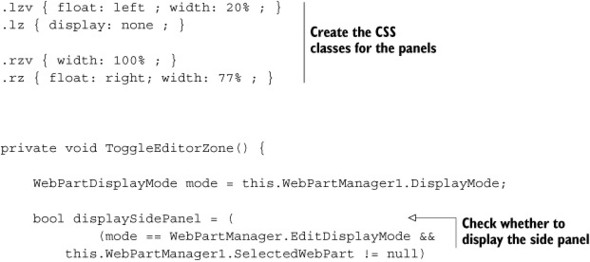
Now that we’ve moved the tool zones into their own region, we can work on creating the logic to ensure that this region is not displayed until the user requests that a tool zone be visible. The HTML DIV element we’ve used to contain the tool zones is what is known as a block element. Block elements are HTML elements which, by default, take up 100% of the width of the allocated space. In our case this means that the toolpanel DIV element will span the entire width of the top section of the screen when it is visible, which will force the DIV element for the container to sit underneath it. This is not what we want. To display the toolpanel beside the container we will need to use some CSS code to set the width and other layout information for both the toolpanel and container DIV elements. The code in listing 8.6 shows the CSS code and server-side code responsible for selecting the right CSS class to apply to each panel based on the current display mode of the page.
One of the tactics for displaying tool zones outside the main content area of the page is to show them within their own window hovering above the main page; this is how the http://my.msn.com site displays the controls for editing web parts. Another very common way to display tool zones is to contain them in a dynamic panel sitting beside the main content area of the page. This is how the http://Live.com and http://Google.com/ig web portals display their catalogs. For our portal we will employ the same tactic as the http://Live.com and http://Google.com/ig portals by creating a dynamic panel which collapses and expands within the page to contain each of the tool zones. Figure 8.9 shows how our page will appear when the editor zone is displayed.
Figure 8.9. Moving the area for displaying Task Zones to outside the main content area means that the zones no longer interfere with the main layout area of the page.
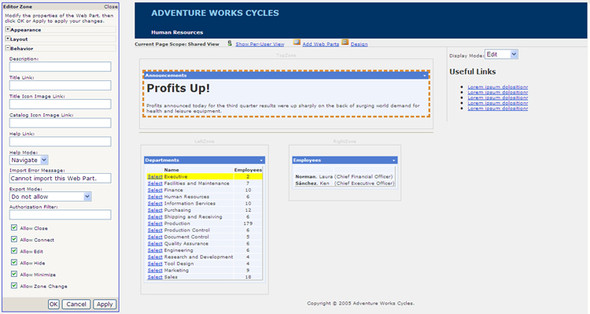
Notice how the area that contains the editor zone extends for the full length of the page, and is no longer restricted by the structure of the area with the content section. By having the editor zone displayed at full length, we ensure that the maximum amount of page area is available to display a tool zone—which ultimately leads to less scrolling by our users. The tool panel we create for our portal will contain the Editor, Catalog, and ConnectionsZone; and when visible will appear on the left side of the page.