concept Visual Studio in category asp.net

This is an excerpt from Manning's book ASP.NET Core in Action.
For .NET developers in a Windows-centric world, Visual Studio was pretty much a developer requirement in the past. But with .NET Core and ASP.NET Core going cross-platform, that’s no longer the case.
All of ASP.NET Core (creating new projects, building, testing, and publishing) can be run from the command line for any supported operating system. All you need is the .NET Core SDK and tooling, which provides the .NET Command Line Interface (CLI). Alternatively, if you’re on Windows, and not comfortable with the command line, you can still use File > New Project in Visual Studio to dive straight in. With ASP.NET Core, it’s all about choice!

This is an excerpt from Manning's book ASP.NET AJAX in Action.
The first step in every ASP.NET web development endeavor is creating the initial website. To get started, launch Visual Studio 2005 (or the free Visual Web Developer 2005), and select the ASP.NET AJAX-Enabled Web Site template from the New Web Site dialog (see figure 1.10). This creates a site that references the ASP.NET AJAX assembly System.Web.Extensions.dll from the Global Assembly Cache (GAC). It also generates a complex web.config file that includes additional settings for integration with the ASP.NET AJAX framework.
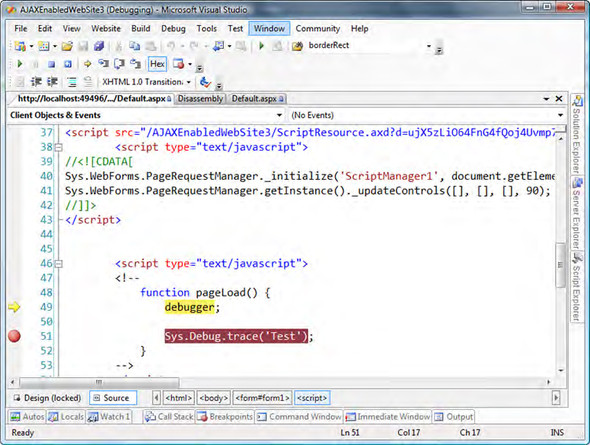
To date, the best debugging experience for JavaScript is available in Visual Studio, which we’ll cover later in this appendix. Web Development Helper offers some in-place debugging support that can be helpful as well. To enable script debugging select Script Console from the command bar, and select the Enable Debugging check box. (You don’t need to select the check box if all you want to do is view trace messages.)