concept web page in category asp.net

This is an excerpt from Manning's book ASP.NET Core in Action, Second Edition.
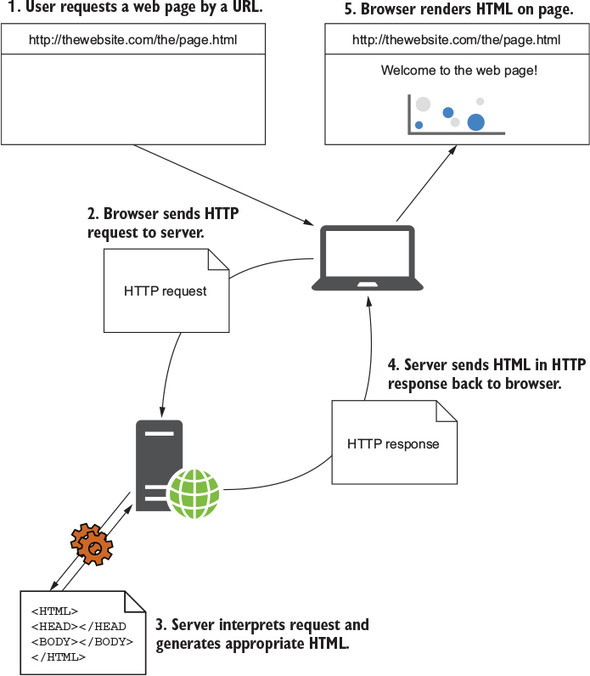
As you know, ASP.NET Core is a framework for building web applications that serve data from a server. One of the most common scenarios for web developers is building a web app that you can view in a web browser. The high-level process you can expect from any web server is shown in figure 1.7.

This is an excerpt from Manning's book ASP.NET Core in Action.
In the next chapter, you’ll create your first application from a template and run it. We’ll walk through each of the main components that make up your application and see how they all work together to render a web page.
An HTML web application, designed for direct use by users. If the application is consumed directly by users, as in a traditional web application, then the MvcMiddleware is responsible for generating the web pages that the user interacts with. It handles requests for URLs, it receives data posted using forms, and it generates the HTML that users use to view and navigate your app.

This is an excerpt from Manning's book Fast ASP.NET Websites.
The financial penalty of slow bandwidth is the tip of the iceberg; the business impact of a slow web page can be drastic. Users are becoming more and more accustomed to speedy web pages. Because connection speeds are faster and hardware is better than ever, users expect a certain level of perceived speed when they access a web page. When they don’t perceive that speed, they look elsewhere, meaning that you might lose their business.
As the old saying goes, “A picture is worth a thousand words.” Most websites today rely heavily on images to enhance their visual look and feel, so it isn’t surprising to learn that images often make up the bulk of a web page. Every byte counts in performance optimization and it’s important to optimize these images as much as possible.
In this chapter you’re going to learn about techniques you can apply to your website’s images that will reduce their file size and reduce the overall weight of your web pages. Modern image optimization techniques are proven to reduce image size by stripping unnecessary data from the file, thus reducing the file size without affecting image quality. The images on your website will look exactly the same but will be significantly lighter and quicker to download. You will learn how to use online and command line image optimization tools that will make a big difference to the size of your web pages. In this chapter, you will also discover data URIs and how they can be used with images in order to reduce the number of HTTP requests that a web page makes.


This is an excerpt from Manning's book ASP.NET AJAX in Action.
Document Object Model (DOM)— Defines the structure of a web page as a set of programmable objects that can be accessed through JavaScript. In Ajax programming, the DOM is leveraged to effectively redraw portions of the page. Cascading Style Sheets (CSS)— Provides a way to define the visual appearance of elements on a web page. CSS is used in Ajax applications to modify the exterior of the user interface interactively.
One of the first and best examples to demonstrate Ajax capabilities was to embed an auto-complete text box in a web page. This kind of text box, usually a feature of desktop applications, can display a list of suggested words in a pop-up panel below the text field. The list of suggestions is obtained by completing the portion of text typed by the user, as soon as the user types in the text field. As shown in figure 10.1, the auto-complete text box is a good example of how to enhance a simple text box with client capabilities.
Figure 10.1. Google Suggest (http://labs.google.com/suggest) features an auto-complete text box that presents a list of suggested words with additional information about their numerical occurrences.

Making an Ajax request in the background lets you retrieve the list of suggestions from a database with millions of records. Without Ajax, you would have to send all the possible suggestions to the browser, embedded in the web page, and filter them using JavaScript. Millions of records can lead to a page size measured in megabytes. With Ajax, the filtering is performed on the server, and the list of suggestions is updated in real time while the user is typing.
The animation extender is a Toolkit extender that defines animations in a web page based on an XML description. Being an extender, the AnimationExtender must extend a server control declared in the page. The extended control—set, as usual, through the TargetControlID property—is a control that triggers one or multiple animations. For example, if you wire the AnimationExtender to a Button control, you can play single or multiple animations based on the events raised by the button element. Listing 10.11 shows the skeleton structure for the AnimationExtender control.

This is an excerpt from Manning's book ASP.Net 2.0 Web Parts in Action: Building Dynamic Web Portals.
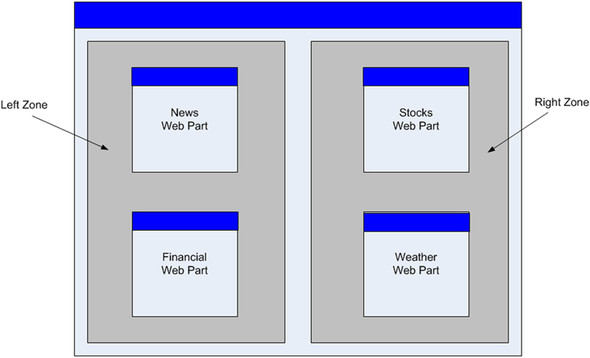
Web parts are considered the building blocks of portal applications because of the way that users can add them to the web pages to customize those pages to meet their needs. Users typically browse a catalog of web parts to select the particular one they want to add to a page. There is no limit to the number of web parts that the catalog for a portal can contain. In fact, the more web parts a portal can offer via its catalog, the happier the users are with the possibilities available for customizing their pages.
Web parts are informational components, such as news updates or comics, that are added to web pages; and as such, web parts can be considered the primary building blocks of a portal application that displays dynamic content. In ASP.NET 2.0 we are provided with the WebPart server control for working with web parts. The WebPart server control comes pre-packaged with many properties and methods needed to use it in a variety of ways to show dynamic content to users.
In order to understand what happened to the Label and Calendar controls in the previous chapter, we’re going to need to put our debugging skills to the test and determine how all these web part controls interact with each other. To do that we’ll set up a web page and add web part controls to it. After that we’ll add code to the page that will access those parts. Finally, when we attach the debugger to the code and run it we’ll have a clear view of the state of those objects at runtime. Completing those steps will give us a much clearer view of how the transformation occurred.