concept web service in category asp.net

This is an excerpt from Manning's book ASP.NET AJAX in Action.
First, note the
using statement for the System.Web.Script.Services namespace. This namespace is part of the core ASP.NET AJAX framework that encapsulates some of the network communication and scripting functionality. It’s not required, but it’s included to save you a little extra typing. Next are the new attributes adorned on the
class and
method declarations of the web service. These attributes are parsed by the ASP.NET AJAX framework and used to determine what portions of the service are exposed in the JavaScript proxies. The ScriptMethod attribute isn’t required, but you can use it to manipulate some of a method’s settings.
If you view the ASMX file in your browser but append /js to the end of the URL, you get a glimpse of the JavaScript proxy that is generated for this service. Figure 1.14 shows the generated JavaScript proxy that is produced by the framework after decorating the class and methods in the web service.
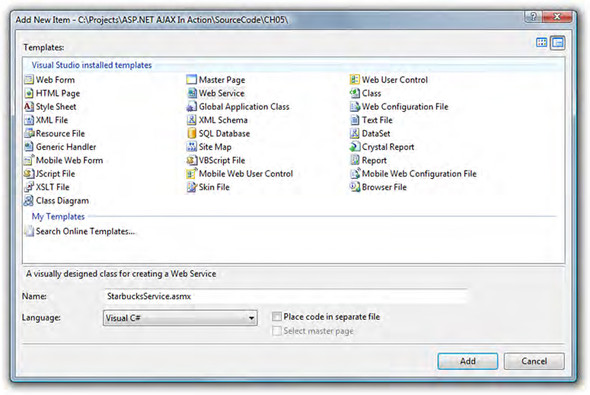

This is an excerpt from Manning's book ASP.Net 2.0 Web Parts in Action: Building Dynamic Web Portals.
By the time the ASP.NET 1.0 framework burst onto the scene in January 2001, its users had built up high expectations. ASP.NET is a web framework that was built from the ground up with a vision of providing the most advanced platform for creating dynamic, modern web applications. Using the framework freed developers from many of the time-consuming and most error-prone operations in existing frameworks, and set them free to focus on meeting application requirements. Newly eliminated operations included common coding tasks as well as more complicated coding for security, web services, and deployment.
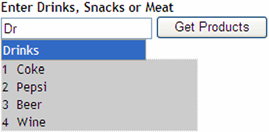
All that remains for us to do, now that we’ve described the layout and binding information, is to write the code that will run when the user clicks on the Get Products button. This will query the web service and pass the resulting data to the databinding component. Listing 10.2 shows the pieces of JavaScript that handle the button click event and invoke a call against the web service we created earlier.
Listing 10.2. Using an Atlas generated proxy to invoke a web service call
<script language="javascript" type="text/javascript"> function GetProducts() { var category = document.getElementById("TextBox1").value ; AtlasSamples.ProductsWS.ListProductsByCategory( category, OnComplete, OnTimeout); } function OnComplete(results) { var listview = document.getElementById("listview"); listview.control.set_data(results); } function OnTimeout(result) { alert("A call to a Web Service timed out"); } </script>The GetProducts function handles the actual click event of the Get Products button; it simply calls through to a proxy class that has been created by the Atlas framework to access the web service. Even though it seems trivial to call the web service, this code actually encapsulates hundreds of lines of complicated JavaScript code.Aside from the category information passed to the web service proxy, we can see that there is also a reference to a function that will be used to handle the completion of the asynchronous web service call which is named OnComplete. All that this function has to do is to get a handle to the DOM node that the data will be bound to, and bind the data to it using the set_data method of the underlying Atlas object.