concept function in category aws

This is an excerpt from Manning's book AI as a Service: Serverless machine learning with AWS.
functions--Defines function endpoints that the service implements. In this example we don’t have any functions to define, so this section is not present in this example.
[1575753551571] INFO  (pino-logging-example/90677 on eoinmac): Hello world
    a: 1
    b: 2
[1575753551572] ERROR (pino-logging-example/90677 on eoinmac):
    err: {
      "type": "Error",
      "message": "Something failed",
      "stack":
          Error: Something failed
              at Object.<anonymous> (/Users/eoin/code/chapter5/           pino-logging-example/index.js:9:13)
              at Module._compile (internal/modules/cjs/loader.js:689:30)
              at Object.Module._extensions..js (internal/modules/cjs/           loader.js:700:10)
              at Module.load (internal/modules/cjs/loader.js:599:32)
              at tryModuleLoad (internal/modules/cjs/loader.js:538:12)
              at Function.Module._load (internal/modules/cjs/loader.js:530:3)
              at Function.Module.runMain (internal/modules/cjs/           loader.js:742:12)
              at startup (internal/bootstrap/node.js:283:19)
              at bootstrapNodeJSCore (internal/bootstrap/node.js:743:3)
    }

This is an excerpt from Manning's book Serverless Architectures on AWS, Second Edition.
The idea of leveraging off-the-shelf services to implement parts of your architecture is not new – indeed, it’s been a best practice since the days of SOA. What’s changed in the last few years is the new capability to also implement the custom aspects of your application (like the business logic) in a serverless manner. This ability to run arbitrary code without having the provision infrastructure (to run it as a service) or to pay for the infrastructure is referred to as Functions as a Service (FaaS), and is central to serverless architectures. A FaaS allows you to provide custom code and associated dependencies (written in any language of your preference) and some configuration to dictate your desired performance and access control characteristics. The FaaS then executes this unit, referred to as a function, on an invisible compute fleet, with each execution of your code receiving an isolated environment with its own disk, memory, and CPU allocation, and you pay only for the time your code runs. A function is not a lightweight instance – instead, think of it akin to processes in an OS, where you can spawn as many as needed by your application, and then spin them down when your application isn’t running.
Figure 1.4 shows a sample implementation of the web application we’ve been discussing using a serverless approach. All of this can be done in an organized way to prevent spaghetti implementations and dependency nightmares by clearly defining service boundaries, allowing functions to be autonomous, and planning how functions and the services implementing other layers will interact.
Initially in this chapter you are going to create and deploy functions manually. You will see how to configure a function, deploy, and then run it. Later on, you are going to start using Serverless Framework and learn out how to organize and automate the deployment of our serverless application. We’ll continue to use the Serverless Framework throughout the book. You’ll see how to use it to create and configure an API and connect various services. Our advice is to always use a framework, like Serverless Framework or Serverless Application Model (SAM). Once you understand the principles of serverless architectures, a framework will accelerate everything you do by leaps and bounds.
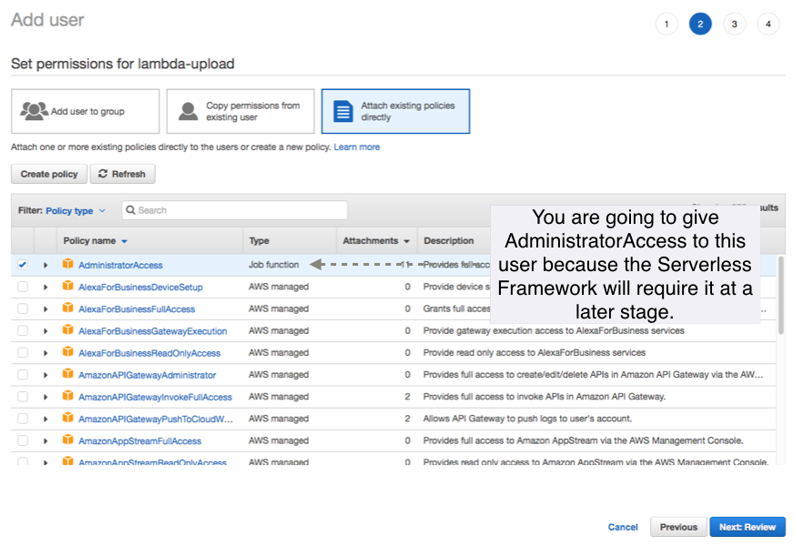
Figure 2.3 Make sure to select the AdministratorAccess policy. You will need it to upload functions and deploy other services.

This is an excerpt from Manning's book AWS Lambda in Action: Event-driven serverless applications.
With the introduction of AWS Lambda, the abstraction layer is set higher, allowing developers to upload their code grouped in functions, and letting those functions be executed by the platform. In this way you don’t have to manage the programming framework, the OS, or the availability and scalability. Each function has its own configuration that will help you use standard security features provided by Amazon Web Services (AWS) to define what a function can do and on which resources.
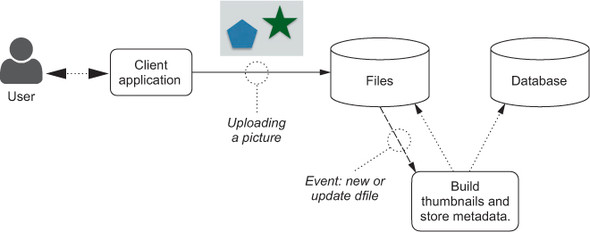
Those functions can be invoked directly or can subscribe to events generated by other resources. When you subscribe a function to a resource such as a file repository or a database, the function is automatically executed when something happens in that resource, depending on which kinds of events you’ve subscribed to. For example, when a file has been uploaded or a database item has been modified, an AWS Lambda function can react to those changes and do something with the new file or the updated data. If a picture has been uploaded, a function can create thumbnails to show the pictures on the screens with different resolutions. If a new record is written in an operational database, a function can keep the data warehouse in sync. In this way you can design applications that are driven by events.
At this point, the functions you’ve created are basic and don’t include any modules other than what’s already included in AWS Lambda—for example, the AWS SDKs for Node.js and Python. But sometimes you need to include more powerful libraries that can help you implement sophisticated functionalities.
For modules managed by standard package managers, such as npm for Node.js or pip for Python, you can use those tools to install the module locally in your development environment in a folder where you have the source of the function. That’s the default behavior for npm. For pip, you have to use the –t option to specify the local directory (for example, “-t .”). Then you need to create a zip archive that includes your function (in the root folder) and all dependencies. This archive is your deployment package, which you can upload directly to AWS Lambda (if smaller than 10 MB) or via Amazon S3.
But with AWS Lambda you can use features of Amazon S3 to store metadata with objects and subscribe a function to process information in the metadata when an object is created or updated (figure 5.2). The client application uploads straight to the S3 bucket, and you don’t need to manage the upload, only react to the new content.
Listing 5.1. createThumbnailAndStoreInDB (Node.js)
var async = require('async');                                          #1
var AWS = require('aws-sdk');                                          #2
var gm = require('gm')                                                 #3
            .subClass({ imageMagick: true }); // Enable ImageMagick integration.
var util = require('util');
var DEFAULT_MAX_WIDTH  = 200;                                          #4
var DEFAULT_MAX_HEIGHT = 200;                                          #4
var DDB_TABLE = 'images';                                              #5
var s3 = new AWS.S3();                                                 #6
var dynamodb = new AWS.DynamoDB();                                     #6
function getImageType(key, callback) {
  var typeMatch = key.match(/\.([^.]*)$/);
  if (!typeMatch) {
      callback("Could not determine the image type for key: ${key}");
      return;
  }
  var imageType = typeMatch[1];
  if (imageType != "jpg" && imageType != "png") {
      callback('Unsupported image type: ${imageType}');
      return;
  }
  return imageType;
}
exports.handler = (event, context, callback) => {
  console.log("Reading options from event:\n",
    util.inspect(event, {depth: 5}));
  var srcBucket = event.Records[0].s3.bucket.name;                   #7
  var srcKey    = event.Records[0].s3.object.key;                    #7
  var dstBucket = srcBucket;                                         #8
  var dstKey    = "thumbs/" + srcKey);                               #8
     var imageType = getImageType(srcKey, callback);
  async.waterfall([                                                  #9
    function downloadImage(next) {
      s3.getObject({                                                 #10
          Bucket: srcBucket,                                         #10
          Key: srcKey                                                #10
        },                                                           #10
        next);
      },
    function tranformImage(response, next) {                         #11
      gm(response.Body).size(function(err, size) {
        var metadata = response.Metadata;
        console.log("Metadata:\n", util.inspect(metadata, {depth: 5}));
        var max_width;
        if ('width' in metadata) {                                   #12
          max_width = metadata.width;                                #12
        } else {
          max_width = DEFAULT_MAX_WIDTH;
        }
        var max_height;
        if ('height' in metadata) {                                  #12
          max_height = metadata.height;                              #12
        } else {
          max_height = DEFAULT_MAX_HEIGHT;
        }
        var scalingFactor = Math.min(
          max_width / size.width,
          max_height / size.height
        );
        var width  = scalingFactor * size.width;
        var height = scalingFactor * size.height;
        this.resize(width, height)                                   #13
          .toBuffer(imageType, function(err, buffer) {               #13
            if (err) {
              next(err);
            } else {
              next(null, response.ContentType, metadata, buffer);
            }
          });
      });
    },
    function uploadThumbnail(contentType, metadata, data, next) {     #14
      // Stream the transformed image to a different S3 bucket.
      s3.putObject({                                                  #15
          Bucket: dstBucket,                                          #15
          Key: dstKey,                                                #15
          Body: data,                                                 #15
          ContentType: contentType,                                   #15
          Metadata: metadata                                          #15
      }, function(err, buffer) {
        if (err) {
          next(err);
        } else {
          next(null, metadata);
        }
      });
    },
    function storeMetadata(metadata, next) {                          #16
      // adds metadata do DynamoDB
      var params = {                                                  #17
        TableName: DDB_TABLE,                                         #17
        Item: {                                                       #17
          name: { S: srcKey },                                        #17
          thumbnail: { S: dstKey },                                   #17
          timestamp: { S: (new Date().toJSON()).toString() },         #17
        }                                                             #17
      };                                                              #17
      if ('author' in metadata) {
        params.Item.author = { S: metadata.author };                  #18
      }
      if ('title' in metadata) {
        params.Item.title = { S: metadata.title };                    #18
      }
      if ('description' in metadata) {
        params.Item.description = { S: metadata.description };        #18
      }
      dynamodb.putItem(params, next);                                 #19
    }], function (err) {
      if (err) {
        console.error(err);
      } else {
        console.log(
          'Successfully resized ' + srcBucket + '/' + srcKey +
          ' and uploaded to ' + dstBucket + '/' + dstKey
        );
      }
      callback();                                                    #20
    }
  );
};
When creating a deployment package, the function in listing 5.1 will be one of the files included, and you need to choose a name for the file. I suggest you use index.js, because it’s the default value used by the AWS Lambda configuration, but you can use a different one if you want.
Now that you’ve completed all necessary requirements, you can create the function. In the AWS Lambda console, choose Create a Lambda function and skip the blueprints.
You can now configure Amazon S3 as the trigger for this function. Click the ellipse representing the source of the events, and choose Amazon S3 from the list. In the dialog that appears (figure 5.6), select S3 as Event source type and the Bucket you created. As Event type, choose Object Created (All). In the prefix, type images/ to trigger the function only for objects uploaded with a key that starts with images/. Leave the suffix empty; for example, you could use this field to receive events only for files that have a .jpg or .png extension, but my suggestion is to not specify a suffix right now. Choose to enable the event source and click Next.