concept bench in category c#

This is an excerpt from Manning's book Unity in Action: Multiplatform game development in C# with Unity 5.
All right, it’s time to export the model from Blender and then import it into Unity. First open the bench in Blender and then choose File > Export > FBX. Once the file is saved, import it into Unity the same way that you import images. Drag the FBX file from the computer into Unity’s Project view or right-click in Project and choose Import New Asset. The 3D model will be copied into the Unity project and show up ready to be put in the scene.
Modeling is a huge topic, but we’ll cover only a handful of modeling functions that will allow you to create the bench. If you want to keep learning more about modeling after this chapter, look to some of the many books and tutorials on the subject (to start with, look at the learning resources on www.blender.org).
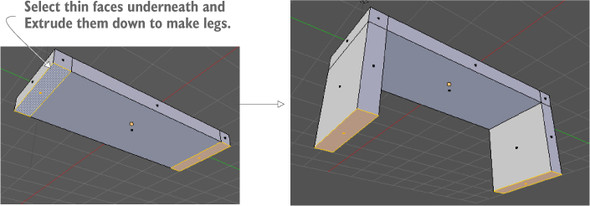
Now look at the bottom of the plank and select the two thin faces on each end. Use the Extrude Individual command again to pull down legs for the bench (refer to figure C.7).