concept browser in category c#

This is an excerpt from Manning's book Unity in Action: Multiplatform game development in C# with Unity 5.
Unity refers to the code files as scripts, using a definition of “script” that’s most commonly encountered with JavaScript running in a browser: the code is executed within the Unity game engine, versus compiled code that runs as its own executable. But don’t get confused because many people define the word differently; for example, “scripts” often refer to short, self-contained utility programs. Scripts in Unity are more akin to individual OOP classes, and scripts attached to objects in the scene are the object instances.
There’s nothing particularly special about this page; it’s just an example to test your game with. It’s possible to customize the code on that page, or even provide your own web page (with the Unity code copied over). One of the most important customizations to make is enabling communication between Unity and the browser, so let’s go over that next.
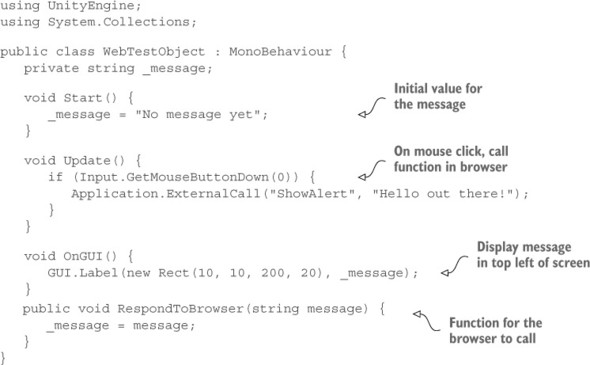
A Unity web game can communicate with the browser (or rather with JavaScript running in the browser), and these messages can go in both directions: from Unity to the browser, and from the browser to Unity. Sending messages to the browser is straightforward: Unity has a couple of special commands that directly run code in the browser.
For messages from the browser the methodology is slightly more involved: Java-Script in the browser identifies an object by name, and then Unity passes the message to the named object in the scene. Thus you must have an object in the scene that will receive communications from the browser.

This is an excerpt from Manning's book Fast ASP.NET Websites.
Starting with the early versions of ASP.NET, there has always been a focus on developer productivity. Unfortunately, with this productivity came elements of the .NET framework that you might not have needed in your application. When you used earlier versions of ASP.NET, you got the whole stack, which included drag-and-drop controls, ViewState, server controls, and clunky HTML. Fortunately, the latest versions of ASP.NET put the focus on simplicity and getting your web framework to work just the way you want. In this book, you’ll look at the latest ASP.NET tools (ASP.NET MVC, ASP.NET Web Forms, and IIS) and use them to adjust and tweak your website’s code to provide your users with a responsive, high-performance website that runs smoothly. Internet Information Services (IIS) is an integral part of the Windows Server family of products and is one of the most popular servers for hosting websites. You’ll be using it to fine tune websites and optimize the way the server returns data to a browser. You’ll also look at a sample e-commerce website in both ASP.NET Web Forms and ASP.NET MVC and take it from slow to extremely high speed. You’ll create a sample application called Surf Store, which you’ll build and improve upon in each chapter. This gradual progression will also help you gain the understanding that you need to create fast ASP.NET websites.
The blue vertical line (near 3.2) indicates the Load event being fired. The Load event is triggered when the entire page has loaded and is generally the moment when the loading icon in your browser’s title bar stops spinning. When this has happened, all JavaScript and Cascading Style Sheets (CSS) have finished loading and have been executed, and all images have been downloaded and displayed. The Load event lines help you see how long it takes for pages to load and helps you understand when the browser is parsing and loading your website’s components. So a green line indicates that the DOMContentLoaded event is triggered and the browser is ready to interact with requests from your code, and a blue line indicates that the Load event has been triggered and all JavaScript and CSS have finished executing. Different developer tools may provide a different color for each vertical line, but they generally mean the same thing.
The server tells the browser that this component can be cached. In this case it’s using the Cache-Control field and notifying the browser that it can be cached for 600 seconds. All Cache-Control timings are measured in seconds.

This is an excerpt from Manning's book ASP.NET 4.0 in Practice.
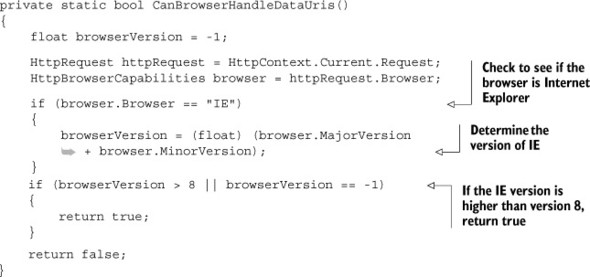
ASP.NET provides a transparent mechanism to handle page compilation. The first time a user requests a page, if it’s not yet compiled, both the page and its code are grouped and compiled to disk. What happens next is similar to what happens for other requests: the page is instantiated, rendered, and served in the browser as HTML. This process is completely transparent to the developer. ASP.NET continuously watches the file and, in case of modifications, automatically discards the old version. The new version is compiled instead, using the previously exposed flow.
This chapter will get you comfortable with ASP.NET MVC. You’ll learn how to design your first pages and how the code you write fits into the overall MVC architecture. The last part of the chapter will look at handling user input, which involves building forms that get posted to the server and applying validation logic to the data coming from the browser. To better understand how all these concepts relate to a real-world scenario, we’re going to use a real application, specifically a blog engine, as our practice field.
Table 8.2. Results that an action can return
Name
Description
ContentResult Represents a user-defined content result. This class allows you to manually specify the content encoding and type. FileResult The base class for sending a binary file to the browser. Its three inherited classes identify this file starting from a path (FilePathResult), a stream (FileStreamResult), or a byte array (FileContentResult). JavaScriptResult Represents JavaScript code sent back to the browser. JsonResult Uses a JavaScript Object Notation (JSON) serializer to serialize an object and send its representation as a response. RedirectResult Redirects the browser to the given URL. RedirectToRouteResult Builds a URL using the route settings and redirects the browser to it. ViewResult Uses a view to render a model and sends the HTML to the browser. We’ve managed to build an object model for the data that we want to show in the homepage. We’ve also added some logic to load it from a database in response to a request coming from a browser. If we stopped here, you wouldn’t be able to see anything in the browser because there’s still one component missing for our application to actually produce HTML. That component is the view, which is the topic of the next section.

This is an excerpt from Manning's book ASP.NET MVC 2 in Action.
Because the browser is issuing a GET as the last request, a refresh does no harm at all. It simply retrieves the page again.
A well-written action should have a clear purpose and a single responsibility. That responsibility is to accept input from the browser and coordinate the flow of the application. Along the way, the action should rely on application services to perform tasks such as executing business logic, performing data access, or file I/O.

This is an excerpt from Manning's book ASP.NET MVC in Action with MvcContrib, NHibernate, and More.
The separation of concerns that the MVC pattern provides significantly increases testability for .NET web applications. Because controllers are normal classes, and actions are merely methods, we can load and execute actions and then examine the results. Even though testing controllers is simple, we must consider an important caveat. When we test a controller action, we are only able to write assertions for the behavior we can observe. The true test of a working application is running it in a browser, and there are significant differences between viewing a page in a browser and asserting results in a controller action test. We can assert that the correct view is chosen, but we cannot assert that the correct view is shown at runtime. We can assert that we put correct information into ViewData, but we cannot ensure that the view uses all of the information we give it. We also cannot assert that all possible controller code paths place the necessary objects into ViewData. With action filters, it is quite possible that a view will need data that is not present. Controller action tests don’t run the entire MVC engine, so things like ActionFilters are not executed. Although action unit tests add value, they don’t replace end-to-end application-level testing. Before we examine the last mile of testing in UI tests, let’s see how we can lock down the behavior in the rest of our MVC application through unit testing.
In this chapter thus far, we examined testing individual components of ASP.NET MVC, including routes, controllers, filters, and model binders. Although unit testing each component in isolation is important, the final test of a working application is interaction with a browser against a live instance. With all of the components that make up a single request, whose interaction and dependencies can become complex, it is only through browser testing that we can ensure our application works as desired from end to end. While developing an application, we often launch a browser to manually check that our changes are correct and produce the intended behavior.
Before each test executes, we create an IE instance and assign it to our protected Browser property. Our original failing test now needs to use the Browser property instead of creating the IE object itself, as shown in listing 12.50.
Listing 12.50. Modifying the failing test to use the Browser property
[Test] public void Intentional_failure() { Browser.TextField (Find.ByName ("Username")).TypeText("admin"); Browser.TextField (Find.ByName ("Password")).TypeText("password"); Browser.Button(Find.ByName ("login")).Click(); Assert.IsTrue(Browser.ContainsText ("Joe Schmoe")); }

This is an excerpt from Manning's book ASP.NET AJAX in Action.
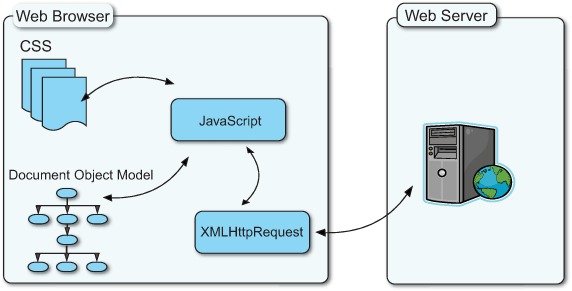
JavaScript— A scripting language that is commonly hosted in a browser to add interactivity to HTML pages. Loosely based on the C programming language, JavaScript is the most popular scripting language on the Web and is supported by all major browsers. Ajax applications are built in JavaScript.
At the heart of Ajax programming is the ability to make asynchronous calls from the browser to the server. Establishing this dialogue eliminates the need for the browser to reload as a result of each request or user interaction. Instead, relevant data can be exchanged in the background while updates to the page are applied incrementally from the browser. Web pages that leverage this technique remain responsive, and the user experience is greatly improved.
In chapter 1, you got a glimpse into how this type of programming works with ASP.NET AJAX—we called this approach the client-centric development model. This model grants you more control over the application by moving the logic from the server into the browser. This shift from traditional ASP.NET development means the server is primarily used for data rather than application logic and data together.
As soon as the browser receives the response, the Microsoft Ajax runtime processes it and uses the client-side serializer (the Sys.Serialization.JavaScriptSerializer class) to deserialize the JSON sent by the server. The runtime then invokes the callback that you set to process the results. This lets you access and work with the result as an object, like the one defined on the server.

This is an excerpt from Manning's book ASP.Net 2.0 Web Parts in Action: Building Dynamic Web Portals.
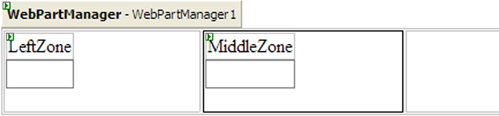
All that we know at this stage is that at some time between now and when this page is displayed in a browser, the Label control that we added to the web part zone starts looking and behaving like a web part. We know this because we saw that the label gained two characteristics common to web parts—a Title and Verbs—when it was contained within the web part zone in the previous chapter. Next we‘ll write code that allows us to view the state of the page at runtime. Switch into the code section of the web page, enter the code, and set the debugging breakpoints that are displayed in figure 2.2.
Next we will add code to the Verbs property to create two custom verbs for our class. The first verb will allow the user to click on it to display the current time in a label. A second verb will allow the user to clear the text of the label. The verbs that we add are also associated with corresponding server-side event handlers named DisplayTime and ClearTime. These handlers are the methods that will be called when a user clicks on the verb. The full code for our custom Verbs implementation can be seen in listing 2.8, while figure 2.9 shows the two verbs being displayed in a browser at runtime.