concept material in category c#

This is an excerpt from Manning's book Unity in Action: Multiplatform game development in C# with Unity 5.
A material is a packet of information that defines the surface properties of any 3D object that the material is attached to. These surface properties can include color, shininess, and even subtle roughness.
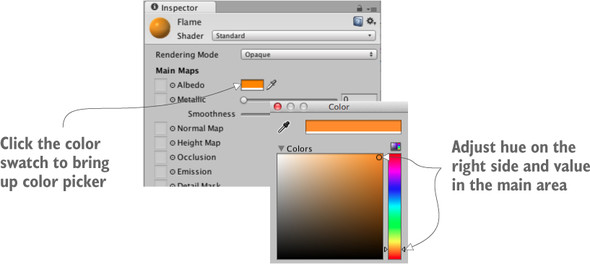
Choose Assets > Create > Material. Name the new material something like Flame. Select the material in the Project view in order to see the material’s properties in the Inspector. As figure 3.10 shows, click the color swatch labeled Albedo (that’s a technical term that refers to the main color of a surface). Clicking that will bring up a color picker in its own window; slide both the rainbow-colored bar on the right side and main picking area to set the color to orange.
We’re also going to brighten up the material to make it look more like fire. Adjust the Emission value (one of the other attributes in the Inspector). It defaults to 0, so type in .3 to brighten up the material.
Just as in chapter 4, I obtained a couple images from www.cgtextures.com to apply to the walls and floor of the level. Remember to change the size of the downloaded images to a power of 2, such as 256x256. Then import the images into the Unity project, create materials, and assign the images to the materials (that is, drag an image into the texture slot of the material). Drag the materials onto the walls or floor in the scene, and increase tiling in the material (try numbers like 8 or 9 in one or both directions) so that the image won’t be stretched in an ugly way.
I’ll point out a number of things in this code, but the key new method is SetFloat(), which appears almost at the bottom. Everything up to that point should be fairly familiar, but that one is new. The method sets a number value on the material. Which value specifically is the first parameter to that method. In this case, the material has a property called Blend (note that material properties in code start with an underscore).
As for the rest of the code, a few variables are defined, including both the material and a light. For the material you want to reference the blended skybox material we just created, but what’s with the light? That’s so that the scene will also darken when transitioning from sunny to overcast; as the Blend value increases, we’ll turn down the light. The directional light in the scene acts as the main light and provides illumination everywhere; drag that light into the Inspector.