concept pop - up window in category c#

This is an excerpt from Manning's book Unity in Action: Multiplatform game development in C# with Unity 5.
The HUD for most games is only a few different UI controls repeated over and over. That means this project doesn’t need to be a terribly complex UI in order for you to learn how to build a game’s UI. You’re going to put a score display and a settings button in the corners of the screen (see figure 6.2) over the main game view. The settings button will bring up a pop-up window, and that window will have both a text field and a slider.
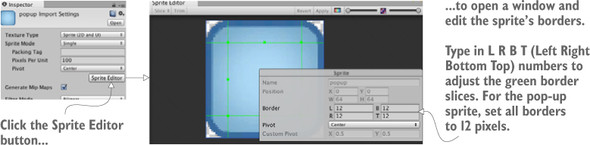
The UI has a button to open a pop-up window, but there’s no pop-up yet. That will be a new image object, along with several controls (such as buttons and sliders) attached to that object. The first step is to create a new image, so choose GameObject > UI > Image. Just as before, the new image has a slot in the Inspector called Source Image. Drag a sprite to that slot to set this image. This time use the sprite called popup.