concept slider in category c#

This is an excerpt from Manning's book Unity in Action: Multiplatform game development in C# with Unity 5.
The HUD for most games is only a few different UI controls repeated over and over. That means this project doesn’t need to be a terribly complex UI in order for you to learn how to build a game’s UI. You’re going to put a score display and a settings button in the corners of the screen (see figure 6.2) over the main game view. The settings button will bring up a pop-up window, and that window will have both a text field and a slider.
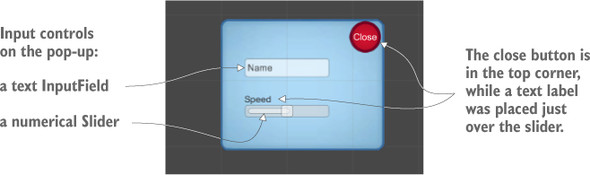
Adding some controls to the settings pop-up involves two main steps, like the buttons we made earlier. You create UI elements attached to the canvas, and link those objects to a script. The input controls we need are a slider and a text field, and there will be a static text label to identify the slider. Choose GameObject > UI > Text to create the text object, GameObject > UI > InputField to create the text field, and GameObject > UI > Slider to create the slider object (see figure 6.16).
Make all three objects children of the pop-up by dragging them in the Hierarchy view and then position them as indicated in the figure, lined up in the middle of the pop-up. Set the text to Speed so that it can be a label for the slider. The input field is for typing in text, and Text is shown in the box before the player types something else; set this value to Name. You can leave the options Content Type and Line Type at their defaults; if desired, you can use Content Type to restrict typing to things like only letters or only numbers, whereas you can use Line Type to switch from a single line to multiline text.