concept TextBlock in category c#

This is an excerpt from Manning's book Windows Store App Development.
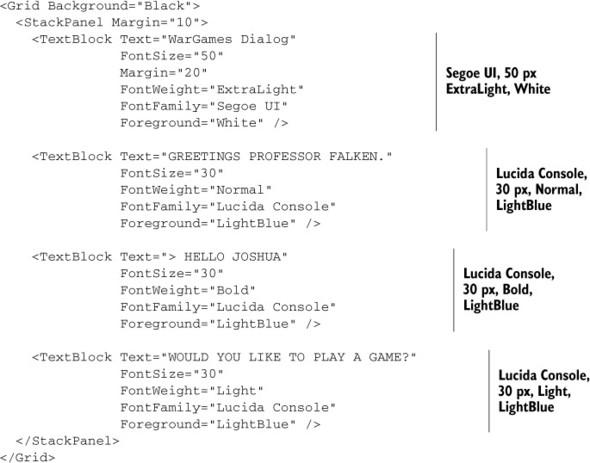
Next, you can either drag a TextBlock from the Toolbox (pane on the left—you may need to click it or hover over it if it’s not already open) onto the design surface and visually align its left and text baseline with one of the major grid lines, or you can simply paste inside the Grid element the following XAML:
We’ll start the chapter with a look at the basics of text in XAML. First, we’ll dive into the most commonly used element, the TextBlock. The TextBlock is not only popular for displaying text, but it also serves as a great way to see the font and text layout properties in action. As part of our investigation, we’ll look at how to combine multiple inline elements to support rich formatting of text. Then, we’ll look at how to wrap text and how to align it to the edges or even use full justification. We’ll also look at a great feature of the TextBlock, the TextTrimming property. This property makes it possible to intelligently truncate text and display an ellipsis (...) at the end. This feature is especially useful if you’re creating any sort of resizable heading or text layout or localizing text where word or phrase sizes differ significantly from language to language. We’ll wrap up the discussion of the basics by talking about how to control character and line spacing.
The TextBlock supports different fonts and colors, but it’s more lightweight support than the intended use. To really mix and match fonts, colors, and even embedded UI elements, you need to look to the RichTextBlock. This element is also the best one to use to implement multicolumn or more fluid text layout.