concept UpdatePanel in category c#

This is an excerpt from Manning's book ASP.NET 4.0 in Practice.
All the templates share a common base, using a DynamicDataManager to instruct the data controls, a ValidationSummary to display validation errors, and an UpdatePanel to provide AJAX capabilities, using ASP.NET AJAX (see chapter 12).
At the base of partial rendering is the UpdatePanel control. It’s the server control that delimits an area. UpdatePanel is pretty simple to use; it has a ContentTemplate property that contains the HTML of the area. In our sample, the UpdatePanel includes both drop-down lists, as shown in this snippet:
<asp:ScriptManager Id="sm" runat="server" />
<asp:UpdatePanel runat="server">
  <ContentTemplate>
    <asp:DropDownList runat="server" ID="Regions" ...> </asp:DropDownList>
    <asp:DropDownList ID="Territories" ...></asp:DropDownList>
  </ContentTemplate>
</asp:UpdatePanel>
We haven’t included the complete markup of the drop-down lists, but it’s the same as you saw in the previous section. The ScriptManager control is the center of ASP.NET Ajax. This control sends necessary JavaScript files to the page and enables the use of UpdatePanel. It also enables downloading JavaScript files from the content delivery network (CDN), and so on.
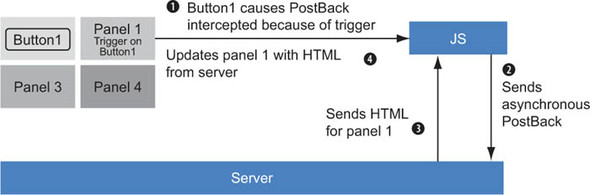
By default, the ASP.NET Ajax JavaScript intercepts the submit triggered by the controls inside the UpdatePanel. We can modify this behavior and cause an UpdatePanel to be updated even when an external control triggers the PostBack. The PostBack will be intercepted and transformed into an Ajax call, and everything works the same. Such a workflow is shown in figure 12.4.
Figure 12.4. The button outside panel 1 causes a PostBack. The JavaScript on the page intercepts the PostBack (because panel 1 has a trigger on the button) and invokes the server, simulating a PostBack with an Ajax call. The server sends HTML for panel 1 (because of the trigger), and the JavaScript updates it.
We can strip the first drop-down list off the UpdatePanel, leaving only the second one. We can then instruct the UpdatePanel to refresh when the first list value is changed. This instruction is known as a trigger and is shown in the next snippet.
<asp:DropDownList runat="server" ID="Regions" ...> </asp:DropDownList>
<asp:UpdatePanel runat="server">
  <Triggers>
    <asp:AsyncPostBackTrigger ControlID="Regions"
      EventName="SelectedIndexChanged" />
  </Triggers>
  <ContentTemplate>
    <asp:DropDownList ID="Territories" ...></asp:DropDownList>
  </ContentTemplate>
</asp:UpdatePanel>
The Triggers property of the UpdatePanel contains the external controls that cause the panel to be updated. A trigger can be one of two types:

This is an excerpt from Manning's book ASP.NET AJAX in Action.
The new set of server controls adds to the impressive arsenal of tools in the ASP.NET toolbox and is predominantly driven by two controls. The first of these controls is the ScriptManager, which is considered the brains of an Ajax-enabled page. One of the many responsibilities of the ScriptManager is orchestrating the regions on the page that are dynamically updated during asynchronous postbacks. The second control, named the UpdatePanel, is used to define the regions on the page that are designated for partial updates. These two controls work together to greatly enhance the user experience by replacing traditional postbacks with asynchronous postbacks. This results in regions of the page being updated incrementally rather than all at once with a full page refresh.
One of the most fascinating controls in the ASP.NET AJAX framework is the UpdatePanel. This new control replaces the need for a page to refresh during a postback. Only portions of a page, designated by the UpdatePanel, are updated. This technique is known as partial-page rendering and can be highly effective in improving the user experience.
At the end of chapter 1 and in segments of chapter 4, you got a glimpse into how the UpdatePanel works and how simple it is to apply to existing ASP.NET applications. In this chapter, the first of two dedicated solely to the UpdatePanel, we’ll take you through a series of examples that demonstrate how to use the control effectively. In the process, you’ll gain some insight into how it works together with the ScriptManager control to manage and orchestrate partial-page updates. By the end of this chapter, you’ll have a solid understanding of how to apply the UpdatePanel correctly to enhance ASP.NET applications.
Just like any other powerful tool, the UpdatePanel requires care and knowledge to fully exploit its influence on a page’s performance and behavior. We begin this chapter with some thoughts on its power and responsibilities.
All content that is added to the UpdatePanel is a candidate for partial-page rendering. When content is added to the panel, either declaratively or programmatically, that content can be rendered (updated) when an asynchronous postback occurs. To demonstrate, let’s walk through a few quick examples.
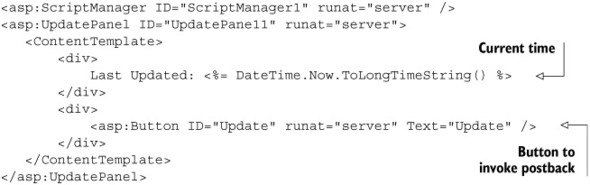
Listing 6.3 demonstrates how content is added declaratively to an UpdatePanel by placing it in a property called ContentTemplate.
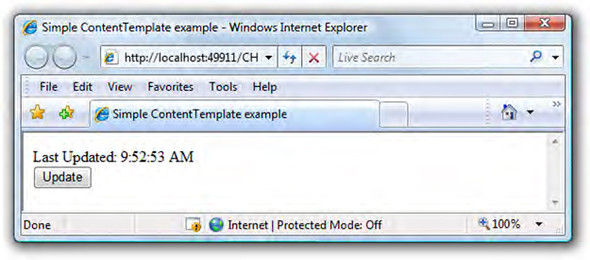
In this example, inline code is used to display the current time. An ASP.NET Button control is declared to demonstrate what happens when a postback occurs. The Button control, by default, raises a postback when it’s clicked. Because this control is placed in the ContentTemplate tag, it can be considered a child control of the UpdatePanel. When this example is executed and the button is clicked, the time displayed on the page is updated without a page refresh. Running the example produces the output shown in figure 6.3.
Subsequent clicks of the Button on the form continue to update the current time dynamically. This works by replacing the traditional postback with an asynchronous postback that the ScriptManager intercepts. During this type of postback, updates are applied to the page by injecting the necessary JavaScript that renders the contents in the UpdatePanel.
Listing 10.10. Example usage of the TextChangedExtender
<asp:UpdatePanel ID="UpdatePanel1" runat="server"> <ContentTemplate> <div>Updated at: <%= DateTime.Now %></div> <asp:TextBox ID="TextBox1" runat="server" AutoPostBack="true" /> <samples:TextChangedExtender ID="TextChangedExtender1" runat="server" TargetControlID="TextBox1" Timeout="1000" OnTextChanged="onTextChanged" /> </ContentTemplate> </asp:UpdatePanel> <script type="text/javascript"> <!-- function onTextChanged(sender, e) { Sys.Debug.trace('textChanged event handled'); } //--> </script>