concept user control in category c#

This is an excerpt from Manning's book ASP.NET 4.0 in Practice.
You can customize the search mechanism by writing filter templates. Similar to display templates, you save a filter template under DynamicData\Filters, and the user control must inherit from System.Web.DynamicData.QueryableFilterUserControl.
OutputCache in a user control doesn’t look much different from the page one. The directive you use is the same: you can’t specify the Location attribute (it’s implicit) and you can add an optional Shared attribute:
<%@OutputCache Shared="true" Duration="60" VaryByParam="none" %>Specify the Shared attribute to use the same instance (in the cache) across multiple pages that reference the same control. If, on the other hand, you need different outputs for the same control to be stored in the cache depending on the page where it’s declared, just set it to false. Other than this difference, pages and user controls work the same way. Remember that when using OutputCache in a user control, you can’t reference it in your page because an instance of it effectively doesn’t exist.

This is an excerpt from Manning's book ASP.Net 2.0 Web Parts in Action: Building Dynamic Web Portals.
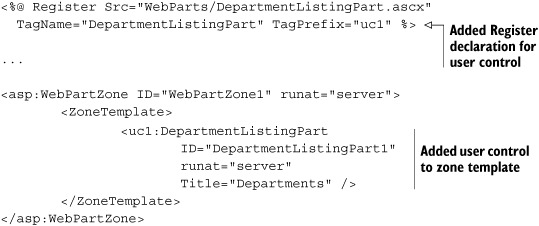
Now the wizard has all of the information it needs to create a data source control that can be bound to the GridView, and we can create a page in which to display our control. To add this web part to the web part page we created earlier, switch the Default.aspx page into design mode and drag the DepartmentListingPart user control from the Server Explorer on to the WebPartZone. Listing 2.16 shows that by adding the user control, Visual Studio has automatically registered the control with the page and added the correct markup for the user control into the zone template for us.
The register tag that was added by Visual Studio is known as the @ Register directive. This directive is included in ASP.NET web pages so that a tagname and tagprefix can be associated with user controls and custom server controls. You can see that the tagname (DepartmentListingPart) and tagprefix (uc1) could then be useful in declaring the department listing user control within the page.
We’ve seen labels and calendars that magically morph into GenericWebParts and custom server controls that derive from the WebPart class being used to create web parts; but we haven’t as yet seen a web part created using a UserControl. Being able to use user controls as web parts allows developers to create user interfaces employing exactly the same techniques they applied when creating web pages. This includes having the ability to drag-and-drop controls from the Toolbox onto the design surface. For this reason, user controls may also be easier to understand for someone who is relatively new to ASP.NET and who would benefit from the better design time experience that they would get when creating user controls in Visual Studio 2005. One advantage includes being able to drag controls directly from the Visual Studio 2005 Toolbox onto the surface of user controls as opposed to having to work solely in code.
That completes the code for the user control. Now we can create a web page to display it in. Add a page to your test web project and, as with all web part pages, add a WebPartManager and a WebPartZone to the page.
With the page in design mode, drag the user control that we just created from the Server Explorer onto the web part zone. Listing 2.6 shows how the page appears when displayed in source view. You can see that the designer has added a Register directive for the user control and also added the correct mark-up for the user control into the body of the ZoneTemplate. Build and run your page in a browser to view the results. They should appear as they did in figure 2.7.
Listing 2.6. The MyCalendar user control web part is declared within the web part zone
<%@ Register Src="MyCalendar.ascx" TagName="MyCalendar" TagPrefix="uc1" %> <asp:WebPartZone ID="WebPartZone1" runat="server"> <ZoneTemplate> <uc1:MyCalendar id="MyCalendar1" runat="server" Title="My Calendar" /> </ZoneTemplate> </asp:WebPartZone>Now you’ve seen both options for creating web part controls. That is, you can either create them by using custom server controls and by inheriting from the base WebPart class, or you can use user controls. In a very short time we’ve actually managed to build web parts by using both custom server controls and user controls. Ideally, as you’ve been working through these samples you’ve started thinking of all the different types of web parts that a real business might want to have displayed on its portal—employee information, sales data, production figures, profit and loss data, and so on. As we move further into the book, you’ll learn that the portal framework comes complete with a catalog to store all these parts. Then you will see that having too many web parts never presents a problem, because they can all be stored and easily retrieved from within the catalog gallery, ready to be displayed on a user’s page at any time.