concept file in category cloud

This is an excerpt from Manning's book Cloud Native Machine Learning: Deploying PyTorch models on AWS.
There are many similarities between file systems and object storage, so you will find it easier to understand object storage if you start by focusing on the differences. Recall that file systems are designed to store mutable, or in other words, changeable data in a named location. This means that with a file system, you can open a file, navigate to any line or a byte location in the file, change as many or as few bytes as you would like, and then save the changes back to the file system. Since files in a file system are mutable, after you make the change, the original data is gone and is replaced on the storage medium (for example on a solid-state drive) with your changes.
Listing 2.3. Allow AWS Glue crawler to access the files in your object storage bucket.
aws iam create-role \
  --path "/service-role/" \
  --role-name AWSGlueServiceRole-dc-taxi #1
  --assume-role-policy-document '{
  "Version": "2012-10-17",
  "Statement": [
    {
      "Effect": "Allow",
      "Principal": {
        "Service": "glue.amazonaws.com"
      },
      "Action": "sts:AssumeRole"
    }
  ]
}'

aws iam attach-role-policy \
  --role-name AWSGlueServiceRole-dc-taxi \
  --policy-arn arn:aws:iam::aws:policy/service-role/AWSGlueServiceRole #2

aws iam put-role-policy \
  --role-name AWSGlueServiceRole-dc-taxi \ #3
  --policy-name GlueBucketPolicy \
  --policy-document '{
    "Version": "2012-10-17",
    "Statement": [
        {
            "Effect": "Allow",
            "Action": [
                "s3:*"
            ],
            "Resource": [
                "arn:aws:s3:::dc-taxi-'$BUCKET_ID'-'$AWS_DEFAULT_REGION'/*"
            ]
        }
    ]
}'

This is an excerpt from Manning's book Designing Cloud Data Platforms.
Given these factors, it’s not surprising that flexible storage was one of the first services offered by cloud vendors. Cloud storage doesn’t impose any restrictions on the types of files you can upload – you’ve got free rein to bring in text files like CSV or JSON, binary files like Avro, Parquet, images, video – just about anything can be stored in the data lake. This ability to store any file format is an important foundation of a data lake, because it allows you to store raw, unprocessed data and delay its processing until later.
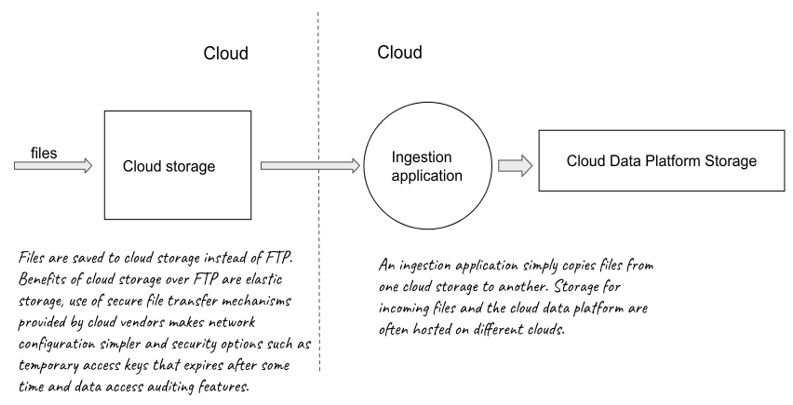
Files are another very common data source for your data platform. These are usually text or binary files that are delivered to the target system through FTP protocol or placed on cloud storage like GCS, S3 or Azure Blob storage where ingestion processes pick them up. It’s worth mentioning that we have seen some more exotic ways of delivering data into a data platform, such as sending files as attachments to a dedicated email address. We strongly advise against such an approach for security and reliability reasons.
Despite their simplicity, files are actually really tricky to deal with from an ingestion standpoint. First of all they come in many different formats. The most popular text formats are CSV, JSON and XML. Binary formats are slightly less common and may include Avro or Protocol Buffers (Protobuf). Text file formats don’t include any column type information and don’t usually enforce any constraints on the data or file structure itself. This means there is no guarantee that files you receive will follow a consistent structure even for the same source. Your ingestion process must therefore be very resilient to change and must be able to deal with many different edge cases.
Figure 4.21. Ingesting files from cloud storage

This is an excerpt from Manning's book Google Cloud Platform in Action.
Google Cloud Platform (often abbreviated as GCP) is a collection of products that allows the world to use some of Google’s internal infrastructure. This collection includes many things that are common across all cloud providers, such as on-demand virtual machines via Google Compute Engine or object storage for storing files via Google Cloud Storage. It also includes APIs to some of the more advanced Google-built technology, like Bigtable, Cloud Datastore, or Kubernetes.
Found a file called my_first_file.txt
No more files!
What about uploading files? You’re going to upload a new file. First, create my_second_file.txt by adding some text to a new file (for example, echo "This is my second file!" >my_second_file.txt), and then write a script that uploads the file, as shown in the next listing.
Listing 8.4. Script to upload a file to Cloud Storage
const storage = require('@google-cloud/storage')({
  projectId: 'your-project-id'
});
const bucket = storage.bucket('my-first-bucket-jjg');
bucket.upload('my_second_file.txt', (err, file) => {
  if (err) {
    console.log('Whoops! There was an error:', err);
  } else {
    console.log('Uploaded your file to', file.name);
  }
});
If you run this script, you should see a message saying the file was uploaded. After this, if you rerun the script to list files, you should see the new file listed in the results:
Similar to version control (like Git, Subversion, or Mercurial), Cloud Storage has the ability to turn on versioning, where you can have objects with multiple revisions over time. Also, when versioning is enabled, you can revert back to an older version like you can with files in a Git repository.
Now look more closely at the file by using the ls -la command, as shown in the listing 8.16. The -l flag shows the “long” listing, which includes some extra information about the file, and the -a flag shows noncurrent (for example, archived) objects along with extra metadata about the object such as the generation and metageneration.
Listing 8.16. Listing objects with -la flags
$ gsutil ls -la gs://my-versioned-bucket
27  2016-06-21T13:29:38Z  gs://my-versioned-
 bucket/file.txt#1466515778205000  metageneration=1
TOTAL: 1 objects, 27 bytes (27 B)
As you can see, the metageneration (or the version of the metadata) is obvious (metageneration=1). The generation (or version) of the object isn’t as obvious, but it’s that long number after the # in the filename; in this example, 1466515778205000. As you learned earlier, when versioning is enabled on a bucket, new files of the same name archive the old version before replacing the file, so try that and then look again at what ends up in the bucket, as shown in the following listing.
Listing 8.17. Upload a new version of the file
$ echo "This is the second version."> file.txt
$ gsutil cp file.txt gs://my-versioned-bucket/
Copying file://file.txt [Content-Type=text/plain]...
Uploading   gs://my-versioned-bucket/file.txt:
                   28 B/28 B

$ gsutil ls -l gs://my-versioned-bucket
28  2016-06-21T13:39:11Z  gs://my-versioned-bucket/file.txt
TOTAL: 1 objects, 28 bytes (28 B)

$ gsutil ls -la gs://my-versioned-bucket
27  2016-06-21T13:29:38Z  gs://my-versioned-
 bucket/file.txt#1466515778205000  metageneration=1
28  2016-06-21T13:39:11Z  gs://my-versioned-
 bucket/file.txt#1466516351939000  metageneration=1
TOTAL: 2 objects, 55 bytes (55 B)

This is an excerpt from Manning's book Azure in Action.
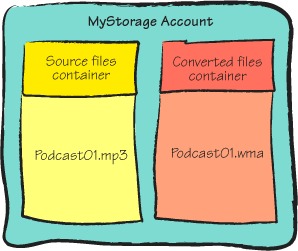
In your storage account, you create a set of containers (similar to folders) that you can store your binary files in. In the initial version of the BLOB storage service, containers can either be restricted to private access (you must use an authentication key to access the files held in this container) or to public access (anyone on the internet can access the file, without using an authentication key).
In figure 1.13, we return to the audio file conversion (MP3 to WMA) scenario. In this example, you’re converting a source recording of your podcast (Podcast01.mp3) to Windows Media Audio (Podcast01.wma). The source files are held in BLOB storage in a private container called Source Files, and the destination files are held in BLOB storage in a public container called Converted Files. Anyone in the world can access the converted files because they’re held in a public container, but only you can access the files in the private container because it’s secured by your authentication token. Both the private and public containers are held in the storage account called MyStorage.
BLOBs can be split up into more manageable chunks known as blocks for more efficient uploading of files. This is only the tip of the iceberg in terms of what you can do with BLOB storage in Azure. In part 4, we’ll explore BLOB storage and usage in much more detail.
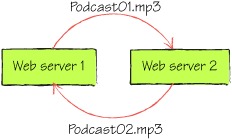
The maximum size of a BLOB is 1 TB, but if a file is larger than 64 MB, under the covers the StorageClient library splits the file into smaller blocks of 4 MB each. One of the advantages of the StorageClient library is that you don’t need to worry about this. If you’re using the REST API, you’ll need to implement the splitting of BLOBs into blocks and the committal of blocks and retry logic associated with re-uploading failed blocks (yet another good reason to use the StorageClient library).