concept firewall in category cloud

This is an excerpt from Manning's book Azure in Action.
Windows Azure allows web roles to receive incoming HTTP or HTTPS messages (usually via port 80 and port 443 respectively) via your virtual IP address only (see chapter 3). Any other traffic that’s sent to your virtual IP address is either filtered out by the firewalls or is not forwarded to your web role from the load balancer. Figure 4.3 shows the interaction between a client browser, the load balancer, and your web role. Worker roles are not held to this protocol restriction. (We’ll cover worker roles in chapter 15.)
Figure 4.3. The load balancer protects the galaxy (or at least your web role) from the threat of invasion.
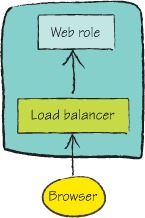
By locking down the available protocols, Windows Azure reduces the surface area of attack for your web role. Any incoming requests to your web role (outside of the port and protocol combinations defined in the service definition) are filtered out by the firewalls and load balancers; the request never reaches the servers that your web role is hosted on. This level of protection protects your web role from port attacks, as well as from distributed denial-of-service (DDoS) attacks.
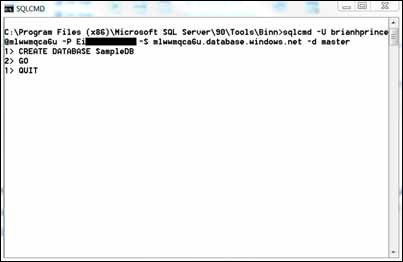
Even applications running in Windows Azure can’t connect to your server until you grant them permission to connect. Because application servers in Azure use virtual IP addresses, and the roles could shut down and restart anywhere, causing their addresses to change, there’s a special rule you can use in the firewall. If you create a rule with 0.0.0.0 as the starting and ending addresses, any Azure application will be able to connect to your server. That connection must still provide a valid username and password.
A common problem is making a change to the firewall and then immediately trying to access the server from that IP address, which then fails. The cache that’s used to speed up firewall-rule checks refreshes every 5 minutes. If you make a rule change, it’s worth waiting up to 5 minutes before trying to see if the change works.