concept Windows Azure in category cloud

This is an excerpt from Manning's book Azure in Action.
If this is the sort of thing you daydream about, then you should burn your server farm and watch the smoke form into a cloud in the perfect azure sky. Welcome to the cloud, and welcome to Windows Azure. We also suggest that if this is the sort of thing you daydream about, you might want to lie to your non-IT friends.
In the last chapter we got into the guts of the infrastructure and architecture of Windows Azure. During that chapter we introduced the concept of the service model and how it’s used by the FC to manage your role.
Windows Azure allows web roles to receive incoming HTTP or HTTPS messages (usually via port 80 and port 443 respectively) via your virtual IP address only (see chapter 3). Any other traffic that’s sent to your virtual IP address is either filtered out by the firewalls or is not forwarded to your web role from the load balancer. Figure 4.3 shows the interaction between a client browser, the load balancer, and your web role. Worker roles are not held to this protocol restriction. (We’ll cover worker roles in chapter 15.)
Figure 4.3. The load balancer protects the galaxy (or at least your web role) from the threat of invasion.
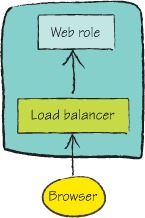
By locking down the available protocols, Windows Azure reduces the surface area of attack for your web role. Any incoming requests to your web role (outside of the port and protocol combinations defined in the service definition) are filtered out by the firewalls and load balancers; the request never reaches the servers that your web role is hosted on. This level of protection protects your web role from port attacks, as well as from distributed denial-of-service (DDoS) attacks.
One of the static properties that the ServiceRuntime exposes via the RoleEnvironment static class is the ability to check whether your application is running in Windows Azure. You can perform this check using the RoleEnvironment.IsAvailable property.
To see this check in action, you’re going to quickly create a web page that displays a label that states whether your application is running in Windows Azure. Figure 4.2 shows that web page running in the development fabric.