concept Data - Forge in category data

This is an excerpt from Manning's book Data Wrangling with JavaScript.
You’ll learn more about using Data-Forge and what it can do throughout the book, especially in chapter 9.
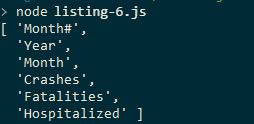
Figure 5.12 Using Data-Forge to output column names from the CSV file
Our main mental tool here is that of the data pipeline. As we look at the different ways we can transform data, keep in mind that we’re working toward building a flexible data pipeline. How you structure this, well, that’s up to you, but by the end of the chapter, I’ll show you an elegant and flexible way of chaining your data transforms using Data-Forge.
Using Data-Forge to rewrite broken data
We can also use Data-Forge to rewrite our data set in a way that looks similar to plain old JavaScript.
Why should we use Data-Forge for this? Because data transformations like this fit nicely into a flexible, convenient, and elegant Data-Forge data pipeline. At the end of the chapter, you’ll see a more complete Data-Forge example to show you this all fits together in the context of a bigger data pipeline, but for now let’s rewrite listing 6.1 using Data-Forge.
You’ll notice that listing 6.3 is similar to listing 6.1. We have the familiar
transformDataandtransformRowfunctions. In fact,transformRowis exactly the same as in listing 6.1. However,transformDatais different. In this case, it accepts a Data-Forge DataFrame as input and returns a new, modified DataFrame as output. Instead of JavaScript’smapfunction, we are using Data-Forge’sselectfunction to transform the data set.mapandselectare conceptually equivalent: they both pull apart a sequence of data, modify each record, and then merge the output to create a new sequence. You can run the following listing, and it will output the file surveys-with-fixed-dates-using-data-forge.csv.Listing 6.3 Using Data-Forge to rewrite bad records (listing-6.3.js)
const moment = require('moment');
const extend = require('extend');
const dataForge = require('data-forge');    #1

const importDateFormat = "YYYY-MM-DD HH:mm";
const inputFileName = "./data/surveys.csv" ;
const outputFileName =
    "./output/surveys-with-fixed-dates-using-data-forge.csv";

function parseDate (inputDate, timezoneOffset) {
    return moment(inputDate, importDateFormat)
        .utcOffset(timezoneOffset)
        .toDate();
}

function transformRow (inputRow) {
    const outputRow = Object.assign({}, inputRow);
    outputRow.start_datetime = parseDate(
        inputRow.start_datetime, inputRow.timezone
    );
    outputRow.end_datetime = parseDate(
        inputRow.end_datetime, inputRow.timezone
    );
    return outputRow;
}

function transformData (inputDataFrame) {
 return inputDataFrame.select(transformRow);    #2
}

dataForge.readFile(inputFileName)    #3
 .parseCSV()    #3
    .then(inputDataFrame => {
 const outputDataFrame = transformData(inputDataFrame);    #4
        return outputDataFrame
 .asCSV()    #5
 .writeFile(outputFileName);    #5
    })
    .then(() => {
        console.log("Done! ");
    })
    .catch(err => {
        console.error("Error!");
        console.error(err && err.stack || err);
    });

#1   Requires the Data-Forge library
#2   Shows our helper function to fix an entire data set. Note that we use Data-Forge’s select function to rewrite the DataFrame (as opposed to JavaScript’s map function, that we used in listing 6.1).
#3   Uses Data-Forge to read our input file into memory as a DataFrame
#4   Transforms the DataFrame in-memory
#5   Uses Data-Forge to write out our output DataFrame to a file
Listing 6.3 isn’t so different from listing 6.1, and it doesn’t yet show you the power of Data-Forge. One of the benefits of Data-Forge, among others, is that it’s easy to chain data transformations and build a pipeline. Let’s work through the remainder of the examples before we see how they can be chained together into a more complex pipeline using Data-Forge.