concept text file in category data
This is an excerpt from Manning's book Mastering Large Datasets with Python: Parallelize and Distribute Your Python Code.
To accomplish this process in Spark, the first thing we’ll want to do is bring our data into an RDD—Spark’s powerful parallel data structure. This is a good starting point for most work in Spark. To do that, we’ll need a SparkContext, so we’ll have to instantiate a SparkContext instance. Then we can use the SparkContext method .textFile to read in text files from our filesystem. This method creates an RDD with the lines of those documents as elements.

This is an excerpt from Manning's book Data Wrangling with JavaScript.
Text files are usually better than binary files for data storage because they’re generally human readable, which means you can open the file in a text editor and read it. This isn’t possible with binary files; you can’t read them with your eyes (unless you have a viewer for the particular format), so you have no way of understanding the content. This is a major shortcoming of binary files.
Binary files, however, are important for a different reason: usually they are a much more compact and efficient representation than text files. This makes them faster to process, and they take up less space in memory. I’ll talk more about using binary files in chapter 4.
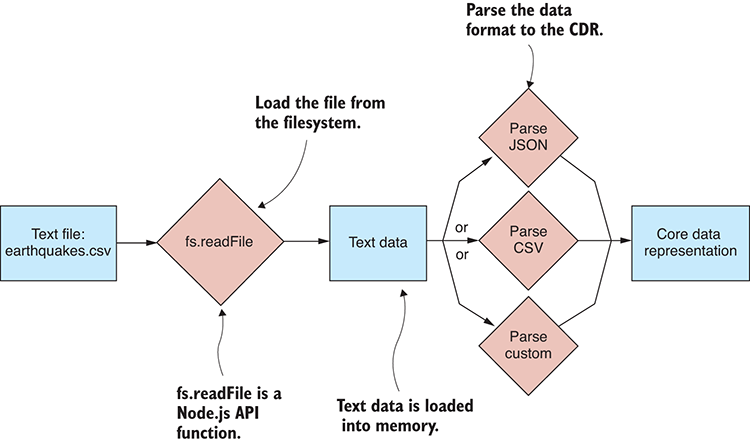
The general process of importing a text file to the core data representation is illustrated in figure 3.6. Toward the right of the diagram, notice the pathway branches; this is where we interpret the incoming data as a particular format and decode it to the CDR. For the moment, though, let’s load the text file into memory.
In Node.js, we use the
fs.readFilefunction to read the file’s content into memory. How we parse the file varies according to the data format, but reading the text file into memory is the same in each case, an example of which is shown in listing 3.1. You can run this code, and it will print the contents of the file earthquakes.csv to the console.Figure 3.6 Importing a text file to the CDR
Listing 3.1 Reading a text file into memory (listing-3.1.js)
const fs = require('fs');    #1

fs.readFile("./data/earthquakes.csv", "utf8",    #2
 (err, textFileData) => {    #3
 if (err) {    #4
 console.error(“An error occurred!”);    #4
 return;    #4
 }    #4

 console.log(textFileData);    #5
 }    #3
).  #2

#1   Requires the Node.js fs (filesystem) module
#2   Calls Node.js readFile function to read the file earthquakes.csv into memory
#3   Invokes the asynchronous callback that’s invoked by Node.js when the file has been loaded
#4   Error handling, in case the file doesn’t exist or something else went wrong
#5   Prints loaded data to console to check what was loaded. You’ll see this often.
Listing 3.1 is a basic example of loading a text file in Node.js, but for the convenience of managing the asynchronous operation, we’ll now wrap this in a promise. We’re going to need boilerplate code that we’ll use each time we load a text file. We’ll reuse this code many times throughout the book, so let’s turn it into a reusable toolkit function.