concept title in category data

This is an excerpt from Manning's book Data Science Bookcamp: Five Python Projects.
We’ll now compare the query to the titles, and sort the titles based on the Tanimoto similarity.
Listing 13.24. Ranking titles by query similarity
titles = ["A: Pepperoni Pizza! Pepperoni Pizza! Pepperoni Pizza!",
          "B: Pepperoni"]
title_vectors = [title_a_vector, title_b_vector]
similarities = [tanimoto_similarity(query_vector, title_vector)
                for title_vector in title_vectors]

for index in sorted(range(len(titles)), key=lambda i: similarities[i],
                    reverse=True):
    title = titles[index]
    similarity = similarities[index]
    print(f"'{title}' has a query similarity of {similarity:.4f}")
An HTML document is composed of HTML elements. Each element corresponds to some document. component. For instance, the document’s title is an element. Every single paragraph within the document is also an element. The starting location of an element is demarcated by a start-tag. For instance, the start-tag of a title is
<title>while the start-tag of a paragraph is<p>. Every start tag begins and ends with angled brackets,<>. Adding a forward slash to the tag will transform it into an end-tag. The endpoint of most elements are demarcated by end-tags. Thus, the immediate text of a title is followed by</title>, while the text of a paragraph is followed by</p>. Shortly, we’ll explore many common HTML tags. However, first we must introduce the most important HTML tag;<html>. It specifies the start on the entire html document. Lets utilize that tag to create a document composed of just a single word; Hello. We’ll generate the contents of the document by codinghtml_contents = "<html>Hello</html>"
We’ve rendered our HTML document. It’s not very impressive. The body is composed of a single word. Furthermore, the document lacks a title. Lets assign the document a title, using the
<title>tag. We’ll set the title to something simple, like Data Science is Fun. To do so, we’ll begin by creating a title string that is equal to"<title>Data Science is Fun</title>".Listing 16.3. Defining an HTML title
title = "<title>Data Science is Fun</title>"Now, we’ll nest the title within
<html>and</html>by runninghtml_contents = f"<html>{title}Hello</html>". Afterwards, we’ll render the updated contents.Listing 16.4. Adding a title to the HTML string
html_contents = f"<html>{title}Hello</html>"
render(html_contents)
Figure 16.2. A rendered HTML document. The document’s title does not appear in the rendered output. Only the word Hello is visible.

Our output is identical to what we’ve seen before! The title does not appear in the body of the rendered HTML. Instead, it only appears in the title-bar of the web browser.
Figure 16.3. A web-browser rendering of the HTML document. The document’s title appears within the browser’s title bar.
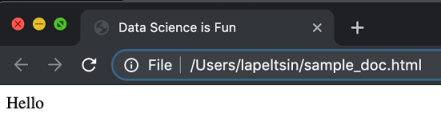
Despite its partial invisibility, the title provides us with very important information. It summarizes the contents of the document. For instance, within a job-listing, the title directly summarizes the nature of the job. Thus, the title reflects vital information despite its absence from the body of the document. This critical distinction is commonly emphasized using
<head>and<body>tags. The content delimited by the HTML<body>tag will appear in the body of the output. Meanwhile,<head>delimits vital information that is not rendered within the body. Lets emphasize this distinction by nestingtitlewithin the head element of the HTML. We’ll also nest the visible Hello within the body element of the contents.Listing 16.5. Adding a head and body to the HTML string
head = f"<head>{title}</head>"
body = "<body>Hello</body>"
html_contents = f"<html> {title} {body}</html>"
Occasionally, we’ll want to display a document’s title within the body of a page. For instance, in a job-posting, the employer will likely want to visualize the title of the job. This visualized title is referred is the page header. It is demarcated with the
<h1>tag. Of course, that tag is nested within<body>, where all visualized content is to be found. Below, we’ll add a header to the body of our HTML.