concept app in category electron

This is an excerpt from Manning's book Electron in Action.
Electron ships with the shell module, which provides some functions related to high-level desktop integration. The shell module can ask the user’s operating system what browser they prefer and pass the URL to that browser to open. Let’s start by pulling in Electron and storing a reference to its shell module at the top of app/renderer.js.
Returning false in a function that listens for app’s windows-all-closed event prevents the application from quitting. On macOS, app fires an activate event when the user clicks the dock icon.
Listing 7.11. Displaying an error when trying to save or export a file that doesn’t exist: ./app/application-menu.js
const { app, dialog, Menu, MenuItem shell } = require('electron');  #1
const mainProcess = require('./main');

const template = [
  {
    label: 'File',
    submenu: [
      {
        label: 'New File',
        accelerator: 'CommandOrControl+N',
        click() {
          mainProcess.createWindow();
        }
      },
      {
        label: 'Open File',
        accelerator: 'CommandOrControl+O',
        click(item, focusedWindow) {
          mainProcess.getFileFromUser(focusedWindow);
        },
      },
      {
        label: 'Save File',
        accelerator: 'CommandOrControl+S',
        click(item, focusedWindow) {
          if (!focusedWindow) {
            return dialog.showErrorBox(                             #2
              'Cannot Save or Export',
              'There is currently no active document to save or export.'
            );
          }
          focusedWindow.webContents.send('save-markdown');
        },
      },
      {
        label: 'Export HTML',
        accelerator: 'Shift+CommandOrControl+S',
        click(item, focusedWindow) {
          if (!focusedWindow) {
            return dialog.showErrorBox(                             #3
              'Cannot Save or Export',
              'There is currently no active document to save or export.'
            );
          }
          focusedWindow.webContents.send('save-html');
        },
      },
    ],
  },

This is an excerpt from Manning's book Cross-Platform Desktop Applications: Using Node, Electron, and NW.js.
Like the Hello World app in NW.js, I’ve also created the app that we’ll run through now. If you want to boot that up and play with it, you can grab a copy of the source at http://mng.bz/u4C0.
Follow the instructions in the README.md file to get the app up and running. Alternatively, if you want to bake the cake rather than merely eat it at the end, we’ll walk through that now.
Not only can nw-builder create standalone executables of the app for each OS, you can also include the app icons you created earlier. In order to do this, you need to pass some options to the nwbuild command to tell it to use the icons. Navigate to a folder where you would like the app files to be generated and run the following command in Terminal or Command Prompt:
nwbuild . -o ./build -p win64,osx64,linux64This will generate a build folder in the directory where the command was run. Inside that build folder will be another folder with the name of the app (in this case, lorikeet-nwjs), and inside that you’ll have six folders, one for each of the OS builds you want to create the app for (win64, osx64, linux64). These folders contain the built app with 64-bit versions of the app on each OS. If you browse through those folders, you’ll see .exe files for the Windows versions of the app, as well as an app file for the Mac OS versions.
Double-click an app to see it open on your computer, and you should see it running as a standalone app; there’s no Terminal window open where it’s being run from, and no external software dependencies to install before running it. If you’re using Mac OS, then it should appear in your Dock. In Windows, you should see the app loaded in the taskbar at the bottom of the screen. If you’re running Linux (say, Ubuntu), you should see the app open in the unity bar.
There’s a simple way to change the icon of an app in Mac OS. In the build folder containing the Mac OS version of the app, right-click the app and select Get Info. You should see a screen like figure 4.4.
In another Finder window, find the icon.icns file you created earlier and drag it over the icon of the app in the top left-hand corner of the Info window. You should then expect to see the Info window look like figure 4.5.
That’s it! Drag and drop the icon.icns file over the app’s icon in the Info window. If you double-click the app, you should see the new app icon in the Dock, in the Finder window when browsing to where the app is stored, and in the list of apps that opens when you press Command-Tab. This version of the app is now ready for distribution, and is quite the simplest and most effective way of changing the app icon for Mac versions of the app.
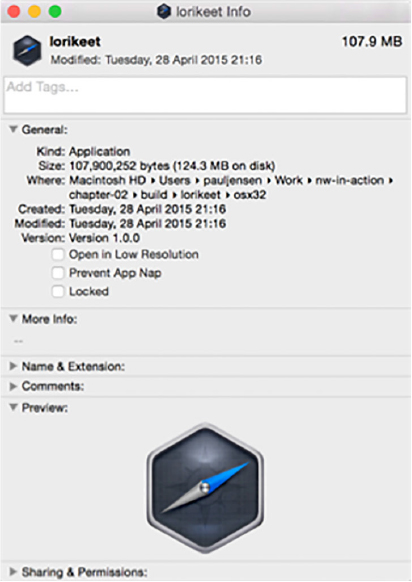
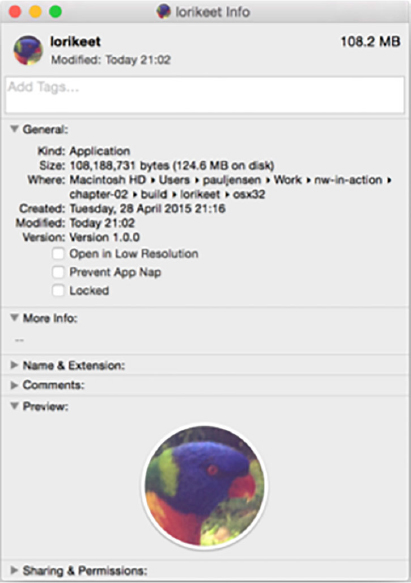
Figure 4.7. Lorikeet NW.js running on Windows 8.1. Notice that the taskbar icon and title bar icon display the app’s lorikeet-inspired icon.
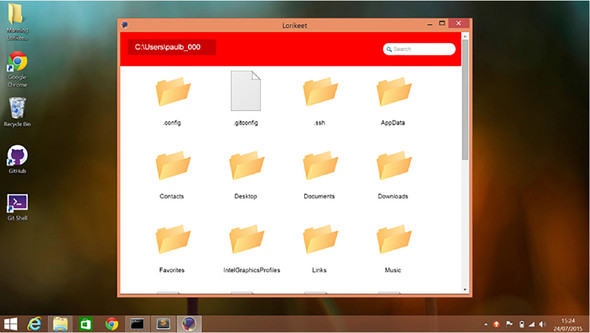
This allows you to ensure that the app’s visual identity is complete on Windows 8. Something to bear in mind here is that your users will likely be using different versions of Windows (there are many Windows XP users in China, for example), so depending on what versions of Windows you want/need to support for your apps, the best course of action is to establish what versions of Windows will be used, use the nwbuild option first, and then for older OSs, manually adjust the icon using Resource Hacker.