concept context menu in category electron

This is an excerpt from Manning's book Electron in Action.
Electron applications can access operating system APIs such as application and context menus, File Open and Save dialog boxes, battery status and power settings, and more.
How we approach solving this problem depends on which menu we’re working with. Context menus within a window are easier because we’re working with only a single window and we’re storing the filePath variable in the global scope. If there is a filePath, then we enable Show File in Folder and Open in Default. If filePath is false, then these menu items are disabled.
Earlier in this chapter, we created a context menu from a template and then called its popup() method whenever a contextmenu DOM event is fired. To dynamically enable or disable the Show File and Open in Default menu items, as in figure 8.6, let’s create a context menu each time the user right-clicks the Markdown view. We enable these items based on whether there is a filePath. To accomplish this, we move the creation of the menu into a function, which allows us to re-create the menu each time it is called.
Listing 8.6. Creating a function to dynamically create context menus: ./app/renderer.js
const createContextMenu = () => {                                         #1
  return Menu.buildFromTemplate([                                         #2
    { label: 'Open File', click() { mainProcess.getFileFromUser(); } },
    {
      label: 'Show File in Folder',
      click: showFile,
      enabled: !!filePath                                                 #3
    },
    {
      label: 'Open in Default',
      click: openInDefaultApplication,
      enabled: !!filePath                                                 #3
    },
    { type: 'separator' },
    { label: 'Cut', role: 'cut' },
    { label: 'Copy', role: 'copy' },
    { label: 'Paste', role: 'paste' },
    { label: 'Select All', role: 'selectall' },
  ]);
};

This is an excerpt from Manning's book Cross-Platform Desktop Applications: Using Node, Electron, and NW.js.
Add context menus in the app window area on right-click
In this chapter, we’ll look at how to create app menus for your desktop apps. You’ll see how they’re handled differently by Mac OS compared to Windows and Linux. We’ll then look at context menus, which provide the user with options when right-clicking on elements within the app, such as being able to insert an item of content at a particular point within a document.
First, download a copy of the Cirrus NW.js app from the book’s GitHub repository. Now, take a good look around the code in the app.js file to get familiar with it, and then look at how you can use context menus to insert multimedia content such as images and videos. Figure 9.11 shows what you want to achieve.
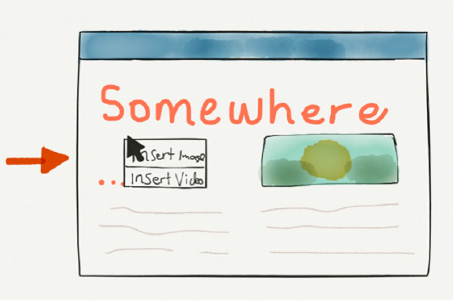
Listing 9.11. Creating insert image/video context menus, part 4
function initialize (window, gui) { #1 if (!document) document = window.document; const menu = new gui.Menu(); #2 menu.append( new gui.MenuItem({ label: 'Insert image', click: insertImage }) ); #3 menu.append( new gui.MenuItem({ label: 'Insert video', click: insertVideo }) ); #4 document.querySelector('#designArea') #5 .addEventListener('contextmenu', (event) => { event.preventDefault(); x = event.x; y = event.y; menu.popup(event.x, event.y); return false; }); } module.exports = initialize; #6 #1 - Creates function to load everything; passed NW.js’s window and GUI library as arguments #2 - With NW.js GUI, creates menu instance for context menu #3 - Adds menu item for inserting an image #4 - Adds another menu item for inserting a video #5 - Attaches that menu to app’s design area so that right-clicking inside it loads that context menu #6 - Exports the module