concept search field in category electron

This is an excerpt from Manning's book Cross-Platform Desktop Applications: Using Node, Electron, and NW.js.
When the search field is empty, you make sure that all files are on show. When the search field has a term, you filter the display of the files based on that term.
Listing 3.11. Integrating the search feature into the app.js file
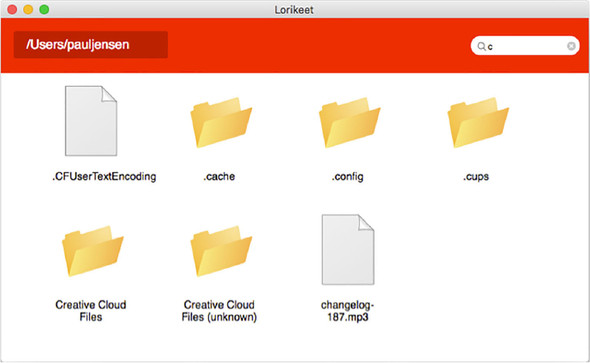
'use strict'; const fileSystem = require('./fileSystem'); const userInterface = require('./userInterface'); const search = require('./search'); #1 function main() { userInterface.bindDocument(window); let folderPath = fileSystem.getUsersHomeFolder(); userInterface.loadDirectory(folderPath)(window); userInterface.bindSearchField((event) => { #2 const query = event.target.value; if (query === '') { userInterface.resetFilter(); #3 } else { search.find(query, userInterface.filterResults); #4 } }); } window.onload = main; #1 - Loads search module into app.js #2 - Listens for changes to search field’s value #3 - If search field is blank, resets filter in UI #4 - If search field has a value, passes it to search module’s find function and filters results in UIAfter saving this file along with the previous files, reload the app. The app loads like before, but this time you’ll find that when you type a term into the search field, the files and folders in the main area of the app are filtered to show only those that match the search term. If you then type a blank value into the search field, all the files and folders inside the current folder path are shown. Even as you double-click a folder and navigate into it to see its files and folders, the search field will work on that current folder and filter its contents, as shown in figure 3.6.
The first thing you need to do is add some HTML for the search field in the top toolbar. Insert the following HTML snippet into the index.html file, after the current-folder div element:
<input type="search" id="search" results="5" placeholder="Search" />This adds an input tag with the type search and some extra attributes that give it the visual style of a search field. The next step is to add the following CSS to the app.css stylesheet:
#search {
  float: right;
  padding: 0.5em;
  min-width: 10em;
  border-radius: 3em;
  margin: 2em 1em;
  border: none;
  outline: none;
}
Once this is done, the search field appears as shown in figure 3.5.