concept Windows in category electron

This is an excerpt from Manning's book Electron in Action.
Electron allows you to use the web technologies you already know to build applications that you wouldn’t otherwise build. In this book, you’ll learn how to build applications that hook into native operating system APIs on Windows, macOS, and Linux.
Electron combines the Chromium Content Module and Node.js runtimes. It allows developers to build GUIs with web pages as well as access native operating system capabilities on Windows, macOS, and Linux through an OS-agnostic API.
macOS and Windows prefer different file types for icons. Their UIs each work better with a different color. By default, the menu bar on macOS is white and works better with dark icons whereas Windows 10 has a dark task bar and works better with white icons. Windows prefers ICO files, and macOS uses PNG files. To solve this issue, Node checks the platform it’s running on and gets the appropriate icon based on the platform. Electron does such a good job of providing a consistent cross-platform experience that this is one of the few times in this book that we find ourselves doing something like this.
Listing 9.3. Conditionally choosing an icon based on the platform: ./app/main.js
const getIcon =  () => {                                            #1
  if  (process.platform === 'win32')  return 'icon-light@2x.ico';
  return 'icon-dark.png';
};

app.on('ready', () => {
  if (app.dock) app.dock.hide();

  tray = new Tray(path.join(__dirname, getIcon()));                 #2
  // ... More code below ...
});
If we’re on Windows, it gives us the filename of the light ICO icon. Otherwise, it gives us the filename of the dark PNG icon. When the application is ready, we use the new getIcon() function instead of the string we had hard-coded originally.

This is an excerpt from Manning's book Cross-Platform Desktop Applications: Using Node, Electron, and NW.js.
The Hello World Electron example app looks a bit different from the version that runs on a Mac. This is because Mac OS handles displaying menus differently than Windows and Linux apps do. Where menus are attached to app windows on both Microsoft Windows and Linux apps, Mac OS displays a single menu in the OS’s toolbar that applies to all app windows, as shown for the Hello World Electron app’s Mac OS example in figure 1.10.
Figure 1.10. Application menu on Mac OS. The application menu for the Hello World example app uses the same default menu items.

If you open the app in Windows 10, you can expect to see a result similar to the one displayed for the Linux app example, as shown in figure 1.11.
Figure 1.11. The Hello World app running on Electron and Windows 10. Like the Linux app example, the Windows example displays a menu in the app window.
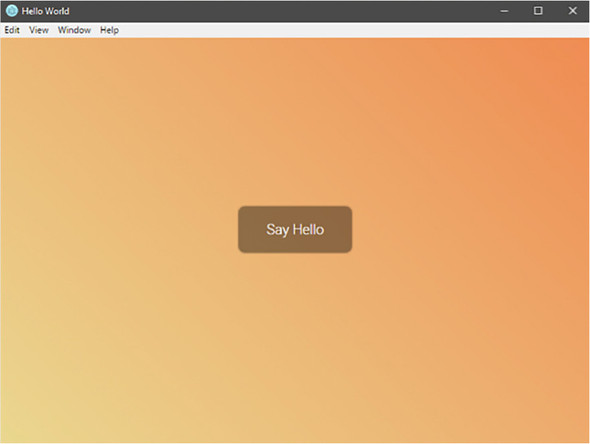
The Hello World app with Electron and Windows 10 again looks quite similar to the app equivalents on Linux and Mac OS, minus where the application menu is displayed. The ability to write an app and have it work across three different OSs is a nice feature to have, though, and it’s one of the reasons why developers have been flocking to Electron for their desktop apps.
Listing 2.2. The main.js file for the Electron app
'use strict'; const electron = require('electron'); #1 const app = electron.app; const BrowserWindow = electron.BrowserWindow; let mainWindow = null; #2 app.on('window-all-closed',() => { #3 if (process.platform !== 'darwin') app.quit(); }); app.on('ready', () => { #4 mainWindow = new BrowserWindow(); mainWindow.loadURL(`file://${app.getAppPath()}/index.html`); mainWindow.on('closed', () => { mainWindow = null; }); }); #1 - Electron is loaded via npm #2 - mainWindow variable keeps application’s main window in JavaScript context, so garbage collection, which would close application window, doesn’t remove it #3 - Mimics UX of Windows and Linux applications — closing only application window for app quits app; on Mac OS, closing application window doesn’t close app #4 - When app is ready to run, tells main window to load index.html, and when that window is closed, sets mainWindow variable to null
The world’s most popular OS, Microsoft Windows, has had quite a journey in the last few years. Following the release of Windows 7, Microsoft was trying to compete with Apple in the tablet market. It released Windows 8, a version of Windows with a touch-friendly UI that could work on both personal computers and tablets. It was a bold move, but unfortunately it didn’t go down well with users of Windows; the removal of the Start button from the desktop was a major stumbling block. Windows 8.1 shortly came out and reintroduced the much-loved Start button back to the desktop, and last year Windows 10 was introduced as a free upgrade to existing users of Windows 7, 8, and 8.1.
Although Windows isn’t as dominant as it was in the 1990s and early 2000s, the OS still has the largest market share out there, with Windows 7 being the frontrunner. There are quite a few versions of the OS in use today (including, believe it or not, Windows XP), but building a .exe file for Windows tends to work seamlessly across the major versions of the OS.
For the sake of simplicity, I’ll assume you have Windows 10 running on your computer. It’s a free upgrade for users, but if you’re running Mac OS or even Linux, don’t despair, because there are other options. You can install virtual machine software and images that will allow you to run a copy of Windows 10 to test your app against.
For this exercise, you’ll turn to one of the existing apps you built earlier in this book—a file explorer app called Lorikeet—and look at how to turn that into an executable app. In chapter 4, you covered generating a Windows version of the NW.js app using a tool called nw-builder. You could repeat that step here, but instead I’ll show you what’s going on when you create a binary executable of the app on Windows. That way, you can understand how the sausage is made, rather than getting the sausage and eating it.