concept column in category entity framework

This is an excerpt from Manning's book Entity Framework Core in Action.
Before version 2.1, EF Core could only map scalar property types (see chapter 6) that are natively supported by the underlying database provider. Starting with EF Core 2.1, value conversions can be applied to transform the values obtained from columns before they’re applied to properties, and vice versa. This provides several new features. You can do the following:
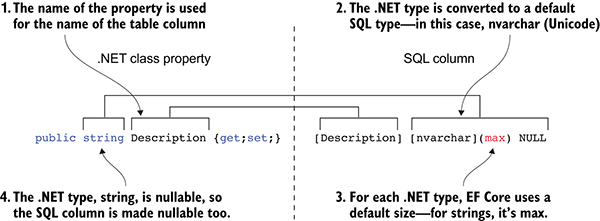
Figure 6.3 The application of the By Convention rules to define an SQL column. The type of the property is converted by the database provider to the equivalent SQL type, whereas the name of the property is used for the name of the column.
Listing 6.4 Excluding three properties, two by using
[NotMapped]public class MyEntityClass { public int MyEntityClassId { get; set; } public string NormalProp{ get; set; } #1 [NotMapped] #2 public string LocalString { get; set; } public ExcludeClass LocalClass { get; set; } #3 } [NotMapped] #4 public class ExcludeClass { public int LocalInt { get; set; } } #1 Included: A normal public property, with public getter and setter #2 Excluded: Placing a [NotMapped] attribute tells EF Core to not map this property to a column in the database. #3 Excluded: This class won’t be included in the database because the class definition has a [NotMapped] attribute on it. #4 Excluded: This class will be excluded because the class definition has a [NotMapped] attribute on it.
Computed columns can be quite useful for several reasons. First, the value of the column is calculated using the SQL code associated with the column, so the column’s value is always up-to-date when you access it. Second, some calculations can be done more efficiently in SQL, such as some string concatenations. You can also call system or UDFs (see section 8.2), with columns as parameters, which gives you a wide range of features.

This is an excerpt from Manning's book Entity Framework 4 in Action.
To retrieve the value of a column stored in a data reader or a data table, you usually refer to it using a constant string. Code that uses a data table typically looks something like this:
Listing 5.10. Defining the mapping between properties and columns
<EntitySetMapping Name="Orders"> <EntityTypeMapping TypeName="IsTypeOf(OrderITModel.Order)"> <MappingFragment StoreEntitySet="Order"> <ScalarProperty Name="Id" ColumnName="Id" /> <ComplexProperty Name="ShippingAddress" TypeName="OrderITModel.AddressInfo"> <ScalarProperty Name="Address" ColumnName="ShippingAddress" /> <ScalarProperty Name="City" ColumnName="ShippingCity" /> <ScalarProperty Name="ZipCode" ColumnName="ShippingZipCode" /> <ScalarProperty Name="Country" ColumnName="ShippingCountry" /> </ComplexProperty> <ScalarProperty Name="EstimatedShippingDate" ColumnName="EstimatedShippingDate" /> <ScalarProperty Name="ActualShippingDate" ColumnName="ActualShippingDate" /> </MappingFragment> </EntityTypeMapping> </EntitySetMapping> <EntitySetMapping Name="OrderDetails"> <EntityTypeMapping TypeName="IsTypeOf(OrderITModel.OrderDetail)"> <MappingFragment StoreEntitySet="OrderDetail"> <ScalarProperty Name="Id" ColumnName="Id" /> <ScalarProperty Name="Quantity" ColumnName="Quantity" /> <ScalarProperty Name="UnitPrice" ColumnName="UnitPrice" /> <ScalarProperty Name="Discount" ColumnName="Discount" /> </MappingFragment> </EntityTypeMapping> </EntitySetMapping>
Retrieving data with stored procedures is a common task in any data-centric application. What’s different when using an O/RM tool is that the results must be poured into objects that are then returned to the application. What’s more, the results of the stored procedures are just resultsets with columns, and these columns may be anything. The columns may match the properties of an entity, they may come from multiple joined tables, they may contain a single scalar value, or they can be anything else.
The resultset is an aggregation or contains columns that don’t match with any entity.
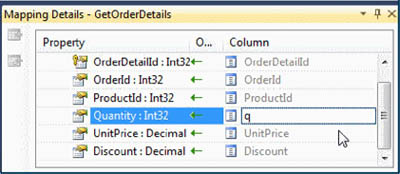
3. In the mapping window, the properties are displayed on the left and the columns on the right. Change the name of the Quantity column to q (as shown in figure 10.9), and you’re done.