concept Gradle project in category gradle

This is an excerpt from Manning's book Gradle in Action - corrected 9052019.
With the increasing popularity of Gradle, IDE vendors have provided first-class, built-in support for managing Gradle projects. We’ll explore how to import existing projects backed by Gradle build scripts, navigate these projects, and execute Gradle tasks directly in the IDE. The breadth of this functionality is dependent on the IDE product. In this chapter, we’ll compare the feature sets provided by Eclipse, IntelliJ IDEA, NetBeans, and Sublime Text.
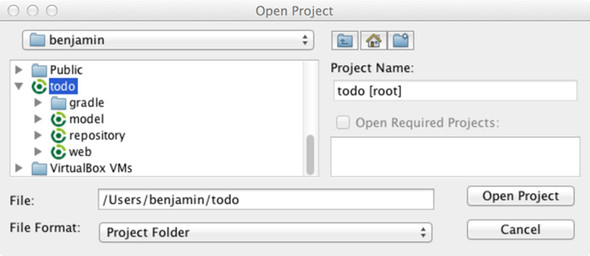
Next you’ll import your To Do application into NetBeans IDE. With the help of the menu item File > Open Project you can open a new dialog that allows you to select a Gradle project. The displayed file browser conveniently displays the Gradle icon for every folder containing a Gradle build script. Navigate to the To Do project and select the root folder, as shown in figure 10.19.
Earlier in this chapter, you learned how to generate project files for Eclipse. With the help of the generated project metadata, you were able to import the project into the IDE. So far, we haven’t discussed how to work with a Gradle project after importing it. The standard distribution of Eclipse doesn’t come with any Gradle integration. You’ll need to manually install the Groovy and Gradle plugins. For more information, see the relevant Eclipse marketplace pages (such as http://marketplace.eclipse.org/content/gradle-integration-eclipse) for the Gradle integration.