concept plugin in category gradle

This is an excerpt from Manning's book Gradle in Action - corrected 9052019.
Maven’s core functionality can be extended by custom logic developed as plugins. The community is very active, and you can find a plugin for almost every aspect of build support, from integration with other development tools to reporting. If a plugin doesn’t exist for your specific needs, you can write your own extension.
In the previous chapters, we covered a lot of ground discussing how to build a self-contained sample project with Gradle. You added custom logic by declaring simple tasks and custom task classes within your build script. Often, a task becomes so useful that you’ll want to share it among multiple projects. Gradle provides various approaches for reusing code, each with its own unique advantages and drawbacks. Plugins take the concept of reusability and extensibility even further. They enhance your project with new capabilities by introducing conventions and patterns for a specific problem domain.
Earlier in the book, you saw how powerful plugins are. In chapter 3, you used the Java, War, and Jetty plugins to implement a task management web application. Applying these plugins to your project was as simple as adding a single line of code and enhanced your build with new capabilities. The Java plugin adds a standardized way of compiling, testing, and bundling Java code. The War plugin allows for building a WAR file, whereas the Jetty plugin deploys in an embedded Servlet container.
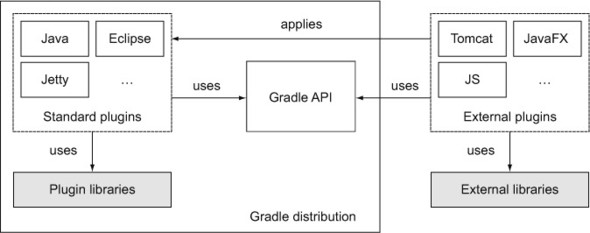
Object plugins give you the most flexibility to encapsulate highly complex logic and provide a powerful extension mechanism to customize its behavior within your build script. As with custom task classes, you have full access to Gradle’s public API and your project model. Gradle ships with out-of-the-box plugins, called standard plugins, but can be extended by third-party plugins as well. Many plugins are self-contained. This means that they either rely on Gradle’s core API or deliver functionality through its packaged code. More complex plugins may depend on features from other libraries, tools, or plugins. Figure 8.8 shows how plugins fit into the overall architecture of Gradle.
In the previous chapters, you used various standard plugins covering support for programming languages and smooth integration with software development tools. Think back to chapter 3 and remember how applying the Java plugin extended your project’s functionality. As shown in figure 8.9, the plugin can provide a new set of tasks integrated into the execution lifecycle, introduce a new project layout with sensible defaults, add properties to customize its behavior, and expose configurations for dependency management.
Let’s revisit how to use an object plugin in a project. You’ve seen that a project can be configured to use a standard plugin by using the apply method. I explicitly use the word method here to underline that you’re calling the method apply on the API representation of a Gradle project, an instance of class org.gradle.api.Project. The method defines one parameter of type java.util.Map called options. The specific option you want to use here is plugin. A plugin can be applied to a build script by using its name or type.
The identifier of the plugin, the short name, is provided through the plugin meta-information. To apply the Java plugin to a project, pass in the key plugin with a value of java:
apply plugin: 'java'