concept groovytestsuite in category groovy

This is an excerpt from Manning's book Groovy in Action, Second Edition.
First, we should mention GroovyTestSuite, which is a Java class. It allows you to invoke Groovy test scripts from the command line as follows:
> java groovy.util.GroovyTestSuite src/test/Foo.groovyGroovyTestSuite, because it is a Java class, can be used with any conventional Java IDE or Java build environment for running JUnit tests. It allows you to add Groovy files into your test suites, as shown in the following listing. This creates a suite containing the two previous tests. You could also add Java tests to the same suite.
Listing 17.4. Adding Groovy scripts to a JUnit suite with GroovyTestSuite
import junit.framework.* import junit.textui.TestRunner static Test suite() { def suite = new TestSuite() def gts = new GroovyTestSuite() suite.addTestSuite(gts.compile("Listing_17_02_CounterTest.groovy")) suite.addTestSuite(gts.compile("Listing_17_03_HashMapTest.groovy")) return suite } TestRunner.run(suite())We create a normal JUnit TestSuite and call GroovyTestSuite’s compile method to compile the Groovy source code so that TestSuite knows how to run it. We then use the normal JUnit console UI to run the tests. It isn’t aware that it’s running anything other than normal Java.
Next, we look at AllTestSuite, which can be thought of as an improved version of GroovyTestSuite. It allows you to specify a base directory and a filename pattern, and then it adds all the matching Groovy files to a suite. The following listing shows how you’d use it to run the same tests as we did in listing 17.4.
While editing a Groovy test file within your IDE, you can run it like any other Groovy file. Eclipse users with the Groovy plug-in installed might right-click, select Run As, and then select Groovy. IntelliJ IDEA users with the Groovy plug-in installed might press Ctrl-Shift-F10. In both cases, the corresponding tests within the current file would run. If your Groovy file was several assert statements in a script file, as in listing 17.1, then you wouldn’t see any output—this is expected because assert statements make noise only when something goes wrong. If you don’t want to run your tests individually or want additional feedback when running your tests, GroovyTestSuite may be what you’re after.
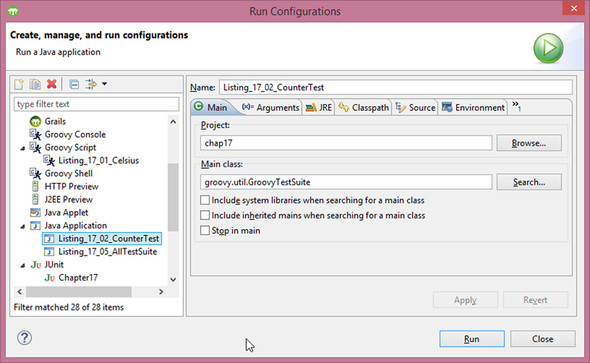
In section 17.4, you saw that GroovyTestSuite could be used to invoke a Groovy test from the command line. You also saw how it could be used to add Groovy files into a standard JUnit suite.[19] We now look at another way to use GroovyTestSuite: as part of an IDE run configuration. Figure 17.4 shows how to configure Eclipse to use GroovyTestSuite as part of a run configuration. Select Run -> Run, and create a new Java Application configuration. Set the Project to be your current project, and select groovy.util.GroovyTestSuite as the Main class.