concept error in category ios

This is an excerpt from Manning's book iOS Development with Swift.
Table 1.4. Navigators
Navigator
Icon
Description
Project Navigator Manage and navigate to files in your project Source Control Navigator Manage your project’s source control repository Symbol Navigator Convenient way to navigate to classes, functions, and other objects in your project Find Navigator Find text anywhere in your project Issue Navigator Information on any current build warnings or build errors Test Navigator Information on any current unit tests or UI tests Debug Navigator Information on the current state of an app when execution is paused Breakpoint Navigator Navigate to and modify breakpoints Log Navigator A log of past builds of your app


Request the main queue before going any further to have access to the user interface. Once you’re on the main thread, you can deal with errors, or (if the operation was successful) call the addBook method to add the book to the books array and sort. func addBookCloudKit(book: Book) { db.save(book.record) { (record, error) in DispatchQueue.main.async { 1 if let error = error as? CKError { 2 print("failed: \(error.localizedDescription)") 2 } else { print("Record saved to iCloud!") 3 self.addBook(book: book) 4 } } } }The BooksManager will now need to notify the view controller that the save operation has completed so that the view controller can update the view based on the result of updating the model. As you’ve seen, several options exist for achieving this. For instance, the BooksManager could use the delegation pattern, or it could dispatch a notification. This time, let’s pass in a closure to the BooksManager, which it will call when the operation is complete.
- 1 Requests main queue
- 2 Deals with save errors
- 3 Saves successful
- 4 Adds book to memory
To keep things simple, I’ve basically ignored errors returned from CloudKit, but for a functional app, it’s vital to manage these responsibly. I can’t go into all the possible CloudKit errors here (28 possible CloudKit errors to be exact, at the time of writing!) but let’s look at several example CloudKit errors, as shown in table 12.1, and how to deal with them.
Table 12.1. Example CloudKit errors
Description
notAuthenticated User isn’t authenticated to perform the operation. Could indicate that the user isn’t logged in to iCloud. networkUnavailable, networkFailure Problems with user’s network. serviceUnavailable, zoneBusy, requestRateLimited Problems with the CloudKit service. serverRecordChanged A conflict encountered between the server and the request, for example, when two devices try to update the same record. unknownItem Record doesn’t exist. Now that you know what sort of errors to expect, how can you deal with them?

This is an excerpt from Manning's book Objective-C Fundamentals.
While the project is building, you can keep track of the compiler’s progress by looking at the progress indicator in the middle of the toolbar. It should read “Build CoinToss: Succeeded.” If you’ve made mistakes, you’ll see a message similar to “Build CoinToss: Failed.” In this case, clicking the red exclamation icon underneath the text (or pressing Cmd-4) displays a list of errors and warnings for you to resolve.
Clicking an error in this list displays the matching source code file with the lines containing errors highlighted, as illustrated in figure 1.11. After correcting the problem, you can build the application again, repeating this process until all issues are resolved.
Figure 1.11. Xcode’s text editor visually highlights lines of source code with compilation errors. After correcting any errors, building the project will indicate if you have successfully corrected the problem.
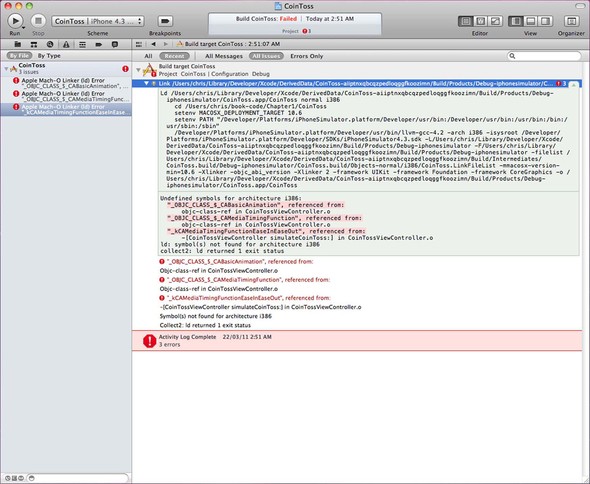
When you compile the Coin Toss game, you should notice errors mentioning kCAMediaTimingFunctionEaseInEaseOut, CAMediaTimingFunction, and CABasic-Animation. To correct these errors, select the CoinToss project in the Project Navigator (topmost item in the tree view). In the editor that appears for this item, switch to the Build Phases tab and expand the Link Binary with Libraries section. The expanded region displays a list of additional frameworks that your application requires. For the user interface animations to work, you need to click the + button at the bottom of the window and select QuartzCore.framework from the list that appears.
Cocoa Touch and Objective-C offer two ways of dealing with errors: NSError and exceptions. NSError is the preferred and advisable way to deal with expected errors (like an unreachable host). Exceptions are meant to report and handle programming errors during development and shouldn’t be used to handle and report errors to the user at runtime. That makes the purpose of exceptions in Objective-C quite different from other languages, such as Java, where they’re used frequently.
"An error occurred: The operation couldn't be completed. (Cocoa error 260.)"
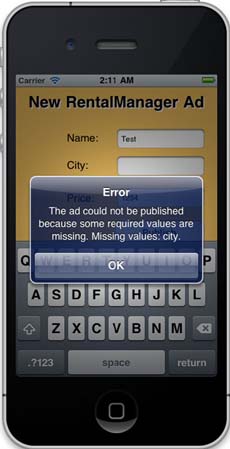
Error handling in Cocoa and Cocoa Touch is both simple and flexible. Don’t ignore errors in your applications: handle them gracefully and tell your users about errors they need to know about in an understandable way. The concept of exceptions is present in Cocoa as well but plays a minor role compared to other frameworks and languages. Use them as intended: to catch errors during development.

This is an excerpt from Manning's book iOS 4 in Action: Developing iPhone and iPad Apps.
That’s all! Click the Run button on Xcode toolbar, and without errors during the build you should see the iOS Simulator launch with the screen shown in figure 4.3.
Listing 9.11. Saving the managed object context
- (void)applicationWillTerminate:(UIApplication *)application { NSError *error = nil; if (managedObjectContext != nil) { if ([managedObjectContext hasChanges] && ![managedObjectContext save:&error]) { NSLog(@"Unresolved error %@, %@", error, [error userInfo]); abort(); } } }
As we mentioned earlier, the banner ad is downloaded from the iAd Network. You won’t have a banner-ad view when no connection is available. It’s a bad user experience to have some sort of gray view on the top or bottom of the screen, with nothing showing up. Maybe you can try to hide the banner when there’s no ad or an error occurs. We’ll discuss this technical problem in the following section.
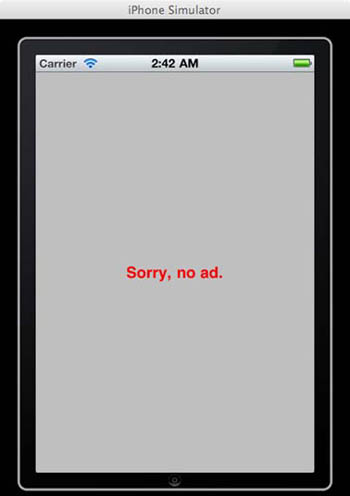
As we mentioned in the beginning of this chapter, the iAd banner is downloaded from the iAd Network somewhere in the cloud. When no connection or no ad is available, a download error will occur. Here we’ll revisit MyApp from section 20.2 to demonstrate how to hide the banner view when an error occurs during advertisement downloading and how to show the banner view with animation when a new advertisement arrives.