concept picture in category ios

This is an excerpt from Manning's book Hello! iOS Development.
I know that when I (Lou) want to liven up my day, I put on a fake mustache and a rainbow wig. But sometimes, when you need them, they’re hard to find. That’s where the next app, Disguisey, fits in. Disguisey lets you look through your photo album for a picture of a face and then add a fake mustache, beard, wig, funny hat, or tattoo to it.

Listing 10.1. help.html
<html>
     <style>body {font: 10pt Helvetica }</style>
<body>
<h1>Parkinator Help</h1>
    <h2>Remembering where you parked</h2>
    <p>Parkinator lets you take a picture to remember where you parked.
    When you do, it also automatically gets the current location from
    your phone's GPS and places a pin on a map beneath the picture. To
    do this:
    <ol>
        <li>Tap the information button (the i) on the bottom right of
            the homescreen</li>
        <li>Tap the camera icon on the next screen</li>
        <li>Take a picture</li>
        <li>Tap the Done button</li>
    </ol></p>
    <h2>Tweeting that your spot is open</h2>
    <p>Tap the action button (2nd button from the left). Tweeting your
    spot will only work if you have entered a valid Twitter username and
    password into the iOS Twitter settings.</p>
    <h2>Viewing available spots</h2>
    <p>Tap the seach button (2nd button from the right). Free spaces
    near your location will appear as pins on the map.</p>
</body>
</html>

This is an excerpt from Manning's book iOS in Practice.
For this chapter, I developed PicDecor, an app that allows users to upload an image from their photo albums or take a picture using their camera and decorate it with various, small stock images in the app. Once completed, the image can be saved and/or emailed from within the app. Though the actual outcome is silly, the functionality is applicable for many other uses. The app can be found in the App Store here: http://itunes.com/apps/picdecor. The steps in this chapter are exactly the same steps I took as I developed the app, except that I added the artwork and an About page to the app before submitting it to the App Store.
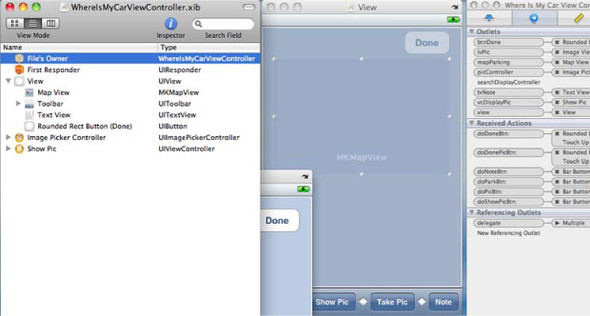
Now you need to wire these items up to the outlets and actions you added to your WhereAmIParkedViewController header. Click on the File’s Owner item in the XIB and view the connections. You’ll see the new Image Picker Controller, View Controller, Image View, and the new actions for the picture. Wire them to the applicable items with IB (see figure 5.16).
Displaying the picture the user took makes it easy for them to remember where they parked. The picture might be of their car in reference to the surrounding area or some other landmark to help them find where they parked.

This is an excerpt from Manning's book iOS 4 in Action: Developing iPhone and iPad Apps.
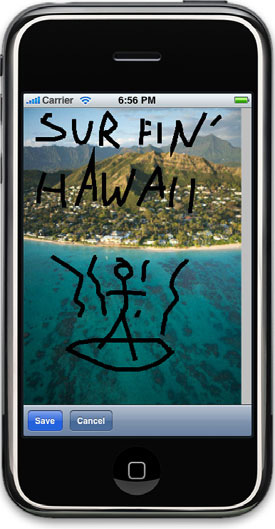
Drawing to a UIView allows for on-screen picture creation, but you can also draw pictures without displaying them immediately. That’s done with a bitmap.
To put together the lessons we’ve covered, you’ll create a program that allows a user to load up a picture, draw on it, and then save the results. Figure 13.5 shows the intended result.

This is an excerpt from Manning's book iPhone and iPad in Action: Introduction to SDK Development.
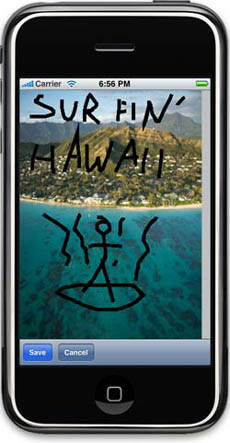
Drawing to a UIView allows for on-screen picture creation, but you can also draw pictures without displaying them immediately. That’s done with a bitmap.
To put together the lessons we’ve covered, you’ll create a program that allows a user to load up a picture, draw on it, and then save the results. Figure 13.5 shows the intended result.

This is an excerpt from Manning's book iPhone in Action: Introduction to Web and SDK Development.
Realizing that most pages will scale by a factor of at least two is vital to understanding how web pages will look on an iPhone. In short, everything will be really, really small. As a result, good web development for the iPhone depends on ensuring that words and pictures appear at a reasonable size despite the scaling. We’ll talk about how to do that using the viewport command, CSS tricks, and other methods in chapter 3.
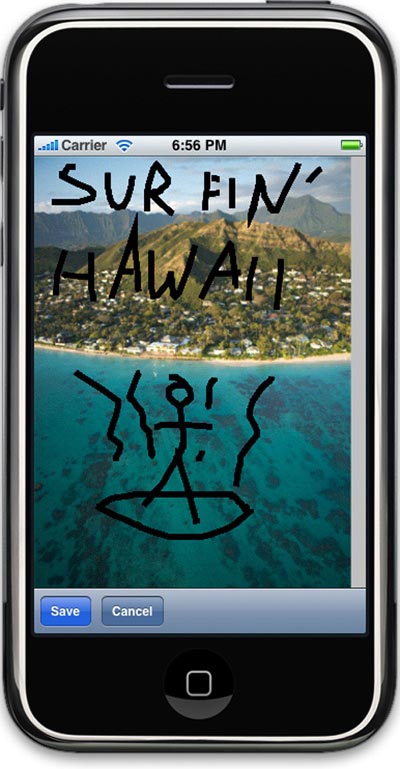
Drawing to a UIView allows for on-screen picture creation, but you can also draw pictures without displaying them immediately. That’s done with a bitmap.
Listing 19.8. Preparing a picture for drawing
-(void)drawPic:(UIImage *)thisPic { myPic = thisPic; [myPic retain]; [self setNeedsDisplay]; }This routine is simple: it saves the picture to an instance variable and then alerts the UIView that its CALayer must be drawn.
To put together the lessons we’ve covered, you’re going to create a program that allows a user to load up a picture, draw on it, and then save the results. Figure 19.5 shows our intended result.