concept SDK in category ios

This is an excerpt from Manning's book Objective-C Fundamentals.
A programming language, however, is only as good as the features exposed by its support libraries. Objective-C provides syntax for performing conditional logic and looping constructs, but it doesn’t provide any inherent support for interacting with the user, accessing network resources, or reading files. To facilitate this type of functionality without requiring it to be written from scratch for each application, Apple includes in the SDK a set of support libraries collectively called Cocoa Touch. If you’re an existing Java or .NET developer, you can view the Cocoa Touch library as performing a purpose similar to the Java Class Library or .NET’s Base Class Libraries (BCL).
The first step is to select and sign up for the Apple developer program and download the SDK.

This is an excerpt from Manning's book iOS 4 in Action: Developing iPhone and iPad Apps.
When you’re designing with the SDK, many of the nuances of finger mousing are taken care of for you. Standard controls are optimized for finger use, and you have access only to the events that work on the iPhone or iPad. Chapter 6 explains how to use touches, events, and actions in iOS; as an iOS developer, you’ll need to change your way of thinking about input to better support the new devices.
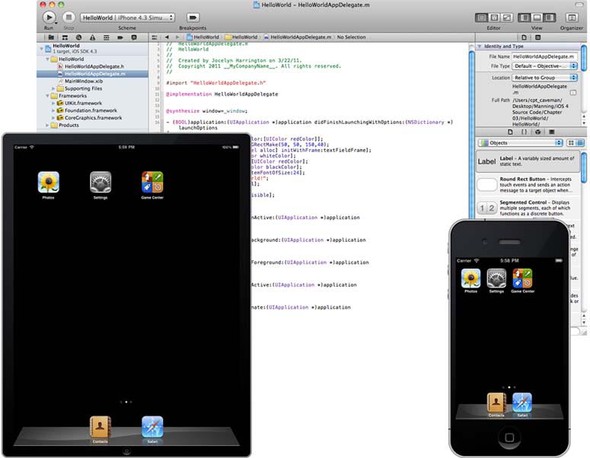
To obtain the SDK, download it from Apple’s iOS Dev Center, which at the time of this writing is accessible at http://developer.apple.com/devcenter/ios/. You’ll need to register as an iOS Developer in order to get there, but it’s a fairly painless process. Note that you can also use this site to access Apple documentation and sample source code.
This is an excerpt from Manning's book iPhone and iPad in Action: Introduction to SDK Development.
When Apple announced the iPhone, the company highlighted its power consciousness. Users should be able to use their device all day, whether they’re talking, viewing the web, or running native applications. Despite the higher energy costs of the 3G network, the newest iPhone still supports 5 hours of talking or 5–6 hours of web browsing. Power-saving tricks are built deeply and thoughtfully into the iPhone and iPad. For example, have you noticed that whenever you put your iPhone up to your ear, the screen goes black to conserve power? And that it comes back on as soon as you move the iPhone away from your ear? Power savings have also been built into the SDK, limiting some functionality such as the ability to run multiple programs simultaneously in order to make sure that a user’s iPhone or iPad remains functional throughout the day.
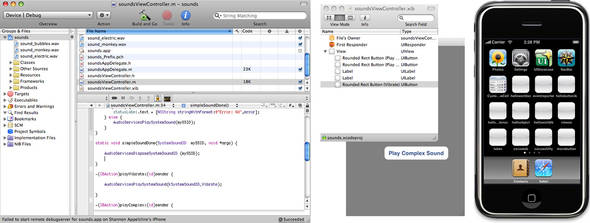
The SDK is your toolbox. Its most important elements are Xcode, the IDE, and Interface Builder, the graphical object creator.
To obtain the SDK, download it from Apple’s iPhone Dev Center, which at the time of this writing is accessible at http://developer.apple.com/iphone/. You’ll need to register as an iPhone Developer in order to get there, but it’s a fairly painless process. Note that you can also use this site to access Apple documents, as we’ve mentioned earlier.

This is an excerpt from Manning's book iPhone in Action: Introduction to Web and SDK Development.
Over the next several chapters we’re going to dig into the other side of iPhone development, where you’ll be programming native applications using Apple’s own toolkit. As we discussed back in chapter 2, there are a number of reasons that the SDK is better than web development, just as the opposite is the case, depending on your particular needs.
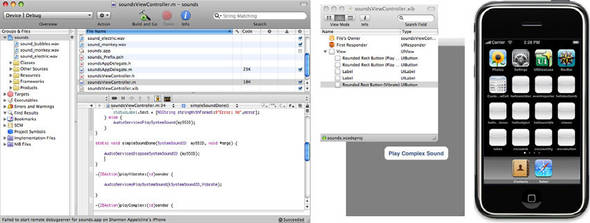
To obtain the SDK, download it from Apple’s iPhone Dev Center, which at time of this writing is accessible at http://developer.apple.com/iphone/. You’ll need to register as an iPhone Developer in order to get here, though it’s a fairly painless process. Note that this is also the site you can use to access Apple documents, as we’ve mentioned earlier.
Listing 20.3. Calling up Google Maps from the SDK
- (void)locationManager:(CLLocationManager *)manager didUpdateToLocation:(CLLocation *)newLocation fromLocation:(CLLocation *)oldLocation { if (myEntry.text) { [myLM stopUpdatingLocation]; [myActivity stopAnimating]; NSMutableString *googleSearch = [NSMutableString stringWithFormat:@"http://maps.google.com?q=%@&sll=%f,%f", myEntry.text,newLocation.coordinate.latitude, newLocation.coordinate.longitude]; [googleSearch replaceOccurrencesOfString:@" " withString:@"+" options:NSCaseInsensitiveSearch range:NSMakeRange(0, [googleSearch length])]; [myWeb loadRequest:[NSURLRequest requestWithURL:[NSURL URLWithString:googleSearch]]]; } }