concept link in category itext

This is an excerpt from Manning's book iText in Action, Second Edition.
There are different ways to add a link to a PDF file using iText. In this section, you’ll add references and destinations using the Anchor object, as well as by setting the reference and anchor attributes of a Chunk. You’ll discover more alternatives in chapter 7.
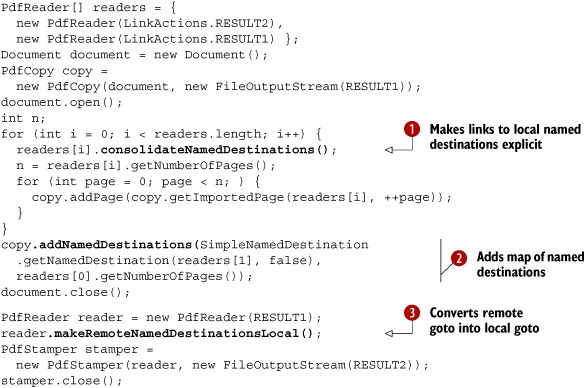
A recurring question on the iText mailing list involves the concatenation of documents that have named destinations. Suppose you want to concatenate the two files created in listing 7.2. In chapter 6, you learned that most of the interactive features are preserved if you use PdfCopy, but there are exceptions. Using PdfCopy with documents that have named destinations is one of these exceptions. All annotations, such as link annotations, are kept with PdfCopy, but they no longer work for links to local named destinations. There is a workaround for this problem.
If you use listing 6.21 to concatenate the two documents from the previous example (listing 7.2), you’ll find out that the link to go to the named destination “top” has the appearance of a link, but if you click it, it won’t work. You can work around this problem by using the method consolidateNamedDestinations()
. This method translates all the local links referring to a named destination into links that use explicit destinations.
In this chapter, we’ve explored different interactive features that can be added to a document. You already knew that links are actions that jump to a destination, but now you’ve learned how to create explicit destinations, how to retrieve named destinations from an existing document, and how to preserve links and destinations when concatenating different PDF documents. You found out that there are other types of actions besides link actions; for instance, JavaScript actions. You’ve used this knowledge to create bookmarks. You also learned how to retrieve and manipulate bookmarks in existing documents. For instance, how to combine the bookmarks of different PDF documents that are concatenated.
Then you discovered that the links you’ve been creating are a special type of annotation. You used text annotations to get acquainted with the concept, and you’ve experimented with file attachment, stamp, line, and rectangle annotations. Eventually, you were even able to create an application in a PDF using widget annotations and JavaScript.
The first action added in the listing will create a link to an external URL