concept applet in category java

This is an excerpt from Manning's book Griffon in Action.
Java became famous in 1995 because it was possible to create little applications called applets[2] that run in a browser. Java also provides a mechanism for delivering desktop applications across the network: Java Web Start. Although powerful, these options carry with them the burden of configuration, which can get tricky in some situations. Wouldn’t it be great if Griffon applications could run in those two modes as well, without the configuration hassle?
Before we get into how you configure jar, zip, applet, or webstart options, let’s look at the options shared by all Griffon packaging targets:
As you can see, you configure the location of the JNLP file as well as the codebase property of the webstart target. For the applet target, you configure the location of the JNLP and HTML files used to launch the applet.

This is an excerpt from Manning's book JavaFX in Action.
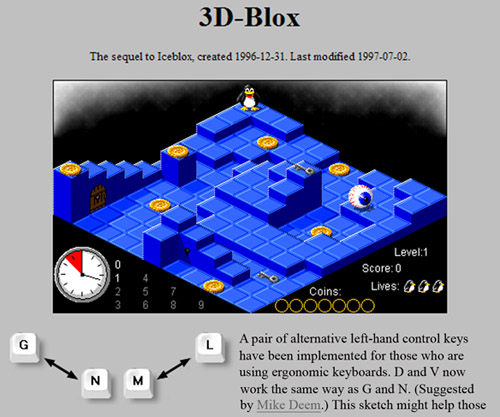
From its first release in 1995 Java had featured a powerful technology for deploying rich applications within a web page. So called Java applets could be placed on any page, just like an image, and ran inside a secure environment that prevented unauthorized tampering with the underlying operating system (figure 1.4). While applets boosted the visibility of the Java brand, the idea initially met with mixed success. The applet was a hard-core programming technology in a world dominated by artists and designers, and while many page authors drooled over Java’s power, few understood how to install an applet onto their own site, let alone how to create one from scratch.
Clicking the applet’s close button while the applet’s web page is still open returns the applet to its original home, inside the web page. Clicking the web page’s close button while the applet is outside the browser (on the desktop) causes the browser window (or tab) to close and the applet to be installed onto our desktop, including a desktop icon. Even though the applet’s web page may have vanished, the applet continues to run without a hitch. It is now truly independent of the browser. This means getting the Enigma emulator onto the desktop is as simple as pulling it from the browser window and closing the page. The applet will automatically transform into a desktop application, complete with startup icon (although in reality it remains a JWS application, it merely has a new home).

This is an excerpt from Manning's book GWT in Practice.
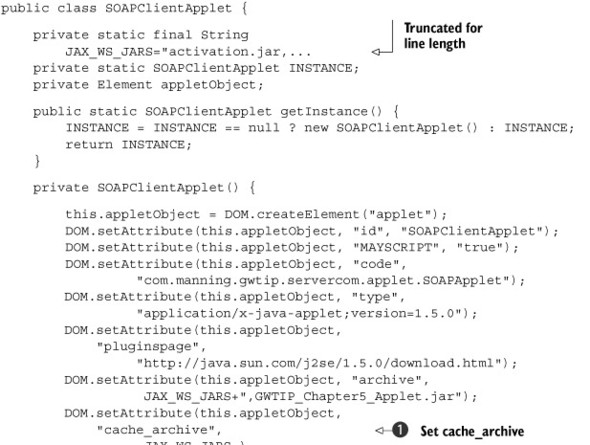
We’ll copy the built applet into the public.applet package of our GWT project, along with its dependencies. Now we need to create our GWT class that will talk to the applet. As shown in listing 5.15, this is much simpler than the Flash version, but less generic.
The Java security model allows for trusted applets to have access to the full features of the JRE inside a browser. Applets that are not trusted are subject to the same-origin policy and other security constraints.
While the default behavior for an applet is not unlike the same-origin policy, it provides additional options through the signed applet policy. Once an applet has been signed with a certificate from a trusted authority, it can access all the features of Java, including talking to the local filesystem and communicating with any server. We’ll look at building a GWT-accessible SOAP client with an applet, using the JAX-WS reference implementation from Sun and making a call to the Hello service from listing 5.11.