concept GateIn Portal in category java

This is an excerpt from Manning's book Portlets in Action.
There are many open source portal servers (such as Liferay Portal and GateIn Portal) and commercial ones (such as IBM’s WebSphere Portal) that provide a wide range of features (administration, content management, search, single sign-on, and so on) to portal developers, making it easy to quickly set up a fully functional portal. The choice of portal server plays an important role in portal projects, because it can help you reduce the development time by providing built-in portlets, integration with external systems (LDAP, SAP, and so on), and the ability to access portal server functionality from your custom portlets.
Appendix A. Getting started with GateIn Portal
GateIn Portal is an open source portal server that merges the JBoss Portal and eXo Portal projects. In this appendix, we’ll look at how to install GateIn Portal and create a web portal, the Book Portal. This example will demonstrate how to create a new web portal, create portal pages, add portlets to portal pages, programmatically secure portlet actions, create users and user groups, associate groups to roles, and define permissions for the web portal, its portlets, and portal pages. For more detailed documentation on GateIn Portal, please refer to the GateIn Portal website (http://www.jboss.org/gatein).
To install GateIn Portal, all you need to do is download the bundle of your choice from the GateIn Portal web-site and unpackage it into an appropriate folder on your system. GateIn Portal comes prepackaged with JBoss AS and Tomcat. In this appendix, we’ll use the GateIn-Tomcat bundle to demonstrate how to deploy portlets on GateIn Portal.
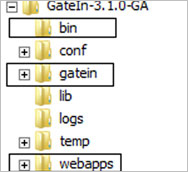
Figure A.1 shows the top-level directories that you’ll see when you unpackage the GateIn-Tomcat bundle. In this figure, the bin directory contains batch files or shell scripts for starting GateIn Portal. The webapps directory is Tomcat’s hot deploy directory where you need to copy your WAR files containing portlets. The gatein directory contains the data that’s used internally by GateIn Portal.
Figure A.1. The GateIn-Tomcat bundle’s directories. The gatein directory contains configuration and portal data used by GateIn Portal. The webapps directory is Tomcat’s hot deploy directory, which contains the WAR files.
Before running the portal server, check that Java SE 5 or newer is installed on your system, and that the JAVA_HOME environment variable is set to the installation directory of Java SE 5. Verify that the installation is correct by executing run from the command prompt (on Windows) or the run.sh script in the bin directory (on UNIX). It may take some time for the server to start for the first time, as GateIn Portal creates its internal database and populates it with the setup data.
If the server starts up without errors, you can open your favorite web browser and point it to the home page of the GateIn Portal: http://localhost:8080/portal. If you see the home page of the GateIn Portal, you have successfully installed GateIn Portal on your system. Figure A.2 shows the GateIn Portal home page that you’ll see if the server starts without errors.
Figure A.2. The GateIn Portal home page. The Administrator option allows you to log in to the GateIn Portal as an administrator. The Sign In option allows you to provide your own login credentials to log in.
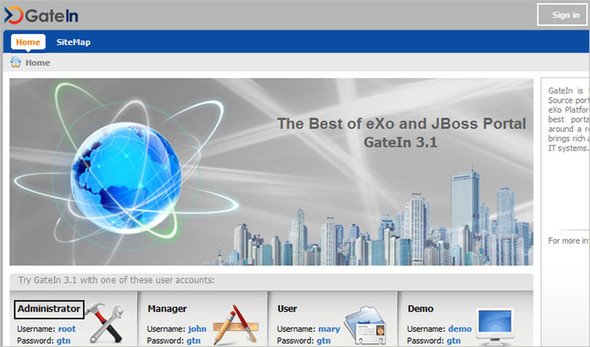
To log in to the GateIn Portal, you can either choose the Sign In option at the top of the home page or you can log in as one of the predefined users in the system: Administrator, Manager, User, or Demo.
Let’s now gain some familiarity with GateIn Portal before we get started creating a web portal.