concept WSRP consumer in category java

This is an excerpt from Manning's book Portlets in Action.
In in-band registration, the WSRP consumer is responsible for registering with the WSRP producer. The information that’s required for registering with the WSRP producer is exposed using the Registration web service interface (see table 15.1), and it’s entered using the WSRP consumer’s user interface. The registration handle is generated during the registration process and is returned to the WSRP consumer.
The WSRP producer in Liferay Portal 6.x doesn’t provide an option to enforce WSRP consumer registration, but Liferay Portal 6.x does let WSRP consumers register with a WSRP producer that supports in-band or out-of-band registration.
In Liferay Portal, a portal administrator can create a WSRP consumer. From the home page of your C1 Liferay Portal instance (http://localhost:8180/), click the Login as Bruno hyperlink to log in as the administrator of Liferay Portal.
Once you’re signed in, you can go to the dockbar and select Manage > Control Panel to view a list of options reflecting the tasks that a Liferay Portal administrator can perform. To add a WSRP consumer, you first need to select the WSRP option (under the Portal category) from the list of available options, as shown earlier in Figure 15.7. Next, click the Add Consumer button to add a new WSRP consumer to the C1 Liferay Portal instance, as shown in Figure 15.13.
Figure 15.13. The Consumers tab displays a list of WSRP consumers configured for the Liferay Portal instance and also provides the option to add new WSRP consumers.
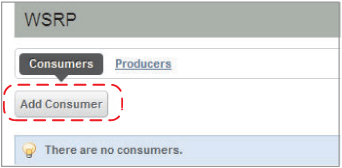
The Consumers tab shown in Figure 15.13 displays a list of WSRP consumers that are configured for the Liferay Portal instance. Click the Add Consumer button to open the form for adding a new WSRP consumer to the C1 instance, as shown in Figure 15.14.
Figure 15.14. Add a WSRP consumer by specifying a name for it and the URL of the WSRP producer web service endpoint for which it acts as a consumer.
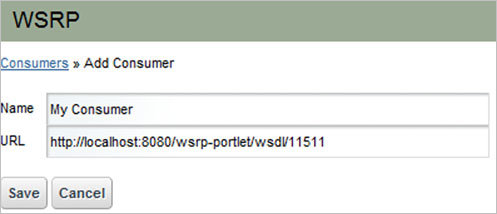
Figure 15.14 shows that to add a WSRP consumer, you need to enter the WSRP producer’s web service endpoint URL for which you’re creating the consumer. Because you’re creating a consumer for My Producer in this example, you need to enter the URL of the My Producer web service. Enter My Consumer as the name of your WSRP consumer and the web service URL of My Producer, and click Save to create a new WSRP consumer corresponding to My Producer.