concept row in category jboss
This is an excerpt from Manning's book Effective Business Process Management with JBoss BPM.
Now let’s examine the process in detail. Your screen should look like figure 2.5, but first a few suggestions when working on BPM projects. You need to realize that a large viewing area provided by a good sized monitor is essential for BPM process projects. If you need to, find the plus-magnifying-glass and minus-magnifying-glass buttons in the row of icons at the top of the process designer to resize your view of the process to fit your screen resolution.
6.2.2 Finalize decision table with rows of rules
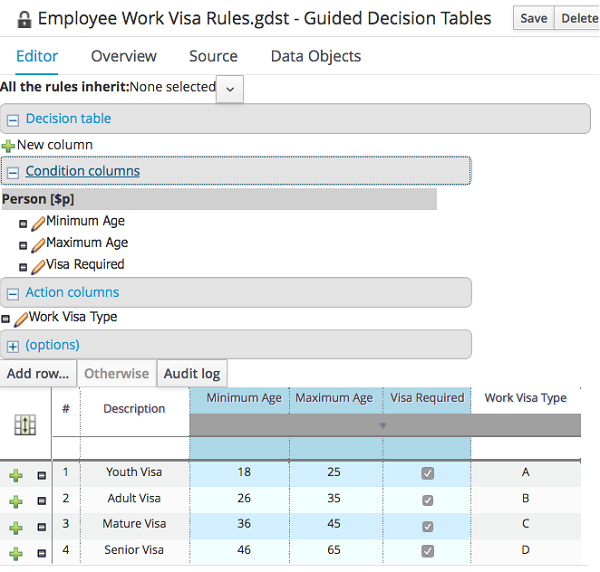
Now that your decision table is in front of you, you can expand it to view the details. So far it is just an empty decision table, as you have yet to define any rows which are your rules. Notice the Condition columns and Action columns are filled with your pre-defined values, ready for your rules to be added in the rows.
The rules that you want to add can be found at the beginning of section 6.2.1. Fill in the rows and your decision table should look just like the one shown in figure 6.19. You can do this by clicking on each field in turn, then filling in the text, number or checking the box.
Figure 6.19. The decision table with the four complex rules entered as rows, defining what age span requires which visa type.