concept browser in category jQuery

This is an excerpt from Manning's book jQuery in Action, Third Edition.
In April 2013, the jQuery team introduced version 2.0 with the intention of looking at the future of the web instead of its past, especially from the browser’s perspective. Until that point, jQuery supported all of the latest versions of Chrome, Firefox, Safari, Opera, and Internet Explorer starting from version 6. With the introduction of version 2.0, the team decided to leave behind the older Internet Explorer 6, 7, and 8 browsers to focus on the web as it will be, not as it was.
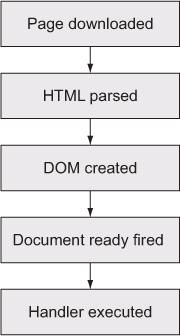
Like many other GUI management systems, the interfaces presented by HTML web pages are asynchronous and event-driven, even if the protocol used to deliver them to the browser, HTTP, is wholly synchronous in nature. Whether a GUI is implemented as a desktop program using Java Swing, X11, or the .NET Framework, or as a page in a web application using HTML and JavaScript, the program steps are pretty much the same:
Data validation is poor in your form. For example, inside the handler of the form’s Submit button you convert strings into numbers where it makes sense, but better controls may be of help, especially for the date fields. Ideally, with a backend on the server, you could punt and let the server-side code handle it—after all, it has to validate the data regardless. But that makes for a less-than-pleasant user experience, and as we’ve already pointed out, the best way to deal with errors is to prevent them from happening in the first place. Because the solution involves inspecting the Event instance—something that wasn’t included in the example up to this point—we’re going to give you the code to disallow the entry of any characters but digits into the numeric fields. The operation of the code should be evident to you with the knowledge you’ve gained in this chapter, but if not, now would be a good time to go back and review the key points: For browsers that support HTML5, a simpler solution exists. You could force the user to use only numbers by using the new <input> type called number.$('input.numeric').on('keypress', function(event) { // Character with code 48 is "0". Character with code 57 is "9". if (event.which < 48 || event.which > 57) return false; });

This is an excerpt from Manning's book jQuery UI in Action.
The placement of the style sheet and scripts is important. Style sheets are placed in the <head> of the document so that HTML elements in the <body> are styled as they’re rendered. When style sheets are placed after elements in the <body>, the user may experience a flash of unstyled content (FOUC). In this case, elements are rendered without styling, and subsequently enhanced after the style sheet is downloaded and parsed by the browser.
Suppose you want to build a UI to compose a message and store it in the browser. On its own, this UI isn’t practical (there are easier ways to store messages). But you could incorporate this approach in a more complex scenario where it would be valuable. Email clients, CMS services, blog commenting services, and online text editors all preserve messages. Although simple, this message composer is an ideal way to introduce the jQuery UI utility widgets.
Figure 4.12. Comparison of a native tooltip (top) and the jQuery UI tooltip (bottom). The display of the native tooltip is controlled by the browser itself (this screenshot was taken in Chrome on OS X). The display of the jQuery UI tooltip is consistent across all browsers, and is highly configurable.
