concept textarea in category jQuery

This is an excerpt from Manning's book Extending jQuery.
The plugin you’ll build complements existing functionality provided by the browser. Normal text input fields have a maxlength attribute that allows you to limit how much text may be entered into a field. Such a restriction helps enforce limits that may be imposed by databases and other storage mechanisms. But the multiline textarea field has no such attribute and allows unlimited text entry. To address this situation, you can create a collection plugin to control the amount of acceptable text, and provide valuable feedback along the way.
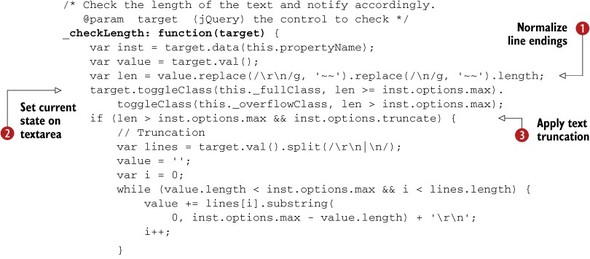
The purpose of the MaxLength plugin is to restrict the amount of text that may be entered into a textarea. Previous sections have shown how to implement the main plugin function that integrates with jQuery and have that farm out specific methods to their corresponding internal functions. When initializing the plugin or when changing its options, the path eventually leads to the _checkLength function, which does the work. The next listing shows how it works.
After retrieving the instance details for this textarea, you determine the current length of its text content, taking into account browser differences regarding line-ending characters
. Based on that value and the options set for the plugin, you apply one or two classes to the textarea to indicate its current status—full or overflowing
.
If the text length is greater than the maximum specified and the user has requested that extra text be truncated
, then you compute the shortened value, once more normalizing line endings. When the text is assigned back into the textarea, it automatically scrolls back to the top. Assuming that most text entry happens at the end of the content, you move back to the bottom to assist the user. Because you’ve truncated the text, the calculated length must change to reflect that.
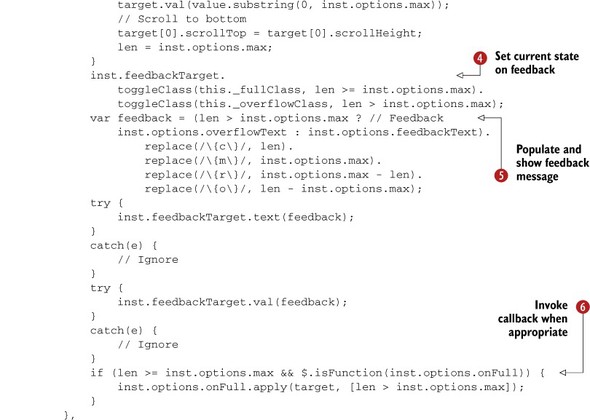
Now you apply one or two classes to the feedback control
, based on the new length of the text. As the length may have been reduced in the previous processing, there might appear to be a disjoint between the textarea and its feedback when truncation occurs. This is intentional, as the feedback has to represent the updated status, whereas the textarea can show that additional text entry was attempted but failed.
The status of the textarea is shown in any feedback control, using one of two messages determined by the overflow state of the plugin
. To allow for maximum flexibility, you let the feedback control be a div, span, paragraph, or an input field. But these elements have their text set differently, and invoking the wrong one can generate errors in some browsers. Hence, the two try/catch statements push the status into the specified control in a protected manner.
Lastly, you notify the user via any onFull callback when the textarea has filled or overflowed
. Section 5.6.2 provides greater detail on this subject.